With PhonePad’s Receptionist mode, users can access the Inboxes of other users. This is how you set it up:
Navigate to the PhonePad folder and run PhonePad Admin. Login using the default administrator account (or an administrator account you have created).
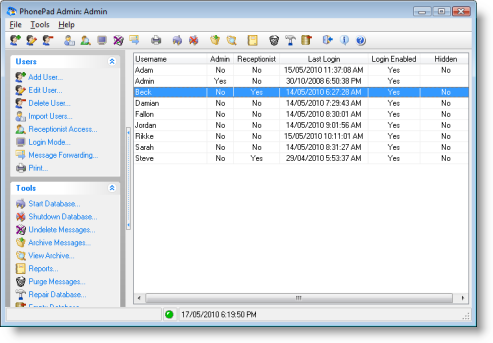 Select a user from the list of users, then select the Edit User option in the sidebar.
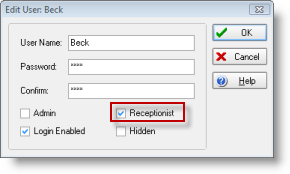 Make sure the Receptionist checkbox is checked, then click OK. With the same user still selected, click on Receptionist Access on the sidebar.
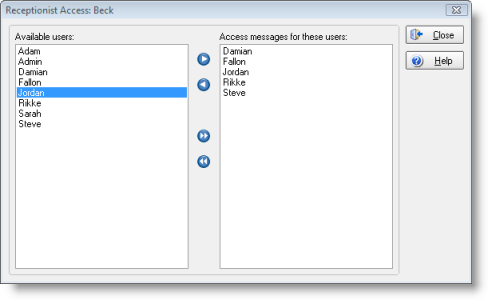 You can give the selected user access to another user’s Inbox by selecting names from the list on the left and adding them to the access list on the right (using the arrow buttons).
Click Close to close the Receptionist Access window.
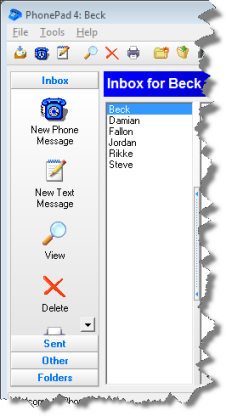
When the selected users logs in to PhonePad, a list of users will be displayed (next to the Inbox message list). They can then access other users’ Inbox by selecting their name from the list.

Comments on this entry are closed.
All users are admina and receptionists. Yet only the user currently logged in can be seen in the list of users to switch to in the program.
There are two steps in setting up Receptions access. The first is to check the Receptionist checkbox. The second is to specify which Inboxes they should have access to.
Run PhonePad Admin, select the user from the list of users, and then click Receptionist Access. Select the Inboxes the selected user should have access to.