One of the great things about PhonePad is that you don’t need to configure the workstation software to connect to the PhonePad Server. It does it all automatically using Server Auto-Discovery.
When you start PhonePad, your PhonePad workstation software will send out a message asking if there are any PhonePad servers on the network. The server will respond with its connection details, which the workstation will use to establish a connection.
Here’s an example of that happening.
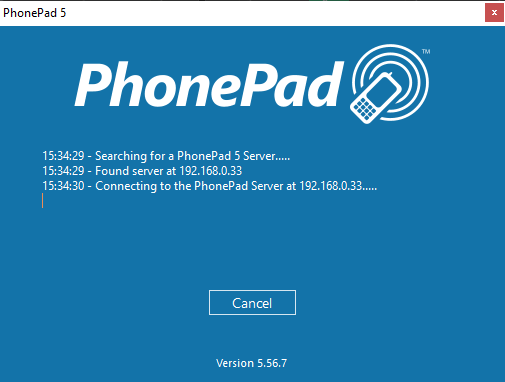 If you find that PhonePad is unable to locate a server, or if you get an error message similar to this then something may be blocking the UDP protocol on your Server, workstation, or network.
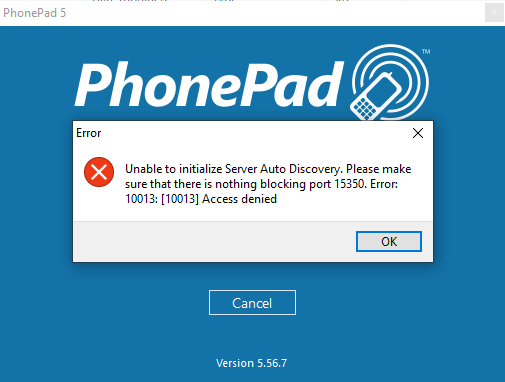 If this happens to you, check your anti-virus software on your Server and Workstations. Although PhonePad automatically creates the necessary firewall rules for the Windows Firewall, anti-virus software often ignores these settings. You may need to allow the PhonePad Workstation and Server software to access UDP and/or port 15350. Your router may also be blocking the UDP protocol or port 15350.
If you are unable to resolve this, there are a couple of other options you can use to connect.
Disable Auto-Discovery
Open Control Center on the Server or Host PC to check the Server IP Address.
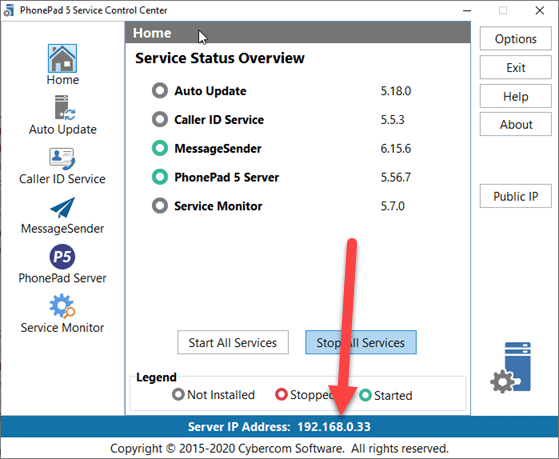 Make a note of the IP Address. Tip: If you double-click on the IP Address it will be copied to the Windows clipboard.
On your workstation, open Workstation Config.
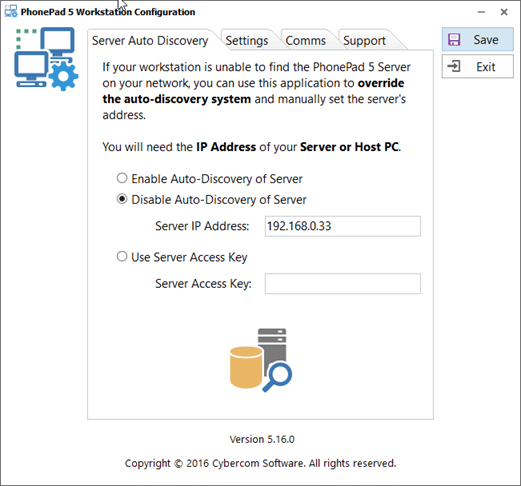 Select Disable Auto-Discovery of Server and enter the IP Address under Server IP Address, and then click Save.
When you start PhonePad, it will show that the IP Address is overridden.
 Server Access Key
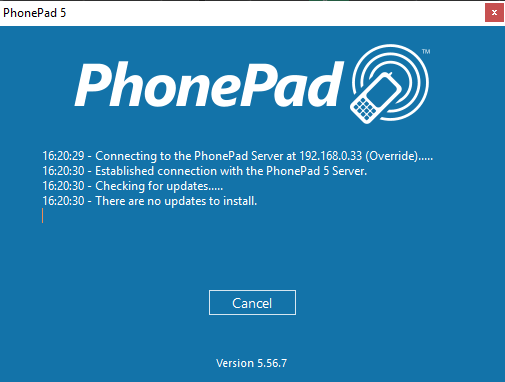
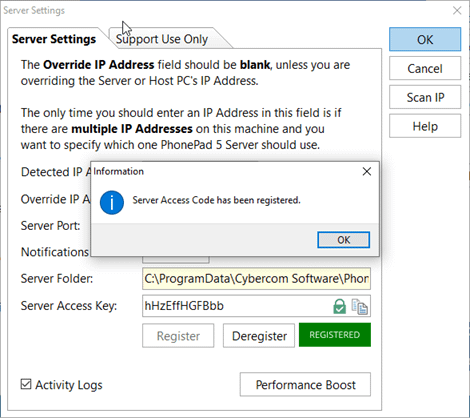
Open Control Center on the Server or Host PC, select PhonePad Server, and click the Settings button.
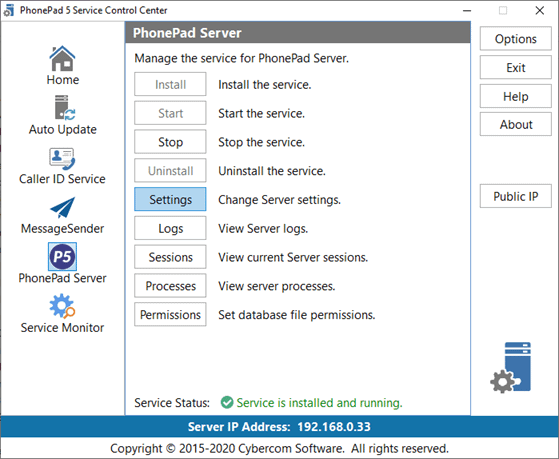 When the Server Settings screen is displayed, you will need to create a Server Access Key.
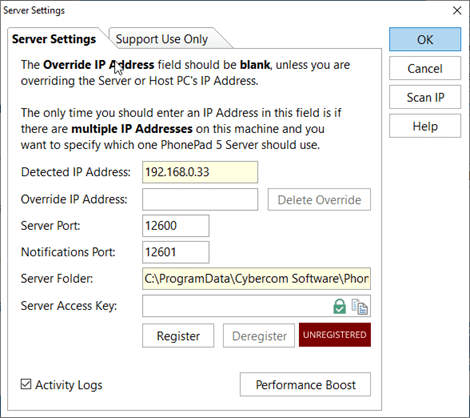 Click the button with the green padlock to create the Server Access Key.
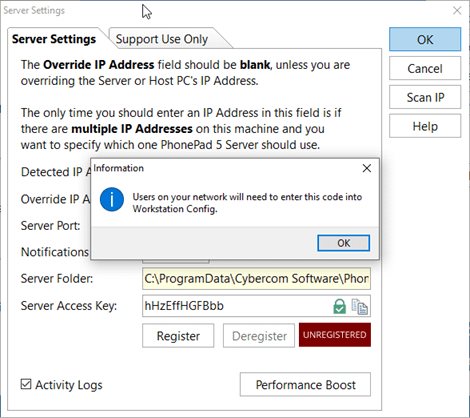 Copy the Server Access Key by clicking the Copy button (next to the button with the green padlock).
The Server Access Key needs to be registered. Click the Register button.
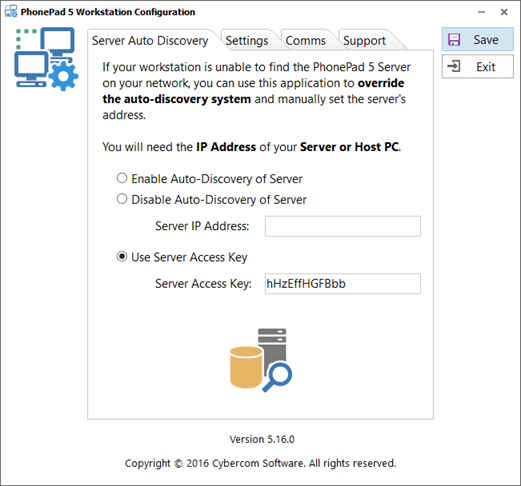
 On your workstation, open Workstation Config. Select Use Server Access Key and enter the Server Access Key that you created, then click Save.
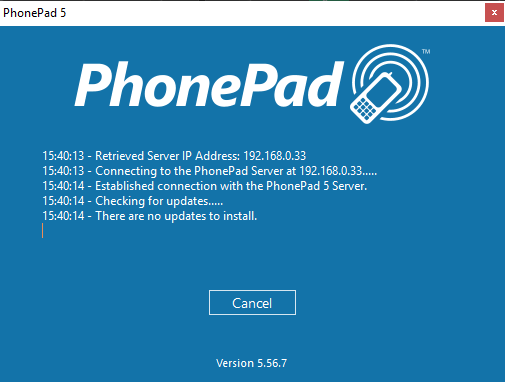
 When you start PhonePad, it will retrieve the Server IP Address using the Server Access Key.
 Please note: This method uses the Internet to retrieve the IP Address from our web server. The Server Access Key will only work on your network and is useless outside of your network, which means it can’t be used to access PhonePad from a workstation outside of your network (unless you are using a VPN).