We are pleased to announce the immediate release of PhonePad Version 5.93.1.
This is a maintenance release that fixes some important issues in Appointment Calendar.
Changes in This Release
- CHANGED: Appointment Calendar – To avoid accidentally moving appointments with drag and drop, now the <shift> key needs to be held down to move an appointment.
- Phoneslips Data Migration Tool has been temporarily removed while we make some important updates to it.
- Fixed issues with dragging and dropping where the dates would zero out.
- Fixed issues with appointment conflict detection.
- Fixed issue with Appointment Time panel cut off on Break appointments.
- Fixed issue with appointment duration not being calculated correctly with some appointment types.
- Minor fixes and improvements.
These improvements are part of our ongoing effort to make PhonePad faster, smarter, and easier to use.
Important Information About MessageSender
This release is only compatible with MessageSender Version 6.26.0 or later. If you don’t use MessageSender then you don’t need to worry about this.
Problems?
We’re human too. We haven’t been replaced by some algorithm – yet – but who knows what the future holds.
 And we’re definitely not perfect. Like most other humans, we can make mistakes. So chances are you may come across something that’s not quite working right. If you do find an error or a bug, please let us know and we’ll fix it as quickly as possible.
Installation Information
Please note: Server Updates must be installed on your Server or Host PC, not your workstation (unless your workstation is also the Host PC) – they cannot be installed directly on your workstations.
Make sure all users are logged out of PhonePad as the PhonePad Server will be stopped during the update and then restarted once it has completed. Workstations will be automatically updated when PhonePad 5 Workstation is started on each workstation.
Important: When downloading and installing an update from your My PhonePad account, make sure it’s actually the update and not the server setup program.
How Updates Work
Please read: You do not need to install every update between this one and the last update you installed. PhonePad uses a smart update system that compares your current PhonePad system with what’s in the update, works out what changes are required, and then makes those changes. So if you are a few versions behind don’t worry. You can skip all of the updates in between and go straight to this update.
Updates and Anti-Virus Software
Depending on the anti-virus software you use, when you install a Server Update your AV software may class the updated software as a different program due to the change in binary signature.
If you experience speed or freezing issues after an update, you may need to reconfigure your AV software to stop real-time scanning of PhonePad. This may need to be done on the both your Server or Host PC, and your workstations.
 Digital Signatures

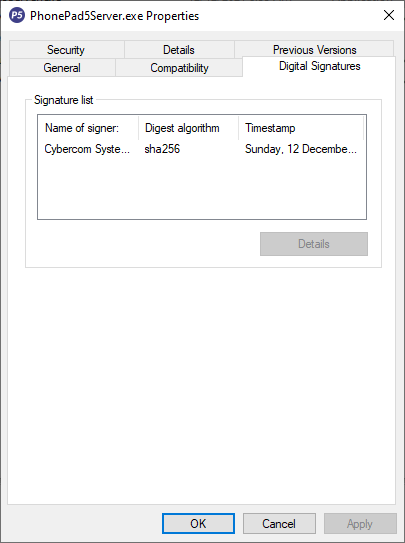
All PhonePad executables and DLLs are digitally signed for your protection.
 You can confirm that a file is safe by right-clicking on it and selecting Properties from the popup menu, and then selecting the Digital Signatures tab.
 Downloading the Update
You can download the update from your My PhonePad account.
If you are a current trial user you can download the update by logging in to My PhonePad Trial using the email address you used to start your trial.
Please contact Support if you have any problems or questions.
Installing Updates
Unsure on how to install updates? Please watch the video on this blog post.
If you are a licensed user you will need to have a current PhonePad Care Plan to install this update.
If your Care Plan has expired, you will need to renew it before you can install this update.
Trial users can install the update if they are still in their trial period.
Update Installation Service
If you would rather have the Server Update installed for you, you can arrange for us to remote connect and install it.
The cost is $45 and you can schedule a date and time here: https://www.cybercom-software.com/remote-server-update-assistance.htm .
We have been helping businesses like yours for over 30 years.