PhonePad Chat is here! Included with PhonePad Version 5.94.0, it replaces Instant Chat with a new chat application designed for everyday communication in your office.
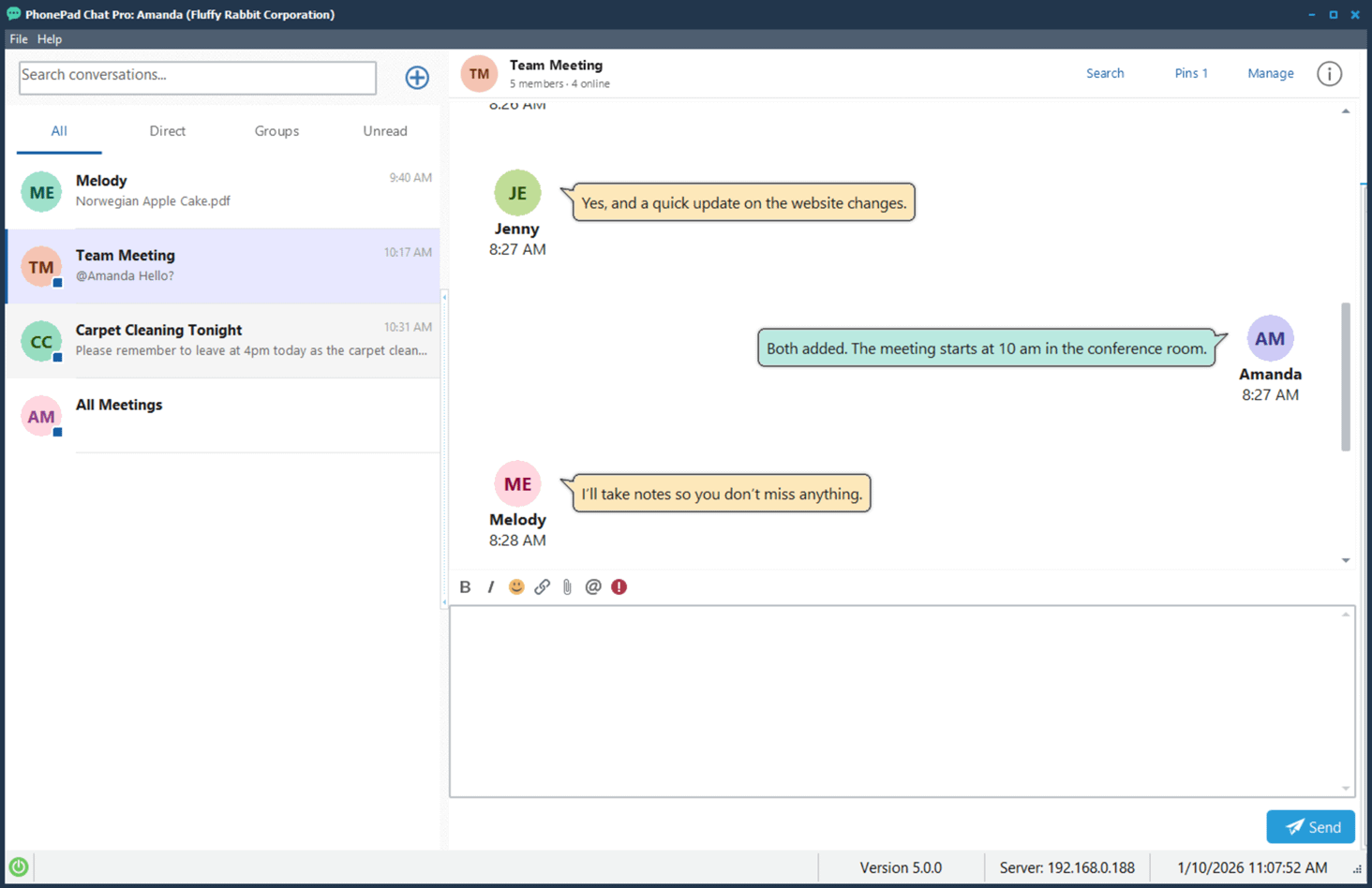 We received requests for more features in Instant Chat, so we went a step further and created an entirely new program. With conversations, saved chat history, searchable messages, and an optional Pro upgrade, PhonePad Chat makes it easier to keep discussions together and find information when you need it.
Here’s a closer look at its features.
Keep Your Conversations Together
One-to-One Conversations
Start a direct conversation with another PhonePad user to ask a question, pass on information, or discuss something without involving the whole office.
Group Conversations
Bring several people into the same conversation so everyone involved can follow the discussion and contribute.
A Clear Conversation List
Your conversations appear alongside the selected chat. Switch between discussions without losing track of where you were.
Conversation Filters
Use the All, Direct, Groups, and Unread tabs to focus on the conversations you want to see.
Find a Conversation
Search the conversation list to locate a chat without scrolling through every entry.
Pick Up Where You Left Off
Saved Chat History
Your conversations are retained so you can return to earlier discussions. That useful detail someone sent yesterday is still there today—provided you remember who sent it!
Searchable Messages
Search messages in a conversation to find the information you need without reading through the entire history. Saved history and basic message searching are included in the standard version of PhonePad Chat.
Message Timestamps
Messages show when they were sent, making it easier to follow the sequence of a discussion and distinguish recent information from older messages.
Unread Counts and Indicators
See which conversations contain unread messages, then use the Unread tab to catch up.
Drafts for Each Conversation
Switch to another chat while composing a message and return to your draft later. The conversation list displays a draft indicator and a preview of your unfinished text.
Make Your Messages Clearer
Formatted Messages
Use bold, italic, and text color to emphasize key details and make messages easier to read.
Hyperlinks
Include links so colleagues can open the relevant web page directly from your message.
Emojis
Add an emoji when a little expression helps get your meaning across. Sometimes a smile says more than another sentence.
Emoji Reactions
React to a message to acknowledge it or respond briefly without adding another message to the conversation.
Spell Checking
Check your spelling as you compose messages to help catch mistakes before sending them.
Urgent Messages
Mark a message as urgent when it needs particular attention.
Quick Sending
By default, pressing Enter sends your message. You can also use the Send button.
Stay Aware of What’s Happening
Online and Offline Status
See whether another user is currently connected to PhonePad Chat.
Typing Indicators
See when someone is typing a reply, so you know the conversation is still in progress.
Message Notifications
Notifications let you know when new messages arrive, helping you stay informed while working on other tasks.
Personal Preferences
Adjust options such as notifications, timestamps, spell checking, theme, and whether closing the window minimizes PhonePad Chat.
Automatic Reconnection
If the connection to the server is interrupted, PhonePad Chat automatically attempts to reconnect. Unfinished drafts are preserved during the interruption.
Connection Status
The status bar shows the server connection status, so you can see whether PhonePad Chat is connected.
Do More with PhonePad Chat Pro
PhonePad Chat is included with PhonePad. The optional PhonePad Chat Pro upgrade adds tools for handling more detailed discussions and sharing files.
Reply to a Specific Message
Link your reply to the message you are responding to. This keeps the context clear when several questions or topics are being discussed at once.
Mention a Colleague
Use an @mention to draw someone’s attention to a message, especially in a group conversation.
Pin Important Messages
Pin useful information so it is easy to find again. Open the pinned-message list to revisit those messages without searching through the conversation.
Edit Sent Messages
Correct a mistake or update a message after sending it. An edited indicator shows that the message has changed.
Delete Messages
Delete a message when necessary.
Advanced Search and Filtering
Use additional search and filtering options to narrow down results when looking for a particular message.
File Attachments
Share documents and other files directly in a conversation. Attachments can be opened or saved, with a maximum file size of 25 MB.
Images and Previews
Share images and screenshots, and preview image attachments within PhonePad Chat. It’s a convenient way to show a colleague exactly what you are talking about.
Getting Started
PhonePad Chat is included with PhonePad Version 5.94.0 and replaces Instant Chat. Open PhonePad Chat, choose a colleague or group, and start a conversation.
Downloading the Update
You can download the update from your My PhonePad account.
If you are a current trial user you can download the update by logging in to My PhonePad Trial using the email address you used to start your trial.
Two Editions
The standard version includes everyday office chat, permanent conversation history, and basic message searching.
For replies, mentions, pins, editing and deleting messages, advanced searching, and file sharing, choose PhonePad Chat Pro.
Instant Chat has officially retired. Its replacement has rather more to say.