
We originally wrote MemoryWatch for use during development to keep an eye on memory usage. We often have a large number of programs open in our development environment and can sometimes get close to using up all available memory – well I do anyway.
I often forget to close application and so I wanted Windows to give me a nudge when my PC was running low on available memory, preferably before I found myself staring at a spinning cursor and wondering which of my open applications had decided to eat the furniture.
Task Manager is great when you remember to open it. The trouble is that I and others sometimes forget to open it after something has already slowed down. What we wanted was a little utility that would keep an eye on things. It could sit in the notification area, mind its own business, and speak up when there was something worth telling.
That turned into MemoryWatch. It’s a small Windows utility, and we’re making it available free to licensed PhonePad users. We wrote it because we wanted it on our own PCs. I suspect a few of you will find it useful on yours, too.
What does MemoryWatch do?
MemoryWatch keeps track of how much of your computer’s physical memory, or RAM, is in use. Open its window and you’ll see the current usage as a percentage, along with how much memory is still available. You can set the percentage at which you want it to alert you. The default is 85%.
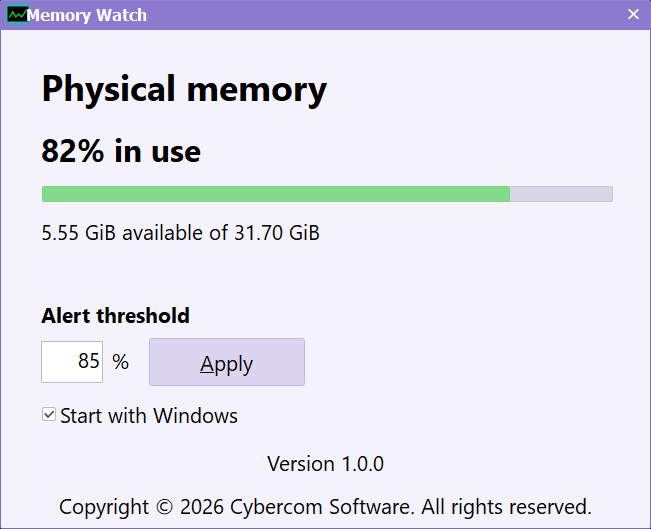 When memory usage reaches your chosen threshold, an alert appears near the lower-right corner of the screen. It stays visible while memory usage remains high, so you can actually read it. This is particularly handy if you’ve stepped away from the computer for thirty seconds and returned just in time to see the last pixel of a notification disappear.
The alert clears itself when usage drops below your threshold. You can also dismiss it yourself. If you do, MemoryWatch waits until usage has dropped below the threshold and climbed back up again before it alerts you. One warning is quite enough when you’re already dealing with forty browser tabs and a spreadsheet that’s apparently calculating the orbit of Neptune.
What should I do when I see an alert?
That depends on what you’re doing. If you’re exporting a video, working with a large file, or running several applications at once, you might expect memory usage to rise for a while. You can keep working and let the alert clear when the job finishes.
If the warning comes as a surprise, it’s a good time to open Windows Task Manager and sort the Processes list by Memory. That gives you somewhere to start looking. Sometimes the culprit is an application you left open yesterday. Sometimes it’s a browser with several windows’ worth of things you were definitely going to read later.
MemoryWatch gives you the heads-up. You decide what, if anything, needs closing.
Where does it go when I close the window?
MemoryWatch keeps running in the Windows notification area, also called the system tray, near the clock. The first time you close its window after launching it, you’ll see a brief reminder that it’s still running. After that, it takes the hint.
Double-click the tray icon to reopen the window. If you can’t see the icon, click the little up arrow near the clock to check the hidden icons. You can also double-click MemoryWatch.exe again to bring the existing window back. When you want to stop monitoring altogether, right-click the tray icon and choose Exit.
There’s also a Start with Windows checkbox. Tick it and MemoryWatch will start quietly in the tray when you sign in. It’s off by default, so you can try it first and decide whether you want it running every day.
A little extra for PhonePad users
PhonePad users spend plenty of time at their computers, often with a fair few applications open at once. We figured that if we were finding this useful in our own day-to-day work, it was worth sharing.
MemoryWatch is free for licensed PhonePad users. Give it a go with the default 85% threshold and see how it fits into your workday. With any luck, you’ll forget it’s there until the moment you’re glad it is.
Login to My PhonePad and go to the My Downloads page to download it.