Discover for yourself the ultimate way to log, track and manage phone calls.

The Fastest Way to Log, Track and Manage Phone Calls.
If you’re looking for the fastest, easiest, and most productive way to log, track, and  manage phone calls, PhonePad is the solution you’ve been searching for. With PhonePad, you can keep track of all your incoming and outgoing calls, manage your call lists, and even schedule follow-up tasks.
One of the standout features of PhonePad is its speed. With its streamlined interface and intuitive design, you can quickly log and categorize calls, making it easy to stay organized and productive. PhonePad also offers powerful search capabilities, so you can quickly find the information you need, even if you have a high volume of calls.
But PhonePad isn’t just fast – it’s also incredibly easy to use. Its user-friendly interface and simple navigation make it accessible to anyone, regardless of technical expertise.
When it comes to productivity, PhonePad has you covered. With features like fast call logging and call tracking, you can easily keep track of all your calls and ensure that nothing falls through the cracks. Plus, with the ability to schedule follow-up tasks, you can stay on top of your to-do list and keep your projects moving forward.
In short, if you want to make the most of your phone calls and stay organized and productive, PhonePad is the software you need. With its speed, ease of use, and productivity-boosting features, PhonePad is the ultimate solution for call logging and management.
Best of all, you can try PhonePad for free for 60 days, totally risk-free.
The Importance of Logging Phone Calls for Businesses.
For businesses, communication is a critical aspect of operations. Whether it’s with customers, suppliers, or other stakeholders, businesses rely heavily on communication to function effectively. As such, logging phone calls can play a vital role in ensuring that a business runs smoothly and efficiently. In this article, we’ll explore the importance of logging phone calls for businesses and how it can benefit their operations.
-
Documentation of Information
When a business logs phone calls, they are essentially documenting important  information related to their communication with customers and other stakeholders. This information can be invaluable in the future, especially when dealing with disputes or misunderstandings. By having a detailed record of conversations, a business can easily refer to these logs to confirm details or to clarify information that may have been misinterpreted.
-
Improving Customer Service
Phone calls are a crucial element of customer service, as they offer a direct line of  communication between a business and its customers. By logging these calls, businesses can analyze the data and identify areas where they need to improve their customer service. They can track how long it takes to resolve customer complaints, the frequency of customer complaints, and the reasons for customer dissatisfaction, among other things. This information can be used to enhance customer service, which can ultimately lead to increased customer satisfaction and loyalty.
-
Compliance with Regulations
Certain industries, such as finance and healthcare, are subject to strict regulations  regarding data protection and privacy. Logging phone calls can help businesses comply with these regulations by ensuring that they have a record of all communication with customers and stakeholders. This can be especially important in cases where a customer has given consent for their information to be used for a specific purpose.
-
Training and Development
Logging phone calls can also be an effective tool for training and development. By  reviewing recorded calls, managers can identify areas where employees need additional training and provide constructive feedback. This can help employees improve their communication skills, which can ultimately lead to better customer service and increased sales.
-
Dispute Resolution
Finally, logging phone calls can be essential in resolving disputes between a business and its customers or other stakeholders. In cases where there is a disagreement over the details of a conversation, having a recorded log can help to clarify the situation and avoid misunderstandings. This can be especially important in situations where legal action may be taken, as having a record of the conversation can provide valuable evidence.
Conclusion
In conclusion, logging phone calls can offer numerous benefits to businesses. From improving customer service to ensuring compliance with regulations, it can help a business operate more efficiently and effectively. By taking advantage of this tool, businesses can gain valuable insights into their operations, enhance their customer service, and ensure that they are always operating in a compliant and professional manner.

Security is on Our Minds Too!
For many people using the Internet, security is possibly at the top of their concerns. With so many scams around it’s hard to know who to trust online.
We all need to be very careful when surfing the net. No one wants to be scammed.
We take your security, and ours, very seriously. You can visit our site, knowing that you are safe.
Our site uses an SSL certificate so you know it’s safe to visit – check the URL in your browser’s address. You should see a padlock image.
 Check out our rating with Sur.ly (https://sur.ly/i/cybercom-software.com).
 Most pages on our site have the Trusted Site badge.
 When you see this on a page, you can click on it to verify it’s true. You should see a screen similar to this.
 All of our software is also digitally signed so you know it’s safe.
PhonePad Version 5.77.1, Appointment Calendar 5.9.0, and MessageSender 6.22.0 Have Been Released.
We are pleased to announce the release of PhonePad Version 5.77.1, Appointment Calendar Version 5.9.0, and MessageSender Version 6.22.0.
These new versions of PhonePad, Appointment Calendar, and MessageSender have been released at the same time as they have new inter-related features.
What’s New in PhonePad
New Reply, Forward, and Delete Buttons
When you view a phone or text (memo) message, you will notice new buttons that  allow you to reply, forward, or delete from within the message.
You may be wondering why the Delete button is so far away from the Reply, Forward, and Close buttons.
During testing we accidentally clicked the Delete button instead of the Close button too many times to count. We decided to separate it from the other buttons so that it couldn’t be clicked accidentally.
Message History
Phone and Text (memo) messages now have a History tab where you can quickly and easily check the history of messages related to the open one.
Simply select the History tab and then click Refresh.
 You can open any message in the History list by double-clicking on it.
Receive Emails Replies in PhonePad
I don’t know how many times we’ve been asked for this feature but I’m thrilled to say it’s finally here for all of you using MessageSender and Automatic Message Forwarding.
In the past, when a user received a message via Automatic Message Forwarding, replying to the message resulted in it being sent to the sender’s email software.
Now when you reply to an automatically forwarded message that was sent by email, your reply ends up back in the sender’s PhonePad Inbox!
Here’s an example. Jane was sent a message in PhonePad, and it was forwarded to her email address. She can reply to the email just like she would any other email (the example is in Outlook). What makes the difference is the special MessageSender email account it will be sent to (@messagesender.online).
 When the email is received by MessageSender, it will route it to the original sender. This is how it appears in the sender’s Inbox in PhonePad. Note the new icon that now shows in the message type column.
 This is what the message looks like when you open it.
 No more hunting for replies in your email software, and trying to work out who it’s for as it automatically goes to the right user. If the user deletes the original email content in the reply, just open the History tab and you will find the original message there.
Important: This feature requires MessageSender Version 6.22.0 or higher.
What’s New in Appointment Calendar?
Not All Users Have to Appear in the Provider List
If you don’t want a user to appear in the Provider List in Appointment Calendar, there is a new option in PhonePad for that.
In this example, Jennifer is a reception, not a provider so we don’t want her showing in the Provider List in Appointment Calendar.
To do this, open User Manager in PhonePad, select the user, click Edit,.and uncheck the User is an Appointment Calendar Provider checkbox.
 Edit Client in Appointment

As well as adding a new client within an appointment, there is a new button for editing the client’s details.

 Haven’t Tried PhonePad Yet?


If you haven’t tried PhonePad yet then why not download the trial version right now, before you forget?
You get 60 days to try PhonePad (plus Appointment Calendar and MessageSender) for absolutely free! I’m not kidding. There’s no cost to try it.
We don’t want your credit card information. There is no obligation, no type of commitment of any sort.
It’s totally risk-free, so what are you waiting for? If you don’t like it, then delete it.
But while you’re trying it we’re here to help you. We’ll even remotely install it for free if you like. We’ve been around for a long time. Check out our domain name registration (or look it up yourself). Registered way back in 1998.
 Download the trial version now!
Changes in This Release
- NEW: Reply, Forward and Delete buttons have been added to the View Phone Message and View Text Message screens.
- NEW: The View Phone Message and View Text Message screens now have a History feature that shows all messages related to the viewed message.
- NEW: Added option to include or exclude users from being providers in Appointment Calendar.
- NEW: Added Email Reply message type for new MessageSender feature.
- NEW: Appointment Calendar: New edit client option has been added to the appointment screen.
- NEW: MessageSender now has an email reply option. Users can now reply to emails and they will return to PhonePad.
- IMPROVED: New button added to Server Settings in ControlCenter opens the server folder.
FIXED: Default Inbox message filtering was not working correctly. - FIXED: MessageSender was not using the correct template when sending text messages by email.
- FIXED: Appointment Calendar: The last 3 days of February weren’t being displayed in the month view.
- FIXED: Appointment Calendar: Notes added to a client were sometimes not saved.
- FIXED: Intermittent connection issue with Workstation Notification Service.
- Minor fixes and improvements.
Important Information About MessageSender
This release is only compatible with MessageSender Version 6.22.0 or later.
Installation Information
Please note: Server Updates must be installed on your Server or Host PC, not your workstation (unless your workstation is also the Host PC) – they cannot be installed directly on your workstations. Make sure all users are logged out of PhonePad as the PhonePad Server will be stopped during the update and then restarted once it has completed. Workstations will be automatically updated when PhonePad 5 Workstation is started on each workstation. Important: When downloading and installing an update from your My PhonePad account, make sure it’s actually the update and not the server setup program.
How Updates Work
Please read: You do not need to install every update between this one and the last update you installed. PhonePad uses a smart update system that compares your current PhonePad system with what’s in the update, works out what changes are required, and then makes those changes. So if you are a few versions behind don’t worry. You can skip all of the updates in between and go straight to this update.
Updates and Anti-Virus Software
Depending on the anti-virus software you use, when you install a Server Update your AV software may class the updated software as a different program due to the change in binary signature. If you experience speed or freezing issues after an update, you may need to reconfigure your AV software to stop real-time scanning of PhonePad. This may need to be done on the both your Server or Host PC, and your workstations.
Digital Signatures
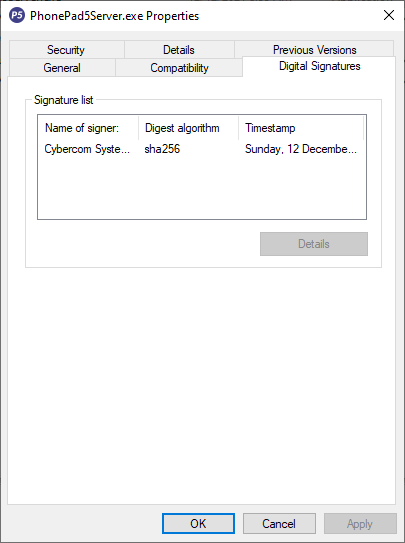
All PhonePad executables and DLLs are digitally signed for your protection.
You can confirm that a file is safe by right-clicking on it and selecting Properties from the popup menu, and then selecting the Digital Signatures tab.
Downloading the Update
You can download the update from your My PhonePad account.
If you are a current trial user you can download the update by logging in to My PhonePad Trial using the email address you used to start your trial.
Please contact Support if you have any problems or questions.
Installing Updates
If you’re unsure of how to install updates, please watch the video on this blog post.
You will need to have a current Update Plan to install this update. If your Update Plan has expired, you will need to renew it before you can install this update.
Update Installation Service
If you would rather have the Server Update installed for you, you can arrange for us to remote connect and install it. The cost is $37 and you can schedule a date and time here: https://www.cybercom-software.com/remote-server-update-assistance.htm .
PhonePad Version 5.76.3 Has Been Released.
We are pleased to announce the release of PhonePad Version 5.76.3 and Appointment Calendar 5.7.0.
Changes in This Release
- FIXED: Appointment Calendar: New clients added in Appointment Calendar were not added to the PhonePad AddressBook.
- FIXED: Appointment Calendar: Searching is not working.
- FIXED: Appointment Calendar: Weekly printout showing Friday’s appointments on Saturday as well.
- FIXED: Appointment Calendar: Weekly printout only shows the first line of the appointment. It should be highlighting the entire block.
- Minor fixes and improvements.
Important Information About MessageSender
This release is only compatible with MessageSender Version 6.20.0 or later.
Installation Information
Please note: Server Updates must be installed on your Server or Host PC, not your workstation (unless your workstation is also the Host PC) – they cannot be installed directly on your workstations. Make sure all users are logged out of PhonePad as the PhonePad Server will be stopped during the update and then restarted once it has completed. Workstations will be automatically updated when PhonePad 5 Workstation is started on each workstation. Important: When downloading and installing an update from your My PhonePad account, make sure it’s actually the update and not the server setup program.
How Updates Work
Please read: You do not need to install every update between this one and the last update you installed. PhonePad uses a smart update system that compares your current PhonePad system with what’s in the update, works out what changes are required, and then makes those changes. So if you are a few versions behind don’t worry. You can skip all of the updates in between and go straight to this update.
Updates and Anti-Virus Software
Depending on the anti-virus software you use, when you install a Server Update your AV software may class the updated software as a different program due to the change in binary signature. If you experience speed or freezing issues after an update, you may need to reconfigure your AV software to stop real-time scanning of PhonePad. This may need to be done on the both your Server or Host PC, and your workstations.
Digital Signatures
All PhonePad executables and DLLs are digitally signed for your protection.
You can confirm that a file is safe by right-clicking on it and selecting Properties from the popup menu, and then selecting the Digital Signatures tab.
Downloading the Update
You can download the update from your My PhonePad account.
If you are a current trial user you can download the update by logging in to My PhonePad Trial using the email address you used to start your trial.
Please contact Support if you have any problems or questions.
Installing Updates
If you’re unsure of how to install updates, please watch the video on this blog post.
You will need to have a current Update Plan to install this update. If your Update Plan has expired, you will need to renew it before you can install this update.
Update Installation Service
If you would rather have the Server Update installed for you, you can arrange for us to remote connect and install it. The cost is $37 and you can schedule a date and time here: https://www.cybercom-software.com/remote-server-update-assistance.htm .
PhonePad Version 5.76.2 Has Been Released.
We are pleased to announce the release of PhonePad Version 5.76.2.
Changes in This Release
- FIXED: New Version Notification appears when there is no new version.
- FIXED: ControlBar was showing buttons in vertical mode that had been unselected under settings.
- Minor fixes and improvements.
Important Information About MessageSender
This release is only compatible with MessageSender Version 6.20.0 or later.
Installation Information
Please note: Server Updates must be installed on your Server or Host PC, not your workstation (unless your workstation is also the Host PC) – they cannot be installed directly on your workstations. Make sure all users are logged out of PhonePad as the PhonePad Server will be stopped during the update and then restarted once it has completed. Workstations will be automatically updated when PhonePad 5 Workstation is started on each workstation. Important: When downloading and installing an update from your My PhonePad account, make sure it’s actually the update and not the server setup program.
How Updates Work
Please read: You do not need to install every update between this one and the last update you installed. PhonePad uses a smart update system that compares your current PhonePad system with what’s in the update, works out what changes are required, and then makes those changes. So if you are a few versions behind don’t worry. You can skip all of the updates in between and go straight to this update.
Updates and Anti-Virus Software
Depending on the anti-virus software you use, when you install a Server Update your AV software may class the updated software as a different program due to the change in binary signature. If you experience speed or freezing issues after an update, you may need to reconfigure your AV software to stop real-time scanning of PhonePad. This may need to be done on the both your Server or Host PC, and your workstations.
Digital Signatures
All PhonePad executables and DLLs are digitally signed for your protection.
You can confirm that a file is safe by right-clicking on it and selecting Properties from the popup menu, and then selecting the Digital Signatures tab.
Downloading the Update
You can download the update from your My PhonePad account.
If you are a current trial user you can download the update by logging in to My PhonePad Trial using the email address you used to start your trial.
Please contact Support if you have any problems or questions.
Installing Updates
If you’re unsure of how to install updates, please watch the video on this blog post.
You will need to have a current Update Plan to install this update. If your Update Plan has expired, you will need to renew it before you can install this update.
Update Installation Service
If you would rather have the Server Update installed for you, you can arrange for us to remote connect and install it. The cost is $37 and you can schedule a date and time here: https://www.cybercom-software.com/remote-server-update-assistance.htm .
PhonePad Version 5.76.1 Has Been Released.
We are pleased to announce the release of PhonePad Version 5.76.1.
Changes in This Release
- FIXED: Address Book column checkbox images weren’t displaying correctly.
- FIXED: For some users, the To: field in new phone messages wasn’t populating.
- FIXED: The Address1 and Address2 fields weren’t being imported correctly during an Address Book import.
- Minor fixes and improvements.
Important Information About MessageSender
This release is only compatible with MessageSender Version 6.20.0 or later.
Installation Information
Please note: Server Updates must be installed on your Server or Host PC, not your workstation (unless your workstation is also the Host PC) – they cannot be installed directly on your workstations. Make sure all users are logged out of PhonePad as the PhonePad Server will be stopped during the update and then restarted once it has completed. Workstations will be automatically updated when PhonePad 5 Workstation is started on each workstation. Important: When downloading and installing an update from your My PhonePad account, make sure it’s actually the update and not the server setup program.
How Updates Work
Please read: You do not need to install every update between this one and the last update you installed. PhonePad uses a smart update system that compares your current PhonePad system with what’s in the update, works out what changes are required, and then makes those changes. So if you are a few versions behind don’t worry. You can skip all of the updates in between and go straight to this update.
Updates and Anti-Virus Software
Depending on the anti-virus software you use, when you install a Server Update your AV software may class the updated software as a different program due to the change in binary signature. If you experience speed or freezing issues after an update, you may need to reconfigure your AV software to stop real-time scanning of PhonePad. This may need to be done on the both your Server or Host PC, and your workstations.
Digital Signatures
All PhonePad executables and DLLs are digitally signed for your protection.
You can confirm that a file is safe by right-clicking on it and selecting Properties from the popup menu, and then selecting the Digital Signatures tab.
Downloading the Update
You can download the update from your My PhonePad account.
If you are a current trial user you can download the update by logging in to My PhonePad Trial using the email address you used to start your trial.
Please contact Support if you have any problems or questions.
Installing Updates
If you’re unsure of how to install updates, please watch the video on this blog post.
You will need to have a current Update Plan to install this update. If your Update Plan has expired, you will need to renew it before you can install this update.
Update Installation Service
If you would rather have the Server Update installed for you, you can arrange for us to remote connect and install it. The cost is $37 and you can schedule a date and time here: https://www.cybercom-software.com/remote-server-update-assistance.htm .
PhonePad Version 5.76.0 Has Been Re-Released.
Some users experienced an issue with PhonePad 5.76.0, where PhonePad closed as soon as it was opened. This issue only affected a small number of users.
It proved difficult to find the cause of this issue as we were unable to reproduce it. It  worked fine for us, which is why the issue didn’t crop up during testing.
We eventually discovered the cause of the problem and fixed it.
Thank you to Thomas Kobel of PCS Networks who helped test the solution and verify that the fix works.
PhonePad Version 5.76.0 has been re-released and can now be downloaded. If you downloaded the version with the issue, we recommend downloading and installing the PhonePad 5.76.0 workstation setup to each of your workstations.
Issue with PhonePad Version 5.76.0.
We have pulled PhonePad Version 5.76.0 for now as some users have experienced problems starting PhonePad. When they try to open PhonePad it closes immediately and does nothing.
This seems to only affect a small number of users and happens on both Windows 10 and 11 machines.
We haven’t been able to reproduce the problem yet on our computers but we will keep investigating until we work out the cause of the issue.
If you are experiencing this problem please email support@cybercom-software.com and we will tell you how to downgrade to the previous version.
We apologize for any inconvenience.