Merry Christmas, Seasons Greetings, and Happy Holidays to all of our amazing users!
We hope you have an amazing, happy and safe festive season.

Manage your phone messages quickly and easily with PhonePad!
Merry Christmas, Seasons Greetings, and Happy Holidays to all of our amazing users!
We hope you have an amazing, happy and safe festive season.
We are pleased to announce the release of PhonePad Version 5.43.1.
Please note: Server Updates must be installed on your Server or Host PC, not your workstation (unless your workstation is also the Host PC) – they cannot be installed directly on your workstations. Make sure all users are logged out of PhonePad as the PhonePad Server will be stopped during the update and then restarted once it has completed. Workstations will be automatically updated when PhonePad 5 Workstation is started on each workstation.
Important: When downloading and installing an update from your My PhonePad account, make sure it’s actually the update and not the server setup program. The update will update your database whereas the setup program will overwrite it with a blank database.
Some code was added to the PhonePad loader program (the blue window with the PhonePad logo that finds the server connection) to log what security software was installed on the workstation that we would use to diagnose any startup issues.
Unfortunately on some Windows 7 workstations this caused the PhonePad loader to just sit there and do nothing. We don’t know why this would have caused this and, as far as we have been able to ascertain, it only affects Windows 7 workstations.
This code has been removed so this problem should no longer occur once these workstations have been updated to 5.36.0 or higher. However, it does mean that the PhonePad Version 5.36.0 workstation setup program will need to be manually downloaded and installed on any affected workstations.
You can download the update from your My PhonePad account.
If you are a trial user please contact Support for a download link for this version.
Please contact Support if you have any problems or questions.
There has been a little confusion about support plans. Some users thought that if they didn’t have a Support Plan then they wouldn’t be able to get any support at all. That’s not true. Free email support is always available.
To avoid any further confusion Support Plans have now become Update Plans.
Update Plans provide you with all major and minor updates for 12 months.
As a bonus for users with current Update Plans, you can get up 2 free remote support sessions per year (if required). If you don’t have a current Update Plan, you can still get remote support at $37 per session.
Your current Support Plan has already been transitioned to the Update Plan system so there’s nothing you need to do.
For more information on Update Plans, please see this page: https://www.cybercom-software.com/update-plans.htm
If you discover any issues with the Update Plan system please let us know.
We are pleased to announce the release of PhonePad Version 5.43.0.
Please note: Server Updates must be installed on your Server or Host PC, not your workstation (unless your workstation is also the Host PC) – they cannot be installed directly on your workstations. Make sure all users are logged out of PhonePad as the PhonePad Server will be stopped during the update and then restarted once it has completed. Workstations will be automatically updated when PhonePad 5 Workstation is started on each workstation.
Important: When downloading and installing an update from your My PhonePad account, make sure it’s actually the update and not the server setup program. The update will update your database whereas the setup program will overwrite it with a blank database.
Some code was added to the PhonePad loader program (the blue window with the PhonePad logo that finds the server connection) to log what security software was installed on the workstation that we would use to diagnose any startup issues.
Unfortunately on some Windows 7 workstations this caused the PhonePad loader to just sit there and do nothing. We don’t know why this would have caused this and, as far as we have been able to ascertain, it only affects Windows 7 workstations.
This code has been removed so this problem should no longer occur once these workstations have been updated to 5.36.0 or higher. However, it does mean that the PhonePad Version 5.36.0 workstation setup program will need to be manually downloaded and installed on any affected workstations.
You can download the update from your My PhonePad account.
If you are a trial user please contact Support for a download link for this version.
Please contact Support if you have any problems or questions.
When you update to PhonePad Version 5.42.0 you will notice there is a new add-on called ToDo List. This is another follow up tool that integrates with PhonePad 5.
This video takes you through the features.
[embedyt] https://www.youtube.com/watch?v=hEpeWIvDI1k[/embedyt]
We are pleased to announce the release of PhonePad Version 5.42.0.
Please note: Server Updates must be installed on your Server or Host PC, not your workstation (unless your workstation is also the Host PC) – they cannot be installed directly on your workstations. Make sure all users are logged out of PhonePad as the PhonePad Server will be stopped during the update and then restarted once it has completed. Workstations will be automatically updated when PhonePad 5 Workstation is started on each workstation.
Important: When downloading and installing an update from your My PhonePad account, make sure it’s actually the update and not the server setup program. The update will update your database whereas the setup program will overwrite it with a blank database.
Some code was added to the PhonePad loader program (the blue window with the PhonePad logo that finds the server connection) to log what security software was installed on the workstation that we would use to diagnose any startup issues.
Unfortunately on some Windows 7 workstations this caused the PhonePad loader to just sit there and do nothing. We don’t know why this would have caused this and, as far as we have been able to ascertain, it only affects Windows 7 workstations.
This code has been removed so this problem should no longer occur once these workstations have been updated to 5.36.0 or higher. However, it does mean that the PhonePad Version 5.36.0 workstation setup program will need to be manually downloaded and installed on any affected workstations.
You can download the update from your My PhonePad account.
If you are a trial user please contact Support for a download link for this version.
Please contact Support if you have any problems or questions.
There was an issue with Version 5.41.2 released yesterday that caused an error message to be displayed after logging to to PhonePad.
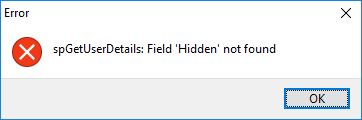
This was due to some code missing from the update script, which was our mistake. This has been corrected in this release (5.41.3).
Version 5.41.2 has been pulled from release. If you have already installed it please install Version 5.42.3.
We apologize for any inconvenience.
Please note: Server Updates must be installed on your Server or Host PC, not your workstation (unless your workstation is also the Host PC) – they cannot be installed directly on your workstations. Make sure all users are logged out of PhonePad as the PhonePad Server will be stopped during the update and then restarted once it has completed. Workstations will be automatically updated when PhonePad 5 Workstation is started on each workstation.
Important: When downloading and installing an update from your My PhonePad account, make sure it’s actually the update and not the server setup program. The update will update your database whereas the setup program will overwrite it with a blank database.
Some code was added to the PhonePad loader program (the blue window with the PhonePad logo that finds the server connection) to log what security software was installed on the workstation that we would use to diagnose any startup issues.
Unfortunately on some Windows 7 workstations this caused the PhonePad loader to just sit there and do nothing. We don’t know why this would have caused this and, as far as we have been able to ascertain, it only affects Windows 7 workstations.
This code has been removed so this problem should no longer occur once these workstations have been updated to 5.36.0 or higher. However, it does mean that the PhonePad Version 5.36.0 workstation setup program will need to be manually downloaded and installed on any affected workstations.
You can download the update from your My PhonePad account.
If you are a trial user please contact Support for a download link for this version.
Please contact Support if you have any problems or questions.
We are pleased to announce the release of PhonePad Version 5.41.2.
Please note: Server Updates must be installed on your Server or Host PC, not your workstation (unless your workstation is also the Host PC) – they cannot be installed directly on your workstations. Make sure all users are logged out of PhonePad as the PhonePad Server will be stopped during the update and then restarted once it has completed. Workstations will be automatically updated when PhonePad 5 Workstation is started on each workstation.
Important: When downloading and installing an update from your My PhonePad account, make sure it’s actually the update and not the server setup program. The update will update your database whereas the setup program will overwrite it with a blank database.
Some code was added to the PhonePad loader program (the blue window with the PhonePad logo that finds the server connection) to log what security software was installed on the workstation that we would use to diagnose any startup issues.
Unfortunately on some Windows 7 workstations this caused the PhonePad loader to just sit there and do nothing. We don’t know why this would have caused this and, as far as we have been able to ascertain, it only affects Windows 7 workstations.
This code has been removed so this problem should no longer occur once these workstations have been updated to 5.36.0 or higher. However, it does mean that the PhonePad Version 5.36.0 workstation setup program will need to be manually downloaded and installed on any affected workstations.
You can download the update from your My PhonePad account.
If you are a trial user please contact Support for a download link for this version.
Please contact Support if you have any problems or questions.
We are pleased to announce the release of PhonePad Version 5.41.1.
Please note: Server Updates must be installed on your Server or Host PC, not your workstation (unless your workstation is also the Host PC) – they cannot be installed directly on your workstations. Make sure all users are logged out of PhonePad as the PhonePad Server will be stopped during the update and then restarted once it has completed. Workstations will be automatically updated when PhonePad 5 Workstation is started on each workstation.
Important: When downloading and installing an update from your My PhonePad account, make sure it’s actually the update and not the server setup program. The update will update your database whereas the setup program will overwrite it with a blank database.
Some code was added to the PhonePad loader program (the blue window with the PhonePad logo that finds the server connection) to log what security software was installed on the workstation that we would use to diagnose any startup issues.
Unfortunately on some Windows 7 workstations this caused the PhonePad loader to just sit there and do nothing. We don’t know why this would have caused this and, as far as we have been able to ascertain, it only affects Windows 7 workstations.
This code has been removed so this problem should no longer occur once these workstations have been updated to 5.36.0 or higher. However, it does mean that the PhonePad Version 5.36.0 workstation setup program will need to be manually downloaded and installed on any affected workstations.
You can download the update from your My PhonePad account.
If you are a trial user please contact Support for a download link for this version.
Please contact Support if you have any problems or questions.
We have had an issue with the Remote Support Scheduling System. We weren’t receiving notifications of new appointments tha t had been scheduled.
We use Acuity Scheduling for the scheduling of remote support. It links with iCloud to send the appointment notifications to our Apple devices. For some reason iCloud lost the connection setting after we upgraded to iOS 12.
We have just become aware of the issue and it has now been fixed as of a few minutes ago.
We apologize for any inconvenience this may have caused, especially if you had an appointment scheduled and we didn’t call you. We weren’t ignoring you – we just didn’t know there were any appointments.