Manage your phone messages quickly and easily with PhonePad!

PhonePad 4.15 Has Been Released.

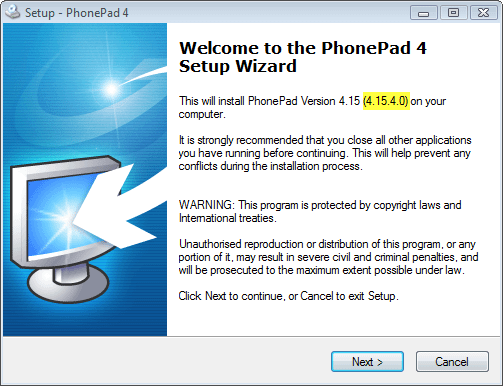
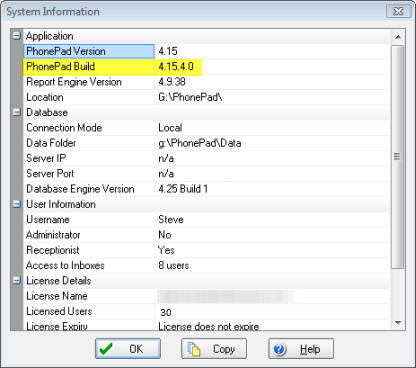
We are pleased to announce that PhonePad Version 4.15 has been released and is now available for download. This is a free upgrade for all licensed PhonePad clients which can be downloaded from My PhonePad Account.

New Features

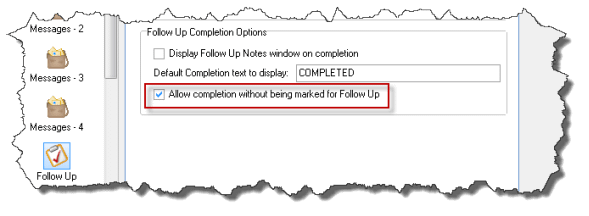
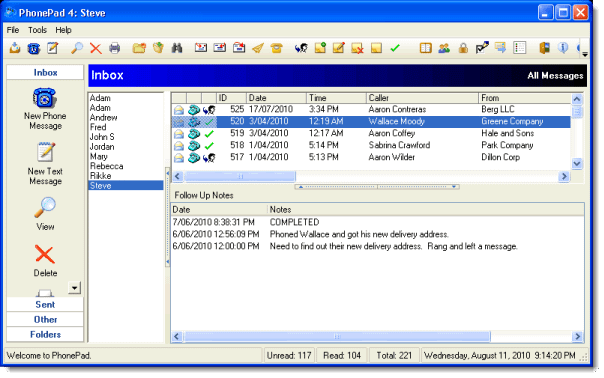
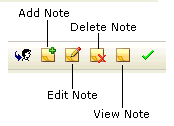
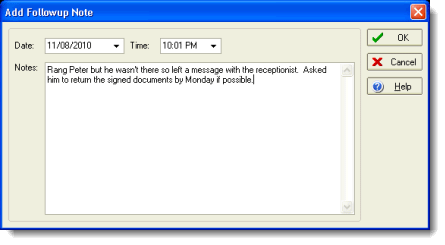
  • Improved Follow Up Notes – Now each message can have multiple follow up notes so you can track and view all follow up action.
  • Message List Sorting – Specify whether you want the latest messages to be displayed at the top or bottom of your Inbox (and other message lists).
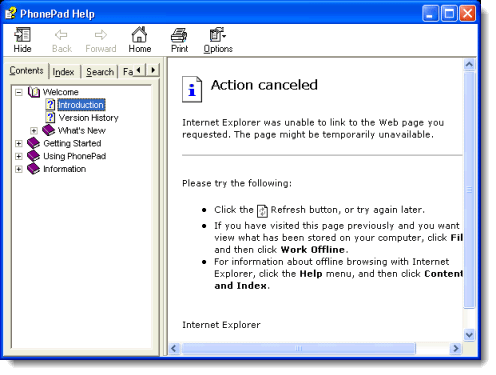
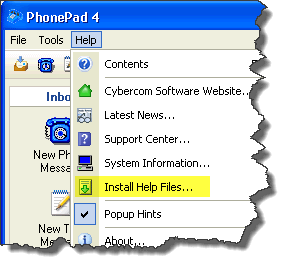
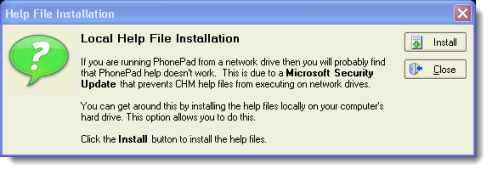
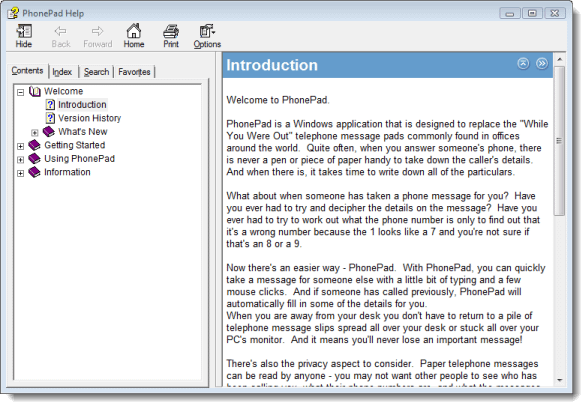
  • Install Help Files Locally – If your help files can’t be displayed on your network drive because of the infamous Microsoft Security Update, this new option allows you to easily install your help files on your local drive.

Changes and Problems Fixed

  • Speed improvements.
  • Updated message printing.
  • Improved handling of forwarded and replied phone messages.
  • Fixed text overlapping problem during printing.
  • Fixed issues with moving messages between folders.
  • Minor fixes and improvements.

Downloading PhonePad

PhonePad Version 4.15 can be downloaded from My PhonePad Account under the My Downloads section: http://www.myaccount.cybercom-software.com.

· Updated message printing.
· When phone messages are forwarded or replied to, the details and text from the phone message are now included in the message area of the new message.

Almost there…

Yes, we had planned to release PhonePad 4.15 a few weeks ago.  But then we decided that we would bring forward some of the features we were going to build into 4.16 and roll them into 4.15.

The good news is that we are now finishing off the help files, online manuals, etc. and going through the final testing phase.  4.15 should be about within the next couple of days.

Well, This is Embarrassing…

…and annoying.  For some reason our domain name registrar didn’t auto-renew our domain name, sent us no notification or warnings, etc. and our main domain was taken off the air, despite the fact we have been with them for around 14 years or so.  As soon as we realized what had happened we got it sorted out, but it meant the website was down for at least 24 hours.  If you had problems reaching our website or contacting us, please accept my apologies.

PhonePad 4.15 – Coming Soon.

If all goes according to plan, PhonePad 4.15 will be released within the next week or so.  In addition to improved performance and some other changes, we think you will appreciate the enhanced Follow Up functionality.

This will be a free upgrade for all licensed PhonePad users.

Stay tuned.

Setting Up Receptionist Access for a PhonePad User

With PhonePad’s Receptionist mode, users can access the Inboxes of other users.  This is how you set it up:

Navigate to the PhonePad folder and run PhonePad Admin.  Login using the default administrator account (or an administrator account you have created).

PhonePad Admin Main ScreenSelect a user from the list of users, then select the Edit User option in the sidebar.

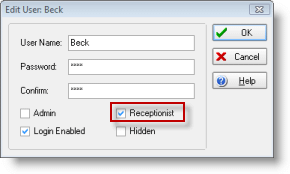
PhonePad Telephone Message SoftwareMake sure the Receptionist checkbox is checked, then click OK.  With the same user still selected, click on Receptionist Access on the sidebar.

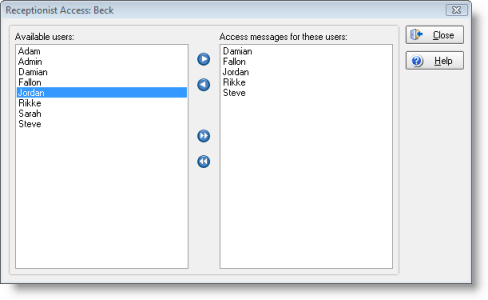
PhonePad Telephone Message SoftwareYou can give the selected user access to another user’s Inbox by selecting names from the list on the left and adding them to the access list on the right (using the arrow buttons).

Click Close to close the Receptionist Access window.

When the selected users logs in to PhonePad, a list of users will be displayed (next to the Inbox message list).  They can then access other users’ Inbox by selecting their name from the list.

PhonePad Telephone Message Software

Default PhonePad Administrator Account

When you first install PhonePad, a default administrator account is automatically created for you.  The login details are:

Username:          Admin

Password:           admin

Use this account to login to PhonePad Admin.  Once logged in, it is recommended that you change the password or create a new administrator account and delete or disable the default account.

If you can’t remember your administrator account details, contact support and we will give you instructions on how to reset it.

Adding Users to PhonePad

You can’t do much with PhonePad if you don’t add any users.  Without users, you won’t have anyone to send phone messages to or receive phone messages from, so let’s go through the steps for adding users.

The first thing you need to do is run the PhonePad Admin module and log in using a PhonePad administrator account (you can’t login to PhonePad Admin using a non-admin account).  PhonePad Admin should be located in your PhonePad folder.

A default administrator account is automatically created for you when you first install PhonePad:

Username:     Admin

Password:     admin

Login to PhonePad Admin using these login details, or if you have changed this or created a new administrator account then login using those details.

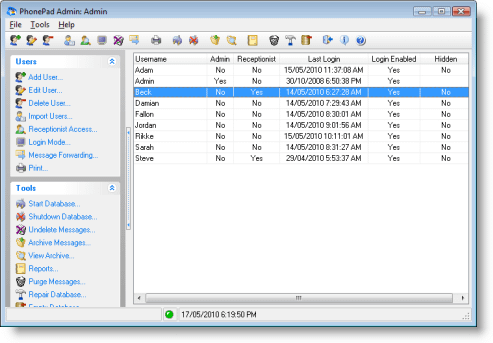
Once you have logged in, PhonePad Admin’s main screen displays a list of all users.

PhonePad Telephone Message Software

Adding a user is simple.  Click on the Add User option in the sidebar on the left side of the window.  The Add User window will be displayed.

PhonePad Telephone Message SoftwareEnter a name for the user.  You should make the name unique within PhonePad to avoid confusion.

Enter a password for the user in the Password and Confirm fields.  The Confirm field will be highlighted in red if the two passwords don’t match.

Select the Admin checkbox if you want this user to be a PhonePad administrator.

Select the Receptionist checkbox if you want this user to be able to access other user’s Inboxes.

The Login Enabled checkbox should be checked unless you don’t want the user logging in.  The Hidden checkbox can be checked to prevent a user from appearing in the To: field in phone messages and text messages, and therefore prevent other users from sending messages to that user.

Click OK and you have created your first PhonePad user.  Rinse and repeat. 🙂

PhonePad 4.14 Has Been Released.

We are pleased to announce that PhonePad Version 4.14 has been released and is now available for download. This is a free upgrade for all licensed PhonePad clients which can be downloaded from My PhonePad Account.

New Features

• Import Users – PhonePad Admin can now import users in one batch via CSV or XML files. This should make it easier for networks with a lot of users.

• New Reports – New statistics reports added to PhonePad Admin.

Changes and Problems Fixed

• Added Refresh option to user list in Receptionist mode.
• Added Quick Print option for printing messages in a compact format to save paper.
• Fixed problem with message area default font not observing settings in Preferences.
• Fixed problem with flash notification option continually flashing.
• In Receptionist mode, the search option should search the selected user’s Inbox – fixed.
• Search not returning all results – bug in search code – fixed.
• Fixed problem with PhonePad Admin starting with a blank user list when there was a database connection error.
• Fixed problem with user list in Receptionist mode showing blank entries.
• Removed Logged In status from PhonePad Admin as it is not reliable.
• Miscellaneous fixes in In-Out Board.
• Updated links in SupportCenter.

Downloading PhonePad

PhonePad Version 4.14 can be downloaded from My PhonePad Account under the My Downloads section: http://www.myaccount.cybercom-software.com.

Setting Up Your PhonePad Connection Correctly.

We’ve had a few support emails recently about connection problems when using PhonePad in “Local Mode”.  These have been caused by mapping issues with the PhonePad data folder.

Here’s how it typically happens.  PhonePad is installed on a shared drive on the server.  When the connection setting is done, it is based on the mapping of the user’s (ie. the person doing the installation) network drive.  The problem is, other users may have different drive mappings.

For example, the person installing PhonePad has their network folder mapped as G:, with their PhonePad data folder set to G:\PhonePad\Data.

But other users may have the same folder mapped as J:\PhonePad\Data.  This is will cause problems when the other users try to connect to the PhonePad database.  The usual error message will be:

The error message may look a little complicated but it simply means that PhonePad is unable to locate the PhonePad database in the specified location.

This can be easily solved by using a UNC (Uniform Naming Convention or Universal Naming Convention) path.  Run DBConnect (it’s in your PhonePad folder) and click the UNC button to change the mapped path into a UNC path.

Occasionally clicking the UNC button doesn’t convert the path to a UNC path.  If for some reason it doesn’t work for you, you will need to manually remove the drive letter and add the name of your server.  The format is \\<servername>\<phonepad data folder>.  Using our previous example, the path would change from G:\PhonePad\Data to \\MyServer\PhonePad\Data.

Once this has been done you should find that, no matter what drive mapping each user has, PhonePad will be able to successfully connect.

Happy New Year!

Happy New Year

All the best to you from everyone here!  We hope you have a great 2010.