We are pleased to announce the immediate release of PhonePad Version 5.91.1.
This update delivers important improvements to notifications, message refreshing, and Appointment Calendar reliability — making the system faster, more stable, and more predictable.
Appointment Calendar Events
Introducing a much requested feature: Events.
Events allow you to block out important dates in the Appointment Calendar that aren’t tied to a specific caller or booking.
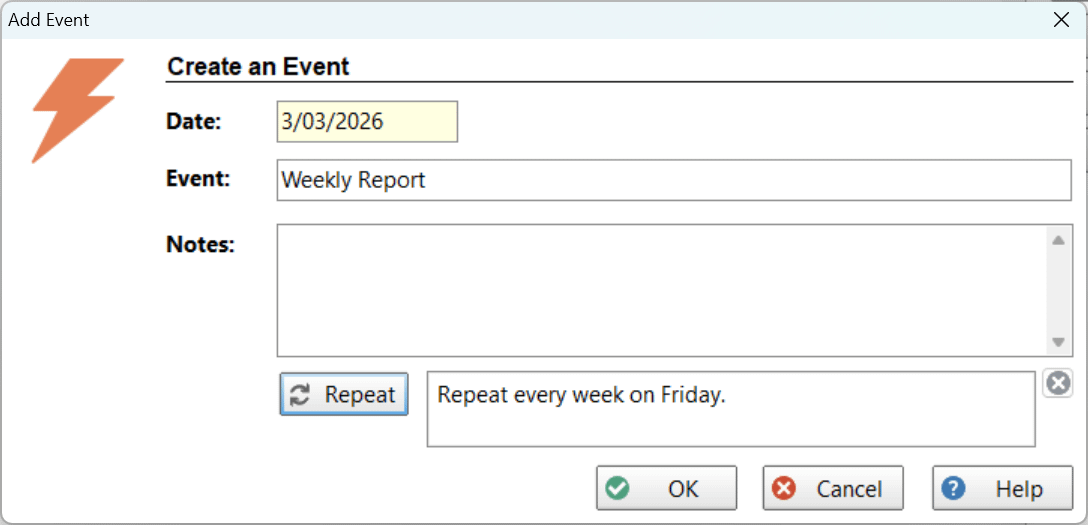 Whether it’s public holidays, staff leave, training days, office meetings, or recurring internal tasks, you can now add them directly into the calendar so everyone stays aligned.
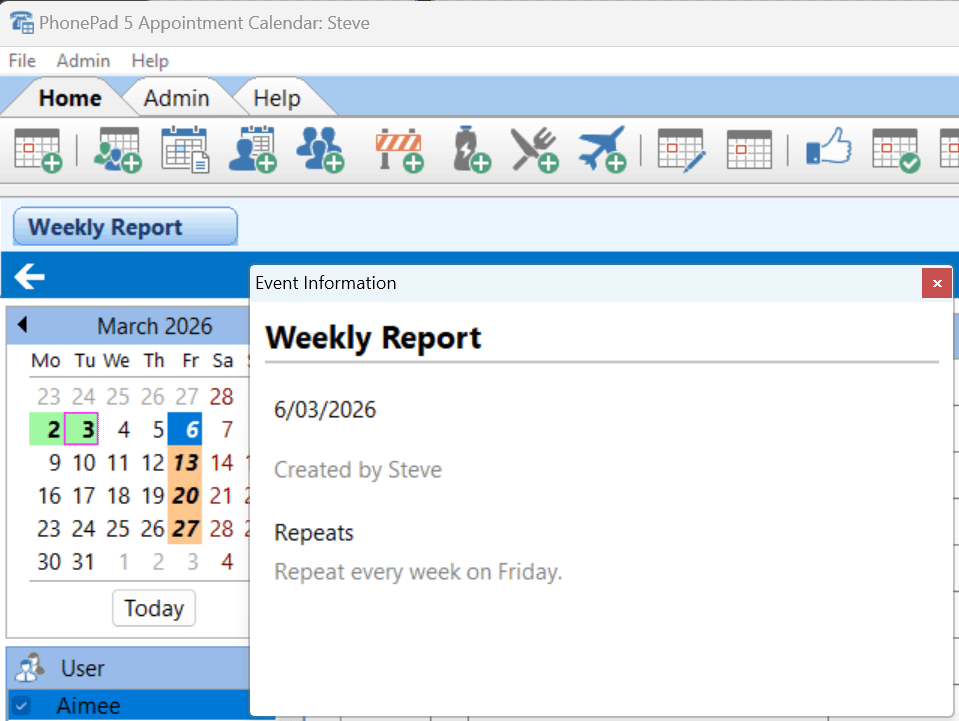 With Events, you can now add those non-appointment items directly into the Appointment Calendar. They can be one-off or recurring, helping your team see the full picture of the day at a glance.
Appointment Calendar Reminders
Never be caught off guard again.
PhonePad Version 5.91.1 introduces flexible, built-in Appointment Calendar Reminders, giving every user complete control over how and when they’re notified.
Whether you need a quick 5-minute heads-up or a full hour to prepare, reminders can now be configured to suit the way you work.
 Smart, Flexible Notifications
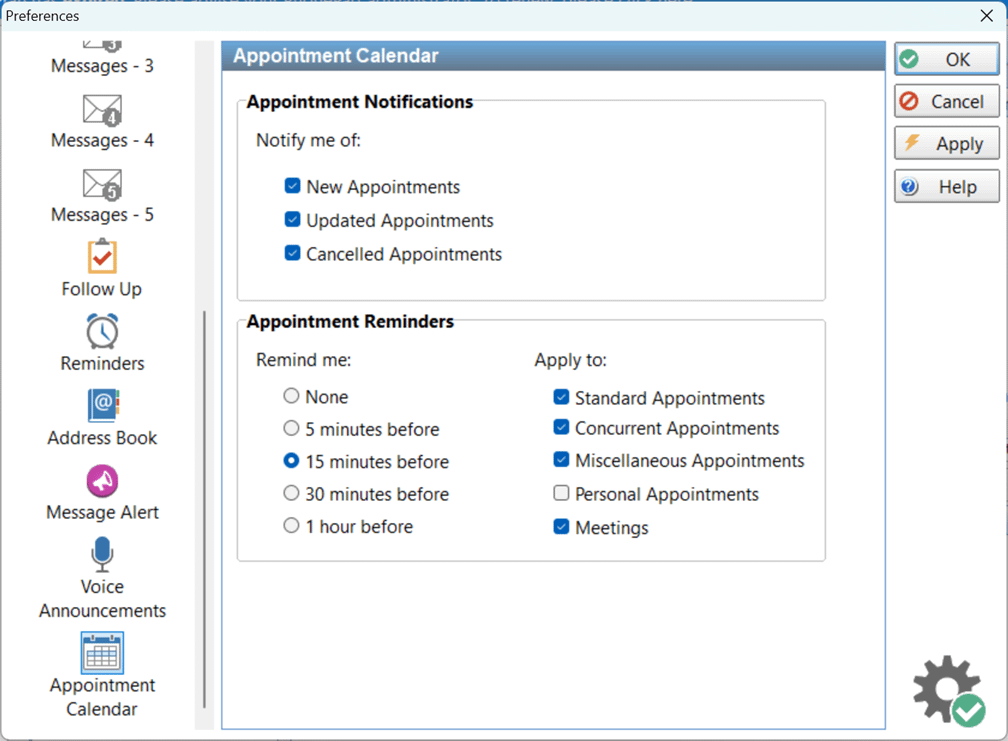
Users can choose to receive reminders:
- 5 minutes before
- 15 minutes before
- 30 minutes before
- 1 hour before
And reminders can be applied selectively to:
- Standard Appointments
- Concurrent Appointments
- Miscellaneous Appointments
- Personal Appointments
- Meetings
This means no more unnecessary alerts for events that don’t matter to you, and no more missed meetings that do.
Designed for Busy Teams
In fast-paced office environments, it’s easy to lose track of time. Appointment Calendar’s new reminder system works quietly in the background, ensuring that important appointments rise to the surface at exactly the right moment.
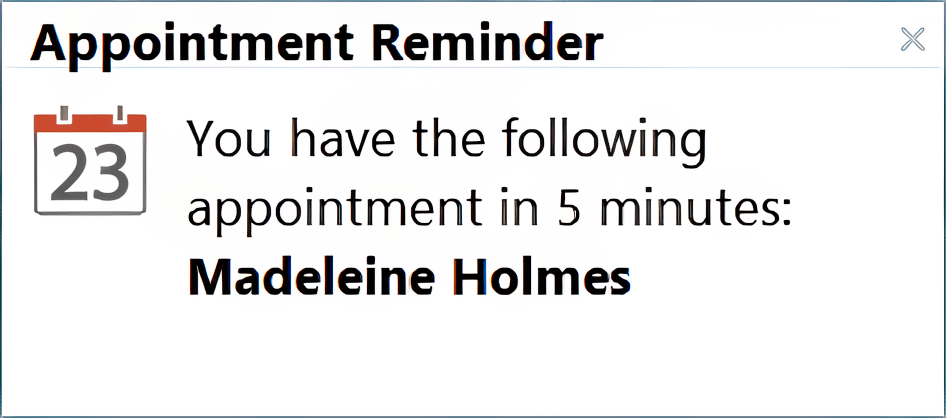
When a reminder triggers, a clear on-screen notification displays the upcoming appointment, giving users just enough time to prepare, call a client, walk to a meeting room, or grab that file before the conversation begins.
It’s simple. It’s reliable. And it keeps your team one step ahead of the day.
Message List Refreshing – Resolved
We identified and resolved an issue that prevented some newly received messages from immediately appearing in the Inbox. The cause was related to the legacy Workstation Notification Service.
Version 5.91.0 introduces a completely improved notification system, delivering faster and more reliable message list refreshing across all workstations.
Changes in This Release
- NEW: Appointment Calendar: Events – Create one-off or repeat events.
- NEW: Appointment Reminders: Configurable reminders for upcoming appointments.
- IMPROVED: Appointment Calendar: Appointment screens now load faster.
- IMPROVED: Appointment Calendar: Removed the 1-year limit on repeating appointments.
- IMPROVED: Appointment Calendar: Added 7–12 month options to repeating appointments.
- IMPROVED: PhonePad Server: Performance improvements.
- IMPROVED: Notifications are now handled internally by PhonePad. The separate Workstation Notification Service is no longer required.
- FIXED: Appointment Calendar: User calendar order now matches the user list order.
- FIXED: Appointment Calendar: Printouts now respect 12-hour time settings.
- Minor fixes and improvements.
Important Information About MessageSender
This release is only compatible with MessageSender Version 6.26.0 or later. If you don’t use MessageSender then you don’t need to worry about this.
Problems?
We’re human too. We haven’t been replaced by some algorithm – yet – but who knows what the future holds.
 And we’re definitely not perfect. Like most other humans, we can make mistakes. So chances are you may come across something that’s not quite working right. If you do find an error or a bug, please let us know and we’ll fix it as quickly as possible.
Installation Information
Please note: Server Updates must be installed on your Server or Host PC, not your workstation (unless your workstation is also the Host PC) – they cannot be installed directly on your workstations. Make sure all users are logged out of PhonePad as the PhonePad Server will be stopped during the update and then restarted once it has completed. Workstations will be automatically updated when PhonePad 5 Workstation is started on each workstation. Important: When downloading and installing an update from your My PhonePad account, make sure it’s actually the update and not the server setup program.
How Updates Work
Please read: You do not need to install every update between this one and the last update you installed. PhonePad uses a smart update system that compares your current PhonePad system with what’s in the update, works out what changes are required, and then makes those changes. So if you are a few versions behind don’t worry. You can skip all of the updates in between and go straight to this update.
Updates and Anti-Virus Software
Depending on the anti-virus software you use, when you install a Server Update your AV software may class the updated software as a different program due to the change in binary signature. If you experience speed or freezing issues after an update, you may need to reconfigure your AV software to stop real-time scanning of PhonePad. This may need to be done on the both your Server or Host PC, and your workstations.
 Digital Signatures

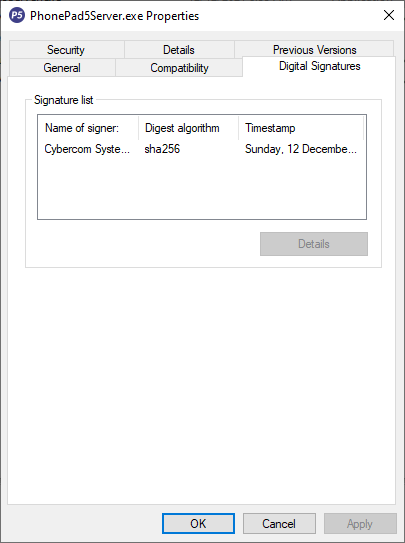
All PhonePad executables and DLLs are digitally signed for your protection.
 You can confirm that a file is safe by right-clicking on it and selecting Properties from the popup menu, and then selecting the Digital Signatures tab.
 Downloading the Update
You can download the update from your My PhonePad account.
If you are a current trial user you can download the update by logging in to My PhonePad Trial using the email address you used to start your trial.
Please contact Support if you have any problems or questions.
Installing Updates
If you’re unsure of how to install updates, please watch the video on this blog post.
If you are a licensed user you will need to have a current PhonePad Care Plan to install this update. If your Care Plan has expired, you will need to renew it before you can install this update. Trial users can install the update if they are still in their trial period.
Update Installation Service
If you would rather have the Server Update installed for you, you can arrange for us to remote connect and install it. The cost is $45 and you can schedule a date and time here: https://www.cybercom-software.com/remote-server-update-assistance.htm .