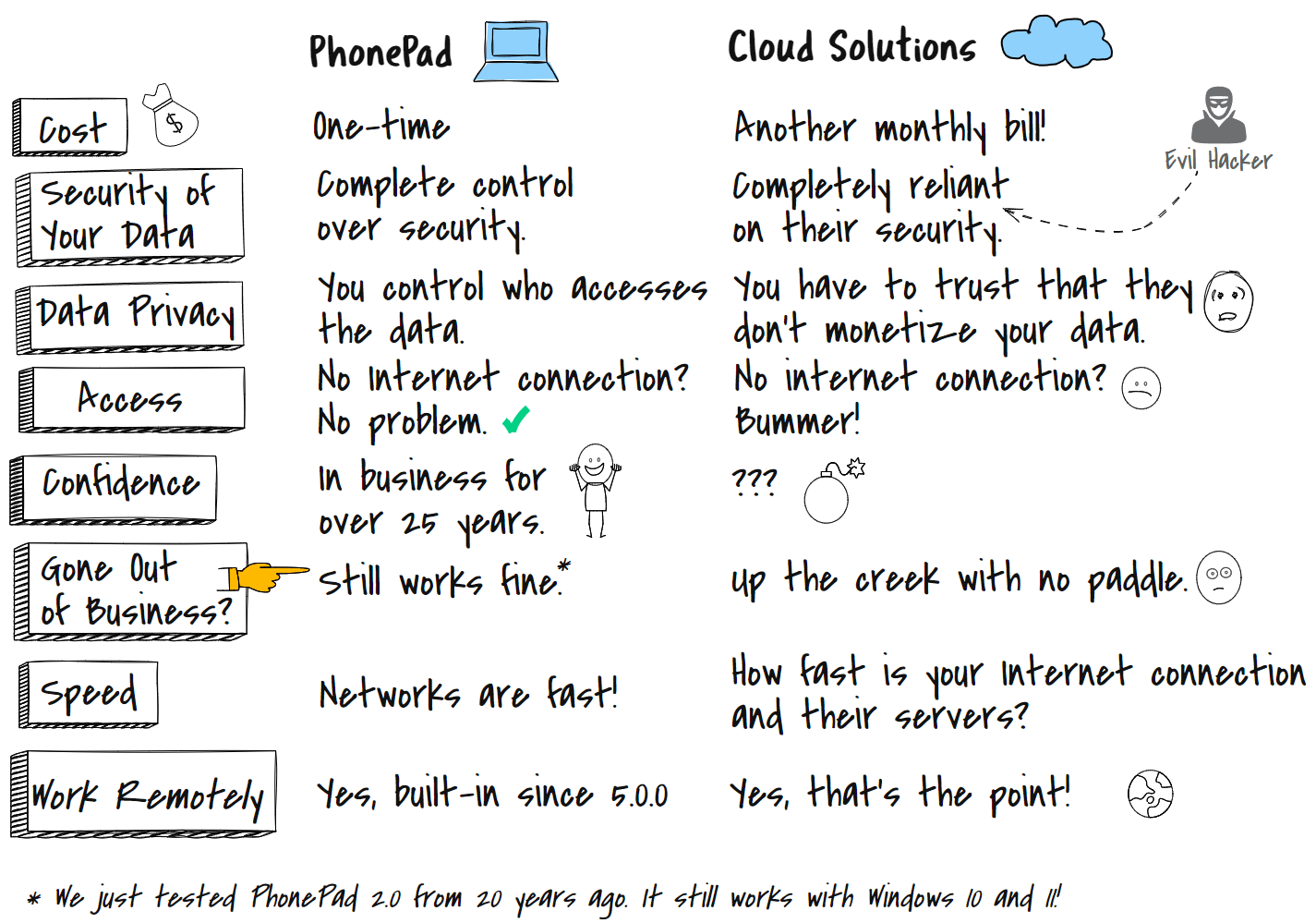
We occasionally get asked if there is a cloud version of PhonePad. The answer is a most definite NO.
Why not you might say?
Thanks for asking!
Here are some reasons:
Manage your phone messages quickly and easily with PhonePad!
We occasionally get asked if there is a cloud version of PhonePad. The answer is a most definite NO.
Why not you might say?
Thanks for asking!
Here are some reasons:
We are pleased to announce the release of PhonePad Version 5.73.0.
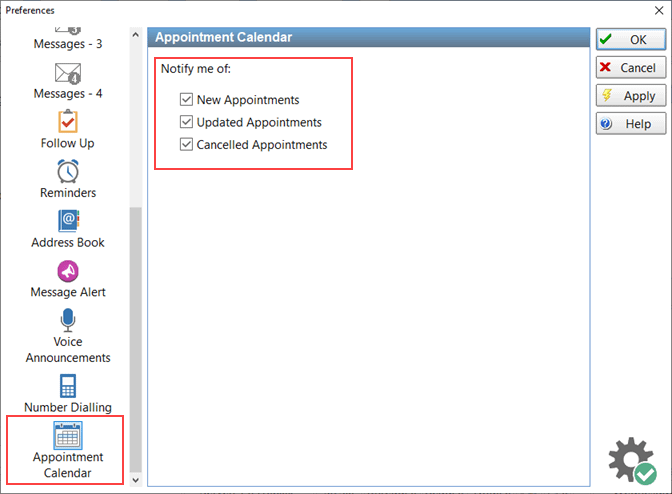
You can now receive notification messages when a new appointment is book, an appointment is updated, and an appointment is cancelled.
To use this feature, go into Preferences in PhonePad and select the Appointment Calendar option. Check the checkbox for each option you want, then click the OK button.
 Changes in This Release
This release is only compatible with MessageSender Version 6.20.0 or later.
Please note: Server Updates must be installed on your Server or Host PC, not your workstation (unless your workstation is also the Host PC) – they cannot be installed directly on your workstations. Make sure all users are logged out of PhonePad as the PhonePad Server will be stopped during the update and then restarted once it has completed. Workstations will be automatically updated when PhonePad 5 Workstation is started on each workstation. Important: When downloading and installing an update from your My PhonePad account, make sure it’s actually the update and not the server setup program.
Please read: You do not need to install every update between this one and the last update you installed. PhonePad uses a smart update system that compares your current PhonePad system with what’s in the update, works out what changes are required, and then makes those changes. So if you are a few versions behind don’t worry. You can skip all of the updates in between and go straight to this update.
Depending on the anti-virus software you use, when you install a Server Update your AV software may class the updated software as a different program due to the change in binary signature. If you experience speed or freezing issues after an update, you may need to reconfigure your AV software to stop real-time scanning of PhonePad. This may need to be done on the both your Server or Host PC, and your workstations.
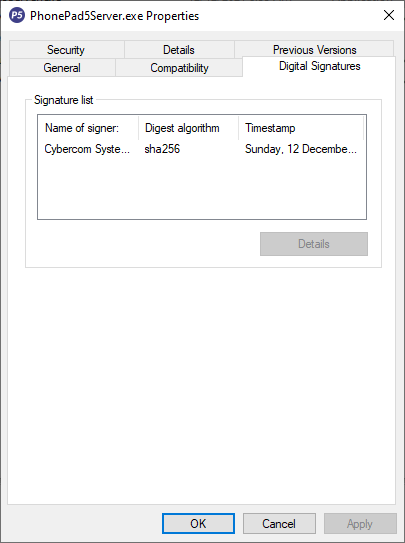
All PhonePad executables and DLLs are digitally signed for your protection.
You can confirm that a file is safe by right-clicking on it and selecting Properties from the popup menu, and then selecting the Digital Signatures tab.
You can download the update from your My PhonePad account.
If you are a current trial user you can download the update by logging in to My PhonePad Trial using the email address you used to start your trial.
Please contact Support if you have any problems or questions.
If you’re unsure of how to install updates, please watch the video on this blog post.
You will need to have a current Update Plan to install this update. If your Update Plan has expired, you will need to renew it before you can install this update.
If you would rather have the Server Update installed for you, you can arrange for us to remote connect and install it. The cost is $37 and you can schedule a date and time here: https://www.cybercom-software.com/remote-server-update-assistance.htm .
Our old Knowledge Base kicked the bucket some time ago. We have finally replaced it with a brand new one with up-to-date information.
It’s designed to help you get answers to questions or problems you may have  without having to wait for a response from us. It’s simple to use and includes a search feature to make it easy to find what you’re looking for.
Of course, if you can’t find an answer there then please contact us.
More information will be added in the coming days and weeks.
You can access the new Knowledge Base here: https://www.cybercom-software.com/knowledgebase
We are pleased to announce the release of PhonePad Version 5.72.3.
This is an important maintenance release that fixes a problem inadvertently introduced into Version 5.72.2.
We apologize for any inconvenience.
This release is only compatible with MessageSender Version 6.20.0 or later.
Please note: Server Updates must be installed on your Server or Host PC, not your workstation (unless your workstation is also the Host PC) – they cannot be installed directly on your workstations. Make sure all users are logged out of PhonePad as the PhonePad Server will be stopped during the update and then restarted once it has completed. Workstations will be automatically updated when PhonePad 5 Workstation is started on each workstation. Important: When downloading and installing an update from your My PhonePad account, make sure it’s actually the update and not the server setup program.
Please read: You do not need to install every update between this one and the last update you installed. PhonePad uses a smart update system that compares your current PhonePad system with what’s in the update, works out what changes are required, and then makes those changes. So if you are a few versions behind don’t worry. You can skip all of the updates in between and go straight to this update.
Depending on the anti-virus software you use, when you install a Server Update your AV software may class the updated software as a different program due to the change in binary signature. If you experience speed or freezing issues after an update, you may need to reconfigure your AV software to stop real-time scanning of PhonePad. This may need to be done on the both your Server or Host PC, and your workstations.
All PhonePad executables and DLLs are digitally signed for your protection.
You can confirm that a file is safe by right-clicking on it and selecting Properties from the popup menu, and then selecting the Digital Signatures tab.
You can download the update from your My PhonePad account.
If you are a current trial user you can download the update by logging in to My PhonePad Trial using the email address you used to start your trial.
Please contact Support if you have any problems or questions.
If you’re unsure of how to install updates, please watch the video on this blog post.
You will need to have a current Update Plan to install this update. If your Update Plan has expired, you will need to renew it before you can install this update.
If you would rather have the Server Update installed for you, you can arrange for us to remote connect and install it. The cost is $37 and you can schedule a date and time here: https://www.cybercom-software.com/remote-server-update-assistance.htm .
PhonePad is always evolving. We are continually enhancing, updating and improving it. Whenever we make these changes we release them as Server Updates.
Last year there were 21 Server Updates. This year there have been 4 Server Updates already.
Of course, you don’t have to install every Server Update, or any at all if you don’t want to. Or you could skip a few and install say every 5 updates, or install the latest update every 3 months (as an example). Just in case you don’t know, each Server Update includes all of the previous updates so you don’t need to install every single one.
If you’re not confident about installing Server Updates, or you simply don’t have the time, then we can install them for you. All you need to do is book a date and time online. It is only $37 (per Server Update).
We are pleased to announce the release of PhonePad Version 5.72.2.
This release is only compatible with MessageSender Version 6.20.0 or later.
Please note: Server Updates must be installed on your Server or Host PC, not your workstation (unless your workstation is also the Host PC) – they cannot be installed directly on your workstations. Make sure all users are logged out of PhonePad as the PhonePad Server will be stopped during the update and then restarted once it has completed. Workstations will be automatically updated when PhonePad 5 Workstation is started on each workstation. Important: When downloading and installing an update from your My PhonePad account, make sure it’s actually the update and not the server setup program.
Please read: You do not need to install every update between this one and the last update you installed. PhonePad uses a smart update system that compares your current PhonePad system with what’s in the update, works out what changes are required, and then makes those changes. So if you are a few versions behind don’t worry. You can skip all of the updates in between and go straight to this update.
Depending on the anti-virus software you use, when you install a Server Update your AV software may class the updated software as a different program due to the change in binary signature. If you experience speed or freezing issues after an update, you may need to reconfigure your AV software to stop real-time scanning of PhonePad. This may need to be done on the both your Server or Host PC, and your workstations.
All PhonePad executables and DLLs are digitally signed for your protection.
You can confirm that a file is safe by right-clicking on it and selecting Properties from the popup menu, and then selecting the Digital Signatures tab.
You can download the update from your My PhonePad account.
If you are a current trial user you can download the update by logging in to My PhonePad Trial using the email address you used to start your trial.
Please contact Support if you have any problems or questions.
If you’re unsure of how to install updates, please watch the video on this blog post.
You will need to have a current Update Plan to install this update. If your Update Plan has expired, you will need to renew it before you can install this update.
If you would rather have the Server Update installed for you, you can arrange for us to remote connect and install it. The cost is $37 and you can schedule a date and time here: https://www.cybercom-software.com/remote-server-update-assistance.htm .
We are pleased to announce the release of MessageSender Version 6.20.2.
This release is only compatible with PhonePad Version 5.72.1 or later.
Please note: MessageSender must be installed on your Server or Host PC, not your workstation (unless your workstation is also the Host PC).
Please read: You do not need to install every update between this one and the last update you installed. You can skip all of the updates in between and go straight to this update.
Depending on the anti-virus software you use, when you install a new version of MessageSender your AV software may class the updated software as a different program due to the change in binary signature. If you experience speed or freezing issues after an update, you may need to reconfigure your AV software to stop real-time scanning of MessageSender..
The MessageSender executable is digitally signed for your protection.
You can download the update from your My PhonePad account.
If you are a current trial user you can download the update by logging in to My PhonePad Trial using the email address you used to start your trial.
Please contact Support if you have any problems or questions.
We are pleased to announce the release of PhonePad Version 5.72.1.
This release is only compatible with MessageSender Version 6.20.0 or later.
Please note: Server Updates must be installed on your Server or Host PC, not your workstation (unless your workstation is also the Host PC) – they cannot be installed directly on your workstations. Make sure all users are logged out of PhonePad as the PhonePad Server will be stopped during the update and then restarted once it has completed. Workstations will be automatically updated when PhonePad 5 Workstation is started on each workstation. Important: When downloading and installing an update from your My PhonePad account, make sure it’s actually the update and not the server setup program.
Please read: You do not need to install every update between this one and the last update you installed. PhonePad uses a smart update system that compares your current PhonePad system with what’s in the update, works out what changes are required, and then makes those changes. So if you are a few versions behind don’t worry. You can skip all of the updates in between and go straight to this update.
Depending on the anti-virus software you use, when you install a Server Update your AV software may class the updated software as a different program due to the change in binary signature. If you experience speed or freezing issues after an update, you may need to reconfigure your AV software to stop real-time scanning of PhonePad. This may need to be done on the both your Server or Host PC, and your workstations.
All PhonePad executables and DLLs are digitally signed for your protection.
You can confirm that a file is safe by right-clicking on it and selecting Properties from the popup menu, and then selecting the Digital Signatures tab.
You can download the update from your My PhonePad account.
If you are a current trial user you can download the update by logging in to My PhonePad Trial using the email address you used to start your trial.
Please contact Support if you have any problems or questions.
If you’re unsure of how to install updates, please watch the video on this blog post.
You will need to have a current Update Plan to install this update. If your Update Plan has expired, you will need to renew it before you can install this update.
We are pleased to announce the release of PhonePad Version 5.72.0.
This release is only compatible with MessageSender Version 6.20.0 or later.
Please note: Server Updates must be installed on your Server or Host PC, not your workstation (unless your workstation is also the Host PC) – they cannot be installed directly on your workstations. Make sure all users are logged out of PhonePad as the PhonePad Server will be stopped during the update and then restarted once it has completed. Workstations will be automatically updated when PhonePad 5 Workstation is started on each workstation. Important: When downloading and installing an update from your My PhonePad account, make sure it’s actually the update and not the server setup program.
Please read: You do not need to install every update between this one and the last update you installed. PhonePad uses a smart update system that compares your current PhonePad system with what’s in the update, works out what changes are required, and then makes those changes. So if you are a few versions behind don’t worry. You can skip all of the updates in between and go straight to this update.
Depending on the anti-virus software you use, when you install a Server Update your AV software may class the updated software as a different program due to the change in binary signature. If you experience speed or freezing issues after an update, you may need to reconfigure your AV software to stop real-time scanning of PhonePad. This may need to be done on the both your Server or Host PC, and your workstations.
All PhonePad executables and DLLs are digitally signed for your protection.
You can confirm that a file is safe by right-clicking on it and selecting Properties from the popup menu, and then selecting the Digital Signatures tab.
You can download the update from your My PhonePad account.
If you are a current trial user you can download the update by logging in to My PhonePad Trial using the email address you used to start your trial.
Please contact Support if you have any problems or questions.
If you’re unsure of how to install updates, please watch the video on this blog post.
You will need to have a current Update Plan to install this update. If your Update Plan has expired, you will need to renew it before you can install this update.
We are pleased to announce the release of PhonePad Version 5.71.0.
This release is only compatible with MessageSender Version 6.20.0 or later.
Please note: Server Updates must be installed on your Server or Host PC, not your workstation (unless your workstation is also the Host PC) – they cannot be installed directly on your workstations. Make sure all users are logged out of PhonePad as the PhonePad Server will be stopped during the update and then restarted once it has completed. Workstations will be automatically updated when PhonePad 5 Workstation is started on each workstation. Important: When downloading and installing an update from your My PhonePad account, make sure it’s actually the update and not the server setup program.
Please read: You do not need to install every update between this one and the last update you installed. PhonePad uses a smart update system that compares your current PhonePad system with what’s in the update, works out what changes are required, and then makes those changes. So if you are a few versions behind don’t worry. You can skip all of the updates in between and go straight to this update.
Depending on the anti-virus software you use, when you install a Server Update your AV software may class the updated software as a different program due to the change in binary signature. If you experience speed or freezing issues after an update, you may need to reconfigure your AV software to stop real-time scanning of PhonePad. This may need to be done on the both your Server or Host PC, and your workstations.
All PhonePad executables and DLLs are digitally signed for your protection.
You can confirm that a file is safe by right-clicking on it and selecting Properties from the popup menu, and then selecting the Digital Signatures tab.
You can download the update from your My PhonePad account.
If you are a current trial user you can download the update by logging in to My PhonePad Trial using the email address you used to start your trial.
Please contact Support if you have any problems or questions.
If you’re unsure of how to install updates, please watch the video on this blog post.
You will need to have a current Update Plan to install this update. If your Update Plan has expired, you will need to renew it before you can install this update.