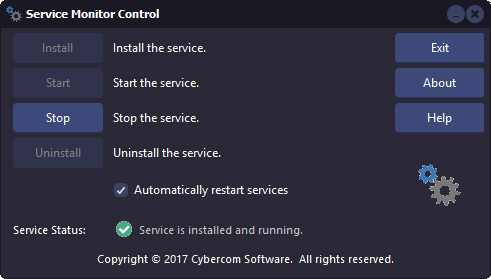
We have just released ServiceMonitor Version 5.1.0.
What is ServiceMonitor?
It is a service that you can install on your Server or Host PC that monitors the PhonePad 5 Server service and the MessageSender 6 service. If either of these services stop for some reason, ServiceMonitor will automatically restart them.
Why Would I Need It?
You probably don’t need it. But we have encountered situations where something external to the PhonePad 5 system stops the services overnight and they have to be manually restarted.
At this stage we don’t know what is stopping the services. It could be backup software or some other system process that is running that is causing some sort of conflict. The server logs haven’t revealed anything.
If you find your PhonePad 5 Server (or MessageSender 6) stops running overnight and you have to restart it each morning, install ServiceMonitor and it will keep your PhonePad 5 up and running.
How Do I Use It?
ServiceMonitor runs in the background as a Windows service.
Once you install ServiceMonitor on your Server or Host PC, the ServiceMonitor Control application will automatically start.
You may notice that it looks similar to the ControlCenter application. It is and it works in pretty much the same way. First you install the ServiceMonitor service, and then you start it.
Once you have done this, you can turn on service monitoring by clicking the Automatically restart services check box. You can disable the monitoring at any time by unchecking the check box.
That’s it.
Downloading
You can download it from here or from your My PhonePad Account.
This update is available for both fully licensed users and trial users.
Please contact Support if you have any problems or questions.
If you have a version of PhonePad 5 earlier than 5.15.0 and are experiencing “freezing” issues after logging in, then you are probably getting Microsoft Windows Socket Error #10060. You can verify this by checking the PhonePad log files for the affected workstations. You can find them under this folder: C:\ProgramData\Cybercom Software\PhonePad5\Logs.
What is actually happening is that PhonePad 5 is trying to connect to the Notification and Communications servers but is getting an error back from the Windows Socket Layer. So it tries again, and keeps trying, to establish a connection. It ends up in an infinite loop if the errors keep occurring.
The immediate solution is to update to Version 5.15.0 using the PhonePad 5.15.0 Server Update. Although you will still get an error message about Microsoft Windows Socket Error #10060, PhonePad will no longer “freeze” as the number of retries has been limited. In addition to that, the connections are now done in background threads rather than the application’s main thread. As a result of this you should notice that PhonePad logs in much faster.
Unfortunately there’s nothing we can do within PhonePad to stop this error from occurring as it’s actually happening outside of PhonePad in the Microsoft Windows Socket layer. PhonePad is asking for the connections. Once a connection has been requested there’s nothing PhonePad can do about it except ask again – it’s up to Windows to provide the connection.
Initial investigations show that it is generally caused by some type of network configuration issue. We are working on finding out solutions for this. Although it’s not caused by anything we are doing we would like to find out how to resolve this error. If all goes well the solution will either be in the form of instructions, or if at all possible we will try to do it programmatically.
So what’s the downside of this error:
- PhonePad workstations with the error won’t be able to receive broadcasts from system administrators.
- Dynamic Refresh will be disabled and PhonePad will automatically revert to the polling method of new message checking.
The bottom line is you will be able to continue using PhonePad 5 as normal so it’s only a slight inconvenience.
If you are using Kapersky Labs anti-virus software then you may be getting messages that some PhonePad 5 files are infected, especially during installation or updates. The main files being reported are: BackupModule.dll, CloudModule.dll, and SMSModule.dll.
These reports are false positives. This means that Kapersky thinks the files are infected but they aren’t. These files have been scanned by 56 anti-virus programs and Kapersky is the only one that reports a virus. We have reported this issue to Kapersky Labs.
We recommend temporarily pausing Kapersky when installing PhonePad 5, or installing a PhonePad 5 update, if you get these false positive messages.
Just in time for Halloween we have the number 13 for you. But this one isn’t unlucky. PhonePad 5.13.0 Server Update has been released and is now available for download.
Changes and Fixes
- ADDED – The new Speed Test feature allows system administrators to test response times between workstations and your Server or Host PC.
- ADDED – Import feature for import Categories and Contact Types.
- ADDED – Clear button for deleting all Categories and Contact Types.

- ADDED – Parallel processing to improve performance.
- ADDED – New System Rule allows you to set how the caller lookup list in messages is displayed. You can use Fullname (as it is now) or Lastname, Firstname.
- ADDED – Options to specify the default tab to be displayed on the Inbox message information pane.
- ADDED – Address Book button in phone messages allows updating of caller’s details.
- FIXED – Multiple selection of Inbox message list was inadvertently broken in the previous release.
- FIXED – Index out of bounds error when clicking Inbox column heading.
- Various minor fixes.
Please note: Server Updates must be installed on your Server or Host PC, not your workstation (unless your workstation is also the Host PC) – they cannot be installed directly on your workstations. Workstations will be automatically updated when PhonePad 5 Workstation is started on each workstation.
Important: When installing an update make sure it’s actually the update and not the server setup program. The update will update your database whereas the setup program will overwrite it with a blank database.
You can download the update from your My PhonePad account or by clicking here.
These updates are available for both fully licensed users and trial users.
Please contact Support if you have any problems or questions.