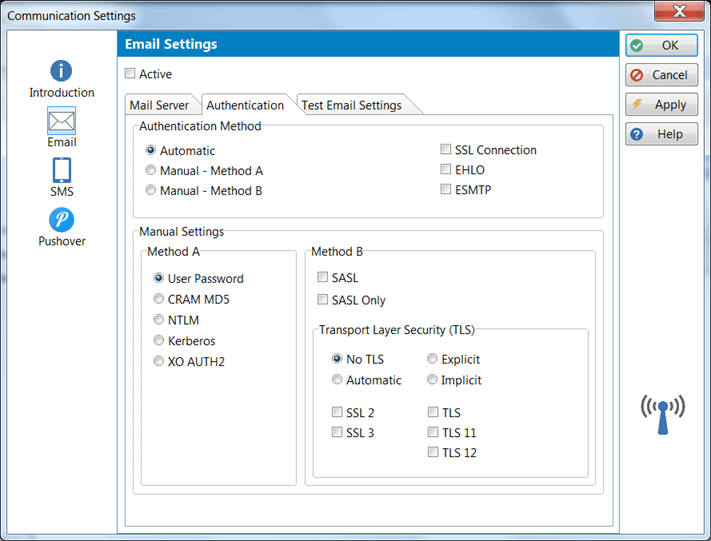
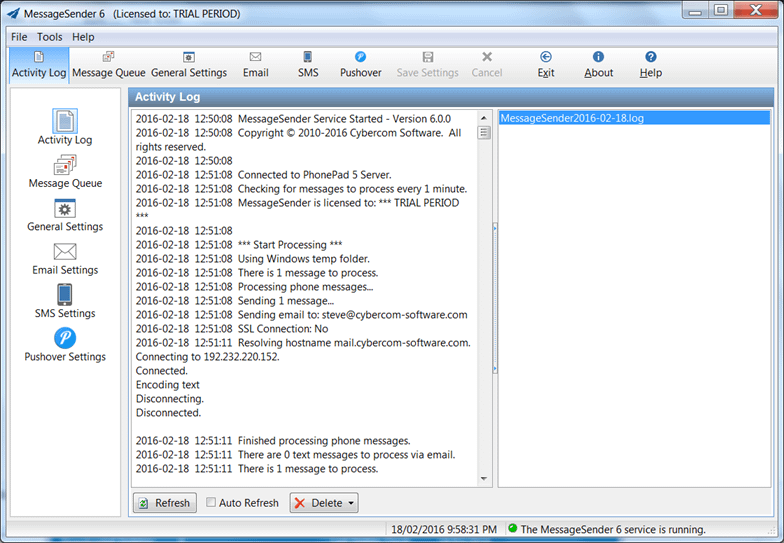
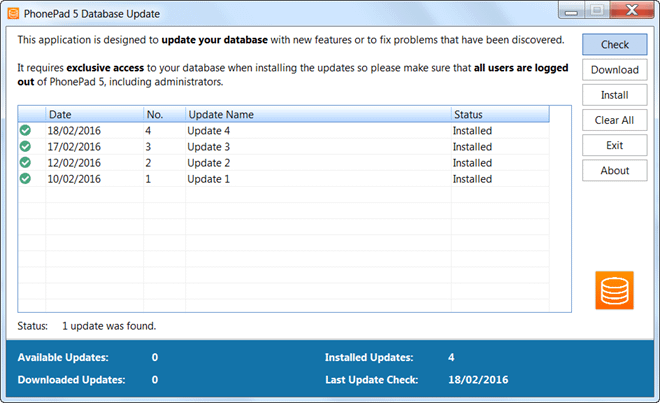
PhonePad 5 has new email systems for sending emails from within PhonePad and via MessageSender 6. The systems are configured under System Admin/Communication Settings/Email.
Although the two email systems work with many mail servers, some customers reported that they don’t seem to be compatible with their mail servers. It’s all down to authentication. Each mail server has their own way of authenticating users and it appears that the two included email systems and their authentication protocols don’t work with everything.
To solve this problem we have introduced a third email system.
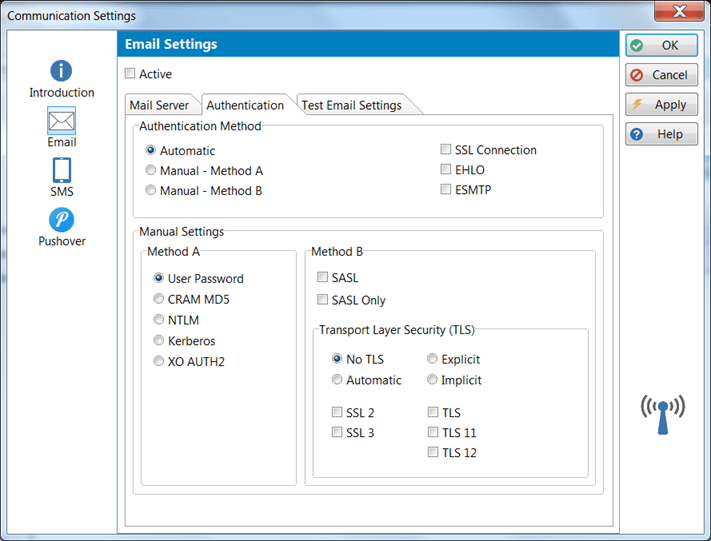
We recommend trying the Automatic method first as this will try to work out what protocols your mail server uses. If it can’t work them out then you can use either Manual Method A or Manual Method B. The Test Email Settings tab allows you to test the settings to make sure that they are working.
If your Email options under Communication Settings doesn’t have the 3rd option then please download and install the 5.2.2 update (or later).
If you are having problems working out the settings, please contact Support. We would be happy to help you with this.
We are pleased to announce the release of PhonePad 5.2.2 Server Update. This is a maintenance release.
CHANGES AND FIXES
- When automatically moving messages to a folder on completion, you can now select Public or Group folders in addition to Personal folders (View/Preferences/Follow Up).
- Â When multiple messages were automatically moved to a folder on completion, only the first issue was being marked as completed. – FIXED
- When doing a search within a message list the search results are cleared every time the message list is refreshed. -Â FIXED.
- Database update issue with previous build. The correct database updates were excluded from the previous build due to a system error. Symptoms of this problem were the following errors after a user logged in: “Could not convert variant of (Unicode String) into (type) integer” and “Access Violation”. This was caused by missing data structures in the database. – FIXED.
- Unable to move messages out of Personal, Public or Group folders. – FIXED.
- When creating a new phone message, if you change the message date it will still use the current date. – FIXED.
- Phone messages not displaying custom message title. – FIXED.
- Printing messages without first setting the date format under System Rules produces an error (“Error #1400: Error in the format string (Missing year (y), month (m) or day (d) component)”). – FIXED.
It is recommended that you apply this update as soon as possible. Please note that the update must be installed on your Server or Host PC, not your workstation (unless your workstation is also the Host PC). If you don’t do this then the update will not work.
This update can be downloaded using this link: http://tinyurl.com/jzm8cff  It is available for both fully licensed users and trial users.
Please contact Support if you have any problems or questions.
We are pleased to announce the availability of PhonePad Version 5.2.0 Server Update.
New Features
- A popup notification will now appear in the system tray when a new version of PhonePad is available for download (only available to administrators).
- The Application Updates feature is now active.
- The columns in message lists can be hidden or made visible.
- The order of message list columns can be changed by dragging and dropping them, and PhonePad will remember the order.
- The width of message list columns can be changed and this will be remembered by PhonePad.
- A Category column is now displayed in message lists.
- Message list column titles now correlate to custom label changes.
- The user list now shows the number of unread messages for each user.
- Using the Switch User option you can logout of PhonePad and login using a different user account.
- Multiple messages can be marked as Read.
- The font size used in message lists can now be changed.
- Added option for setting the color of urgent messages that have been read.
Changes and Fixes
- The PhonePad 5 User Guide and Admin Guide have been updated with the latest changes. The help files and
- Address Book editing permissions – FIXED.
- Messages can be sent without having any recipients – FIXED.
- User list not refreshing until PhonePad is restarted – FIXED.
- Caller Information and Preview tabs not being refreshed correctly – FIXED.
- Multiple messages can’t be moved to another folder – FIXED.
- Multiple messages can’t be marked for Follow Up – FIXED.
- Multiple messages can’t be marked as Completed – FIXED.
- Some messages were incorrectly being shown in the Deleted folder when they weren’t deleted – FIXED.
- Database updates are now performed at the same time as application updates, keeping the two in sync. The Database Update application has been deprecated.
Workstations will be automatically updated with the new version of PhonePad 5.2.0 Workstation when users login.
Important note: whenever you install updates, you need to ensure that all users are logged out of PhonePad.
Download the update now to your Server or Host PC.
We are pleased to announce that MessageSender 6.0.0 is now available for download and purchase. MessageSender 6 is the version of MessageSender that works with PhonePad 5.
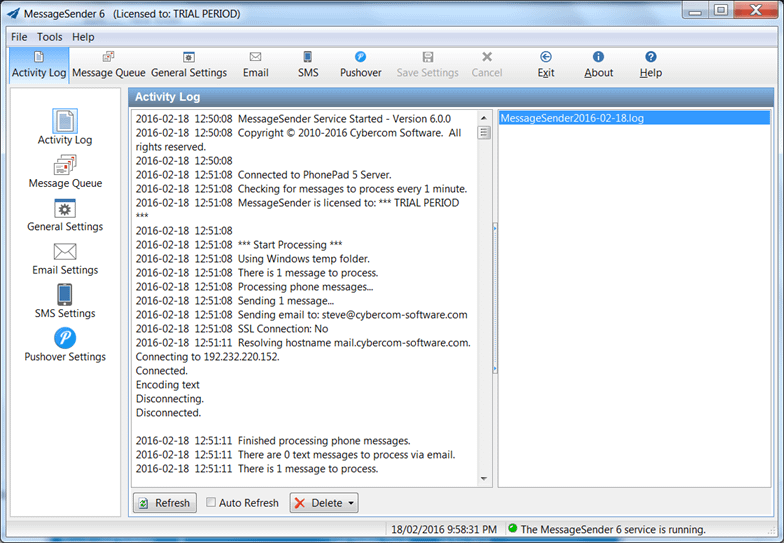
Changes in this release are:
- Compatibility with PhonePad 5.
- Pushover messages are handled separately to SMS messages.
- Configuration is now handled by the Communication Settings feature within PhonePad 5 Workstation.
If you purchased MessageSender 5.15 then you will receive a free upgrade to MessageSender 6.
Important: Please make sure you run Database Update and download and install all updates up to update 4. These changes are required for MessageSender to run successfully.

All database updates up to and including Update 4 need to be installed.
The MessageSender home page will be updated in the next couple of days. We wanted to get MessageSender 6 out as quickly as possible as we know many customers have been waiting for it.
The PhonePad 5 Admin Guide has a whole new section on Automatic Message Forwarding and MessageSender 6.
If you have any questions please contact sales@cybercom-software.com. As usual any issues should be reported to support@cybercom-software.com.
The second update for PhonePad 5 Server is now available for download. Update 2 includes the following changes:
- PhonePad 5 has a couple of important configuration files that will affect your database if they are damaged. Besides being backed up in your automatic backups, the server will also back up these two files every 12 hours.
- Using a space in a username or group name will cause errors when you try to send messages to these users or groups. PhonePad 5 doesn’t allow spaces in usernames and group names, however, it wasn’t stopping this from happening – FIXED.
- Messages deleted from the Sent folder still appear in the folder – FIXED.
- Emptying the Deleted folder generates an error – FIXED.
- Clearing the Address Book doesn’t work – FIXED.
- The Database Update application produces errors due to insufficient Windows permissions – FIXED.
- The Database Migrator application produces errors due to insufficient Windows permissions – FIXED.
- When starting the PhonePad Server for the first time on a fresh install, the Server creates and sets up the database. This can take up to 20 minutes. This has now been changed so that the database is pre-created, cutting down the time to less than a minute. So ignore any previous posts that mention waiting for 10 – 20 minutes as this no longer applies.
- Control Center now creates firewall exception rules for domain, as well as private and public.
- This release also includes new functionality required to support the MessageSender 6 release later this week.
It is strongly recommended that once you install the server update that you also run Database Update and download and install the update (it will start automatically when the installation finishes). There are 3 updates currently available.
Workstations will be automatically updated with the new version of PhonePad 5 Workstation when users login.
Important note: whenever you install updates, either application updates or database updates, you need to ensure that all users are logged out of PhonePad.
Download the update now to your Server or Host PC.
Please note that the update will only work if you have PhonePad 5 installed. If you don’t have PhonePad 5 installed then download the full version instead as it contains all of the updates.
If you get any error messages when using PhonePad please ensure that you have downloaded and installed all database updates using Database Update.

Use Database Update to ensure your PhonePad 5 database has the latest changes.
If you have any problems please report them to support@cybercom-software.com.
MessageSender 6 is going through final testing and should be available by the end of this week. On the surface it looks very

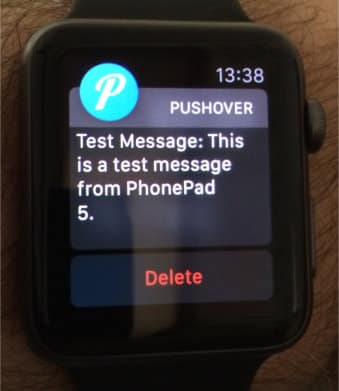
Message sent by MessageSender 6 to an Apple Watch using Pushover (on a hairy arm).
similar to MessageSender 5.15 but it has some important differences:
- It works with PhonePad 5.
- Messages forwarded using Pushover are now handled separately.
- The Email, SMS and Pushover settings are now set under the PhonePad 5 Communication Settings option so there is no duplication of effort. It’s all controlled from one central location.
Stay tuned for the release later this week.
PhonePad Version 5.0.2 has been released and is now available for download.
With this release there is no longer a need to wait up to 20 minutes after installing the PhonePad 5 Server before running PhonePad 5 Workstation. Now you can run it immediately because we have changed the way the database is installed and set up.
We have made some further changes to PhonePad 5:
- PhonePad 5 has a couple of important configuration files that will affect your database if they are damaged. Besides being backed up in your automatic backups, the server will also back up these two files every 12 hours.
- Using a space in a username or group name will cause errors when you try to send messages to these users or groups. PhonePad 5 doesn’t allow spaces in usernames and group names, however, it wasn’t stopping this from happening – FIXED.
- Messages deleted from the Sent folder still appear in the folder – FIXED.
- Emptying the Deleted folder generates an error – FIXED.
- Clearing the Address Book doesn’t work – FIXED.
- The Database Update application produces errors due to insufficient Windows permissions – FIXED.
- The Database Migrator application produces errors due to insufficient Windows permissions – FIXED.
- When starting the PhonePad Server for the first time on a fresh install, the Server creates and sets up the database. This can take up to 20 minutes. This has now been changed so that the database is pre-created, cutting down the time to less than a minute. So ignore any previous posts that mention waiting for 10 – 2o minutes as this no longer applies.
- Control Center now creates firewall exception rules for domain, as well as private and public.
- When installing PhonePad 5 Workstation, it will now create firewall exception rules on the workstation for PhonePad 5 so you don’t have to.
- This release also includes new functionality required to support the MessageSender 6 release later this week.
This new version can be downloaded from the website or www.myphonepad.com.
If you already have PhonePad 5 installed and want to keep your existing data, an update will be available within the next 24 hours.
As always, if you have any questions or problems please contact us at sales@cybercom-software or support@cybercom-software.com.
There are two parts to doing updates: Application Updates and Database Updates.
Application updates are when there are changes to any of the applications, eg. PhonePad 5 Workstation, the PhonePad 5 Server, Instant Chat, Database Restore, etc. These can be downloaded from www.myphonepad.com or via links in articles we post here.
Database updates are changes to the PhonePad 5 database. In PhonePad 4 this involved changing the structure of database tables to fix problems or add new features. In PhonePad 5 it can include these changes but also changes to the many procedures and functions that make PhonePad 5 work. As a lot of functionality is built into the database itself in PhonePad 5, this can be easily updated to add new features and fix issues that have been found. This is especially true with bug fixes as we can turn them around much faster than we can with application updates.
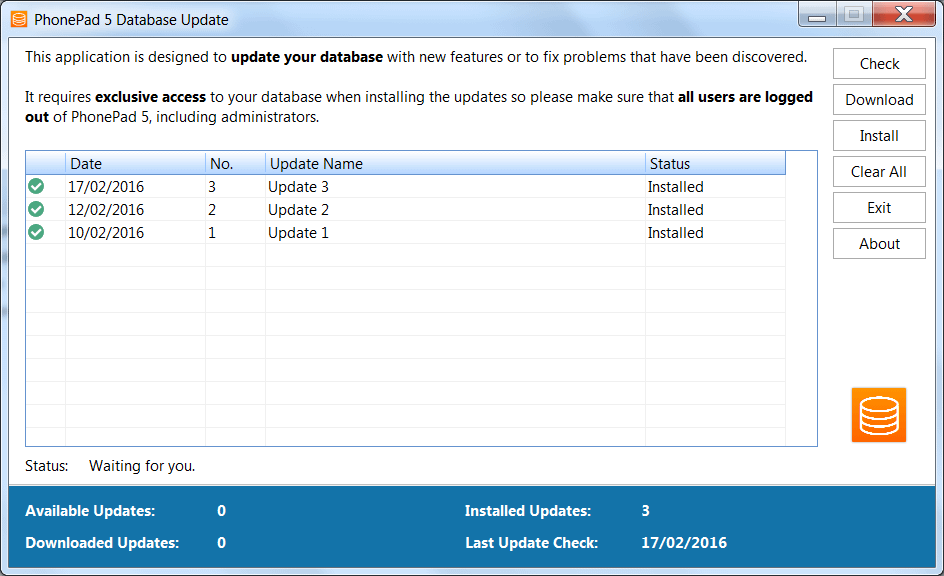
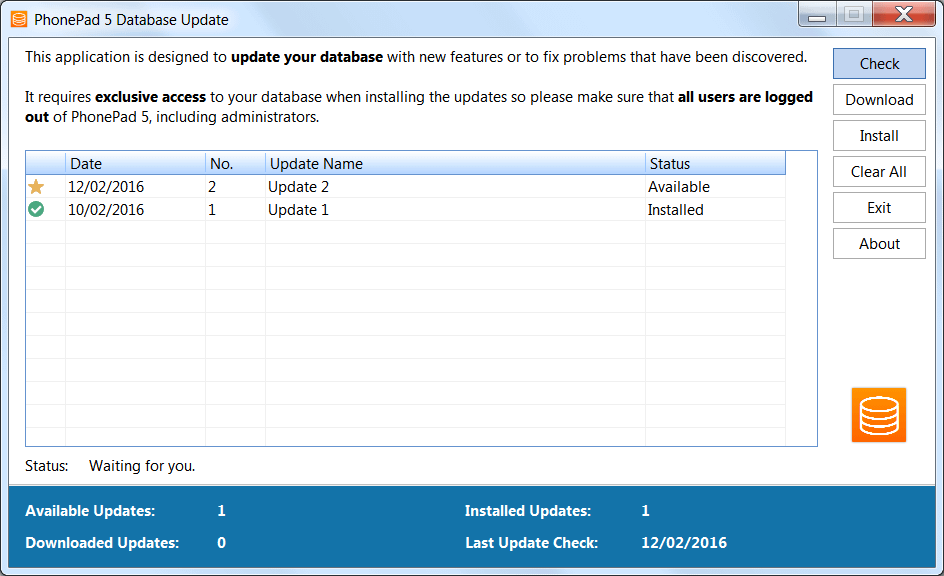
Database updates are done using the Database Update application. It is quite simple to use.

Click the Check button to check the web server for new updates. You can download the updates by clicking the Download button.
When you are ready to install the updates then click the Install button. Any updates that are already installed will be marked as installed in the list.
An automatic database update system will be added in the coming months that will automatically download and install these updates for you so you don’t have to worry about it.
Important Information: While many users didn’t have any problems with Database Update, some users were experiencing issues that were due to over-restrictive Windows permissions. Because of this, we have updated Database Update to store its information in a location that doesn’t have these access rights issues. If you had these problems please download and install Update 1 again as it has been re-released with these changes.
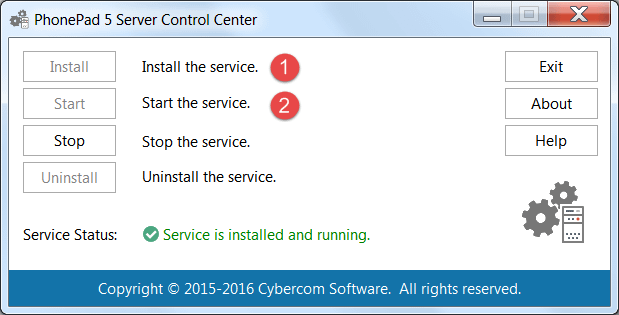
I just wanted to mention a potential gotcha when installing PhonePad for the first time. When you install PhonePad 5 Server, the first thing you need to do is run the Control Center and install and start the Server service.

There are two simple steps to this.
Step 1: click the Install button. This will install the PhonePad 5 Server as a Windows service. At the same time, an exception rule will be added to your Windows Firewall to allow other computers on your network to communicate with PhonePad 5 Server.
Step 2: click the Start button. This will start the service. When the service is started for the first time, PhonePad 5 Server will build your PhonePad 5 database and set it up for you.
Now here’s the gotcha. Creating the database and setting up the server can take a few minutes. On our computers it takes around 5 minutes, but on some systems we have noticed it can take up to 15 – 20 minutes.
If you try to login to PhonePad 5 before the database is ready you will get error messages. This is because you are trying to access parts of the database system that aren’t there yet. You need to give it time to finish, and how long it takes is dependent on the speed of your Server or Host PC and the amount of resources available to it at the time.
The PhonePad 5 Server actually has a lot to do when building and setting up your database which is why it can take a while. It’s quite a bit different from PhonePad 4. It had a standard database with no smarts built-in and all of the processing was done by PhonePad 4 on the workstation. The PhonePad 5 Server and database is a full blown SQL database engine with a lot of smarts built into it. Most of the processing is now done by the server, which makes it faster and opens up all sorts of possibilities for new functionality.
We recommend waiting for 20 – 30 minutes, just in case, before attempting to log in to PhonePad 5 Workstation. In the latest build it will prevent you from logging in immediately.
Again, this only occurs the first time you start the PhonePad 5 Server service. Please contact Support if you have any questions.
The first update for PhonePad 5 is now available for download. Update 1 includes the following changes:
- Control Center – This newer version will help prevent your Server’s or Host PC’s firewall from blocking communication with your workstations. It will automatically add an exception rule to your Windows Firewall for PhonePad 5 Server when you install the service. If your network is part of a domain then you will need to edit the rule and check the Domain check box.
- Database Update – This new application is responsible for updating your PhonePad 5 database whenever database updates
 are released. These will tend to be more frequent than application updates as we add new functionality and fix any issues.
- Database Migrator – If you are a PhonePad 4 user than this application will transfer your PhonePad 4 data over to PhonePad 5. This is a re-release of the migrator that was released yesterday and is an improved version.
- PhonePad 5 Admin Guide – Updated with instructions on using the new Database Update and Database Migrator applications.
- Fixed an issue with an error that sometimes occurred when creating new user accounts.
- Fixed an issue where the Don’t Show Again check box in message dialogs was not remembering the setting.
- Fixed an issue where messages couldn’t be manually deleted from the Deleted folder.
- Minor bugs fixes.
When you install the update on your Server or Host PC, PhonePad will be automatically updated on each workstation when users log in.
There is also a database update, called Update 1 as well. It is strongly recommended that once you install the server update that you also run Database Update and download and install the update. It is especially important that you do this if you are going to be using the Database Migrator.
Important note: whenever you install updates, either application updates or database updates, you need to ensure that all users are logged out of PhonePad.
Download the update now to your Server or Host PC.
Please note that the update will only work if you have PhonePad 5 installed. If you don’t have PhonePad 5 installed then download the full version instead as it contains all of the updates.