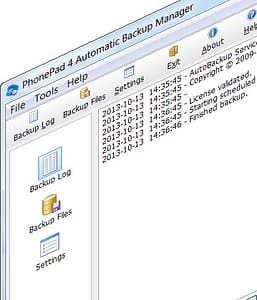
 We’re pleased to announce the release and immediate availability of AutoBackup Version 4.01. If you don’t know what AutoBackup is then let me tell you. It is the simplest way of making sure that all of your valuable phone messages are safe.
You can set up AutoBackup to automatically back up your PhonePad data once a week, or every day if you want. It can even do backups while you are still using PhonePad, so no-one needs to logout before a backup commences.
This version of AutoBackup has the following new features:
- Retry option. You can configure AutoBackup to retry backing up your PhonePad data when a backup fails to run for some reason, eg. another process has locked the files. AutoBackup can be set to try up to 5 times.
- Manual Backup option. At any time you can tell AutoBackup to back up your all of your PhonePad data, including your phone messages. This is outside of the normal scheduled backups.
- Service alert. AutoBackup Manager will warn you if the AutoBackup service is not running.
AutoBackup can be downloaded from the AutoBackup page, or from My PhonePad Account. This is a free minor update if you already have an AutoBackup license*.
* AutoBackup is a separate purchase from PhonePad.
We are pleased to announce the release of PhonePad Version 4.24 (4.24.0.1). This is a maintenance release that addresses a number of important issues:
- An issue was identified where PhonePad would start with no user account when PhonePad was not configured correctly. In this situation users, were taken straight into PhonePad without logging in, but they were unable to send or receive messages and the Address Book was blank (this was because the user wasn’t actually logged in). Code has been added to check for these inconsistencies in the configuration and to prevent this from happening. In addition, PhonePad will in most cases tell you how to fix the problem. These errors are now also logged to ErrorLogViewer.
-  A lot of error handling built in to PhonePad had suddenly stopped working due to an obscure bug. This has been fixed.
- The configuration checks within DBConnect have been expanded with some additional checks and more detailed information on how to correct any issues. The interface has also been improved and it’s now possible to print out the configuration checks so you have something to work from. In other words, if DBConnect finds some things wrong with your PhonePad configuration, you can print a hard copy (or export to PDF) of what is wrong and how to fix it (or you can send it to us so we can tell you how to fix it).
- Some users have been experiencing Access Denied errors when trying to save settings in DBConnect, due to over-restrictive Windows permissions. To get around this, all applications in the PhonePad suite have been changed to allow the configuration file (PhonePad.ini) to be located in one of a few different folders. Where the Access Denied errors occur, DBConnect will automatically and transparently store the configuration file in another folder. All PhonePad applications now know how to locate the file so this should happen without any user intervention.
- A problem was discovered with opening text messages (not to be confused with SMS messages) in the Sent folder. Due to a bug in sending text messages, the messages would be successfully sent but the copy of the sent message would be missing an internal identifier, preventing the message from being viewed. This has been fixed.
- When PhonePad was run in Remote Mode (aka client/server), if the connection to the server (DBServer) was lost PhonePad would appear to freeze or hang. In fact, what was actually happening was that PhonePad was continually trying to reconnect to the server. This behavior has been changed so that PhonePad will try to automatically make 5 reconnection attempts and then tell the user that the server connection has been lost. The user will be given the option to attempt again or to close PhonePad.
- The PhonePad installer has been modified in an attempt to make it a little less confusing when installing PhonePad. The Installation Guide has been updated in line with these changes.
- Searching for text in the Subject field resulted in an error. This has been fixed.
You do not need to run DBUpdate after installing this specific upgrade (there have been no database changes), unless you are upgrading from a version prior to 4.22.
We are pleased to announce the release of PhonePad Version 4.23 Build 5. This is a maintenance release that fixes the following issues:
- Added new option to automatic message forwarding to allow message to be always forwarded.
- Fixed intermittent issue where the message labels are not displayed correctly.
- When selecting a folder to automatically move messages to under Preferences, occasionally the wrong folder would be stored – fixed.
You do not need to run DBUpdate after installing the upgrade (there have been no database changes), unless you are upgrading from a version prior to 4.22.
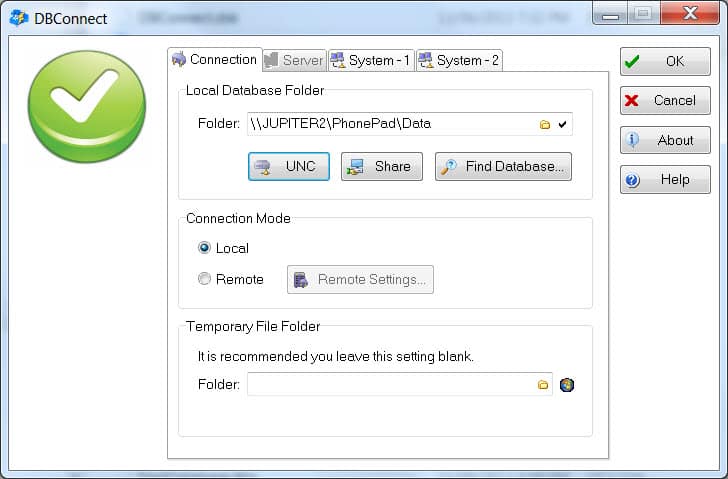
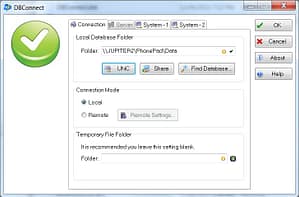
A new, improved version of DBConnect is now available. This release makes it easier to set up your PhonePad data folder connections for Local Mode connections. The UNC button has been improved to cater for both local and network drives, avoiding the problems associated with using mapped networked drives. A new Share button has been added to make it easy to create a network share for your PhonePad data folder on your server or Host PC.
The new version will be included in a new build of PhonePad, but you can also download this version by clicking here.
We are pleased to announce the release of PhonePad Version 4.23 Build 3. This is a maintenance release that fixes the following issues:
- Fixed issue with follow up notes not archiving correctly using the PhonePad Archive option (not the PhonePad Admin one).
You do not need to run DBUpdate after installing the upgrade (there have been no database changes), unless you are upgrading from a version prior to 4.22.
We are pleased to announce the release of PhonePad Version 4.23 Build 2. This is a maintenance release that fixes the following issues:
- Fixed issue with Inbox message list not exporting to Excel.
- Fixed issue with PhonePad’s Automatic Message Forwarding feature. Urgent messages were not being forwarded when the Only Forward Urgent Messages via Email was set.
You do not need to run DBUpdate after installing the upgrade (there have been no database changes), unless you are upgrading from a version prior to 4.22.
If you are a PhonePad client then you can download PhonePad from your online account: www.myphonepad.com. Or you can download it from the PhonePad download page.
One of our customers discovered an issue with the Shortcuts app that is used to create PhonePad shortcuts on your desktop – it was creating invalid shortcuts!
After a bit of investigation we found that the issue was caused by a bug in a recent update of one of our development tools. Fortunately there was a patch which we could download and apply. Bottom line is the problem has been fixed and so we have re-released Version 4.23 with the fixed Shortcuts app.
If you need the fixed Shortcuts app, you can download the re-released PhonePad 4.23 or you can just download the fixed Shortcuts app.
If you are a PhonePad client then you can download PhonePad from your online account: www.myphonepad.com. Or you can download it from the PhonePad download page.
We wish to advise that only limited support will be available for the following period: Thursday November 1, 2012 to Saturday November 10, 2012. Remote support will *not* be available, nor will telephone sales inquiries. However, email support *will* still be available although at times it may take a few hours longer for us to respond.
We apologize for any inconvenience this may cause. Everything will be back to normal from November 11, 2012.
We are pleased to announce the release of PhonePad Version 4.22. Here is a summary of changes that are included in this release:
- Centralized Preferences. User preferences are gradually being migrated from the Windows registry to the PhonePad database, which means the settings will follow you from computer to computer. This is the first stage of this change.
- Enhanced Automatic Message Forwarding. Forward messages to email or SMS based on user status, availability and other criteria.
- New WhereRU staff status board replaces In-Out Board.
- Expanded user attributes: photo, location, area, phone number, mobile/cell number.
- New command line option for passing username and password to login.
- New option for logging error messages makes it easier to report issues to Support.
- New Error Log Viewer for viewing error logs.
- New option to automatically move Completed messages to a specified folder.
- Added option to restrict access to the PhonePad Address Book.
- Updated Shortcuts utility.
- Fixed issue where default labels were not being displayed.
Automatic Message Forwarding
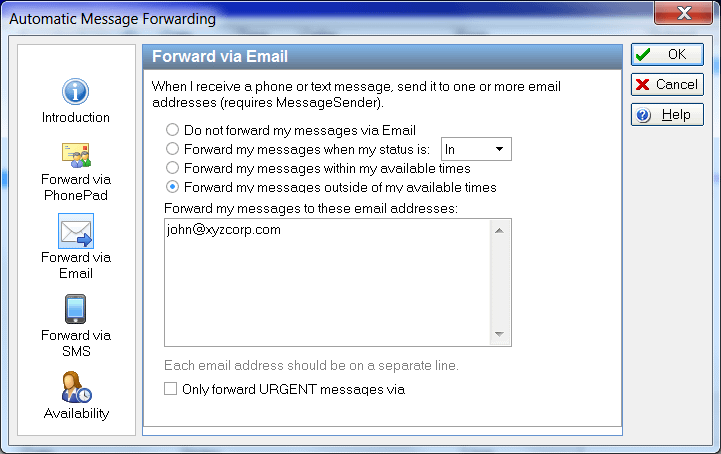
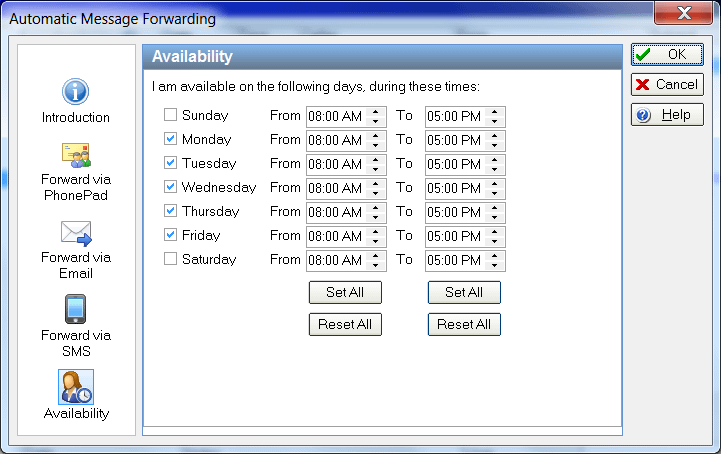
We have spent a lot of time enhancing and improving this feature. You can now set up PhonePad up to forward your messages via email and SMS based on your status and availability (eg. your working hours).

You can define when you are and aren’t available, and then have MessageSender forward your messages based on those settings.
New WhereRU Staff Status Board
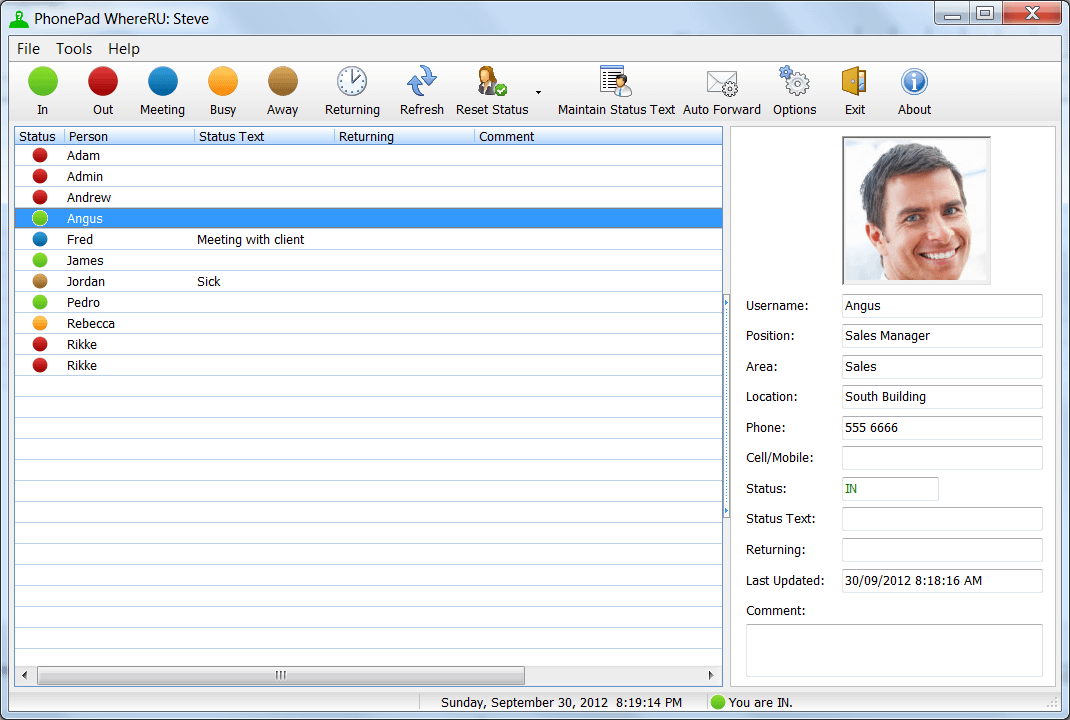
In-Out Board has been replaced with the new WhereRU status board. It features a totally new screen design, user details, customizable status text, and more.

Enhanced User Account Details
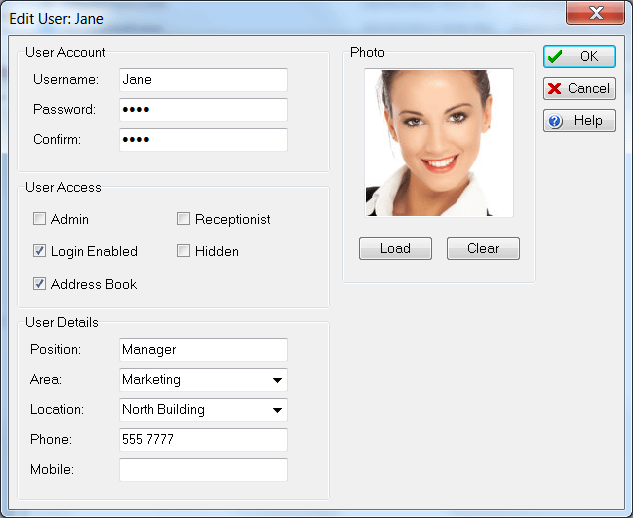
User accounts have been expanded to include extra information. You can now optionally include phone numbers, locations and even a photo. An additional checkbox has been added to limit access to the PhonePad Address Book. The user import feature has been extended to include the new fields (except photos).

Upgrading Your PhonePad Database
You will need to upgrade your PhonePad database by running DBUpdate after upgrading PhonePad. If you don’t do this you will get error messages.
Download PhonePad Version 4.22
You can download version 4.22 by logging in to www.myphonepad.com and selecting the My Downloads option, or by going to the PhonePad download page.
Important: When you upgrade PhonePad, please make sure you don’t accidentally create a second PhonePad database. When you run DBUpdate, make sure that the Data Directory setting is pointing to your existing PhonePad data folder, and not a new folder.
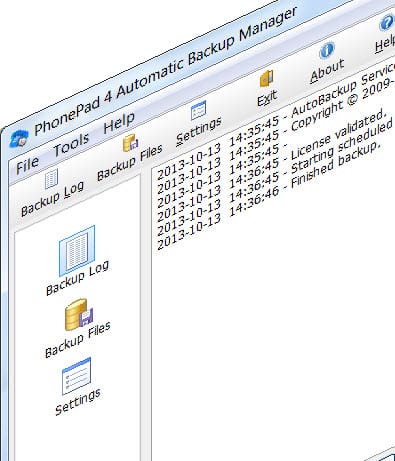 We’re pleased to announce the release and immediate availability of AutoBackup Version 4.01. If you don’t know what AutoBackup is then let me tell you. It is the simplest way of making sure that all of your valuable phone messages are safe.