Manage your phone messages quickly and easily with PhonePad!

Performance Issue With PhonePad 4.21.

Some users are experiencing performance issues with PhonePad Version 4.21 due to the new message list that was introduced in this version, particularly with Remote Mode connections.  If you have not yet upgraded to 4.21, we recommend holding off until we have resolved this issue.

If you already have 4.21 installed and are experiencing these issues, you can downgrade to 4.20 by downloading the PhonePad executable and overwriting your 4.21 copy of PhonePad.  There is no need to reinstall PhonePad.

You can download the PhonePad 4.20 executable using this link.

We apologize for any inconvenience.  We are working on this issue and will release an update as soon as we have resolved it.


UPDATE

We have pulled the Version 4.21 release until we resolve this issue.  The latest release version is now 4.20.


PhonePad 4.21 Has Been Released.

We are pleased to announce the release of PhonePad Version 4.21.  Here is a summary of changes that are included in this release:

  • Completely replaced the message list control.
  • Added an option to disable Inbox message filtering.
  • Added an option to delay data connection for Remote Mode.
  • Fixed issue with user accounts disabling not working correctly.

New Message List

The grid component used for message lists in PhonePad has always bugged me.  I’ve never liked the way the scrolling works.  As you have no doubt experienced, the scroll thumb in the vertical scroll bar only has 3 positions: top, middle and bottom.  This can be annoying to use, especially if you have a lot of messages.

There are technical reasons why it works this way, and we have been trying to overcome the restrictions for quite some time.  Over the years we have been looking for a way to replace the current grid component with something better.  The main problem has been finding a component that supports the features we require.  Well we have found it, and for the past few weeks we have been retrofitting the new message list into PhonePad.  It hasn’t been an easy task due to the way the new control works, so we had to rewrite large amounts of code to fit it in and get it working.

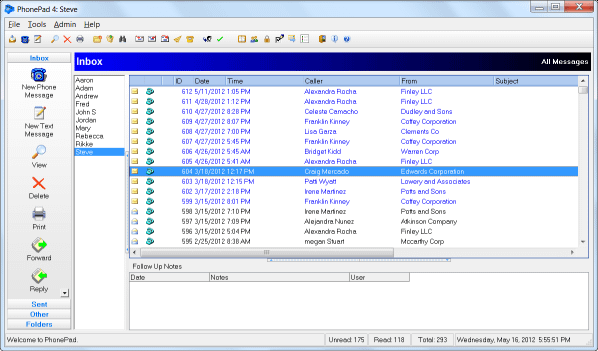
You may not notice much difference from the screenshot, but you will definitely see the improvement when you use it.

Message Filtering Disabling

Message filtering can be completely disabled under Preferences.

Data Connection Delay Option

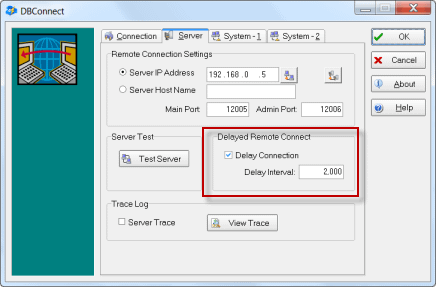
There can be problems if you are using PhonePad in Remote Mode (Client/Server) and it is set to start up automatically when Windows starts.  PhonePad may try to connect to the PhonePad Server before the network connection is ready, causing connection errors.  To cater for these situations, we have added an option to delay start up connections.  This setting is controlled by DBConnect.

You can set the exact amount of time for the delay in milliseconds.  1000 milliseconds = 1 second.

Upgrading Your PhonePad Database

You do not need to run DBUpdate after installing the upgrade (there have been no database changes), unless you are upgrading from a version prior to 4.19.

Download PhonePad Version 4.21

You can download version 4.21 by logging in to www.myphonepad.com and selecting the My Downloads option, or by going to the PhonePad download page.

Important: When you upgrade PhonePad, please make sure you don’t accidentally create a second PhonePad database.  If you run DBUpdate, make sure that the Data Directory setting is pointing to your existing PhonePad data folder, and not a new folder.

PhonePad Caller ID.

PhonePad’s Caller ID feature can identify callers when they ring and automatically display their details if they are in the PhonePad Address Book.  The Received Calls feature keeps a history of all calls received, even when you’re out of the office.

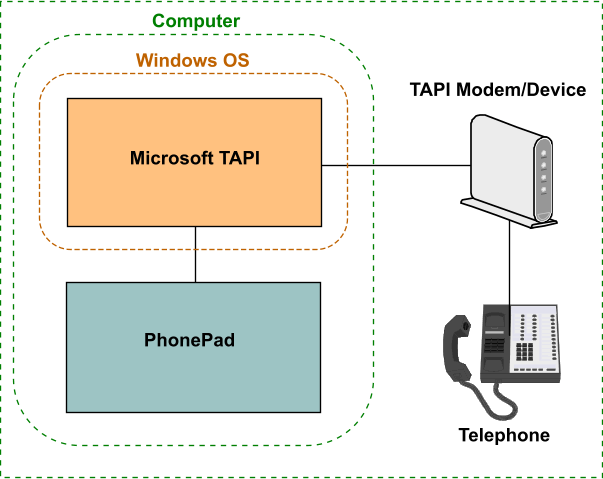
To use these features though, you need more than just PhonePad.  You will need some hardware – a TAPI-compliant device (such as a modem, telephony card, etc.) connected to your computer and telephone (or phone line).  The diagram below shows how it works.  There are four main components for TAPI.

Your telephone is connected to the TAPI device, which is connected to your computer (if it’s an external device). When a call is received, the call information is sent through TAPI (which is part of the Windows operating system) to PhonePad.


Many voice modems have TAPI support but you should verify this with the vendor before purchasing.  We have a free program you can download to test any modem with TAPI: https://cybercom-software.com/blog/index.php/2011/10/testing-caller-id-on-a-tapi-device-2/


PhonePad Maintenance Release: 4.20

We are pleased to announce the release of PhonePad Version 4.20.  The following issue has been resolved in this release:

  • Errors sometimes occurred when automatically adding and updating caller details in Address Book – FIXED.

You do not need to run DBUpdate after installing the upgrade (there have been no database changes), unless you are upgrading from a version prior to 4.19.


If you are a PhonePad client then you can download PhonePad from your online account:  www.myphonepad.com.  Or you can download it from the PhonePad download page.


MessageSender 5.09 Has Been Released.

A new version of MessageSender is now available.  Version 5.09 has the following changes:

  • Fixed issue with Activity Log.
  • Fixed screen refreshing issue that can occur on Windows 7 machines.
  • Minor fixes.

If you are upgrading from a previous version of MessageSender 5, you will need to stop and uninstall the MessageSender service (this can be done in MessageSender  Manager) on your network before upgrading to the new version, otherwise Windows will report errors.

You can download MessageSender 5.09 from the MessageSender home page or from My PhonePad Account.

MessageSender: Forwarding Messages via SMS with SMS Global.

Before you can use MessageSender to automatically forward your phone messages to your cell/mobile phone via SMS (Short Message Service), you need to establish an account with an SMS gateway provider.  In this article, we are going look at doing this using SMS Global.

Generally, you don’t have to sign any contracts or sign up for a specific amount of time.  You just purchase the number of credits you want, and replenish these when they run low.

The first thing to do is visit the signup page on the SMS Global website.  You need an account that allows sending SMS messages via HTTP.  Once you have created your account SMS Global, you should have the following details:

  • Username
  • Password
  • Sender ID

We will need each of these things to set up MessageSender.

  1. Run MessageSender Manager.
  2. Select SMS Settings.
  3. Under General SMS Settings, select SMS Global for the SMS Gateway.
  4. Select the SMS Global tab.
  5. Enter your SMS Global Username in the Username field.
  6. Enter your SMS Global Password in the Password field.
  7. Enter your Sender ID in the Account ID field.
  8. Click Save Settings.

That’s it.  If you have any problems, please contact us at support@cybercom-software.com

SMS Global Settings


MessageSender 5.07 Has Been Released.

A new version of MessageSender is now available.  Version 5.07 has the following changes:

  • Now creates application data folder for INI file if it doesn’t exist.
  • If data corruption is detected, the problem should now be logged in the Activity Log (instead of causing the service to stop).
  • Minor fixes.

If you are upgrading from a previous version of MessageSender 5, you will need to stop and uninstall the MessageSender service (this can be done in MessageSender  Manager) on your network before upgrading to the new version, otherwise Windows will report errors.

You can download MessageSender 5.07 from the MessageSender home page or from My PhonePad Account.

PhonePad Maintenance Release: 4.19.5.0

PhonePad Version 4.19.5.0 has been released to address the following issues:

  • PhonePad not remembering printer selection – FIXED.
  • Performance improvements for searches.
  • Other minor fixes.

Important: Please remember to run DBUpdate after installing the upgrade as database changes are also required.


If you are a PhonePad client then you can download PhonePad from your online account:  www.myphonepad.com.  Or you can download it from the PhonePad download page.

Reminder About Support for the Next 2 Weeks

As previously mentioned, support will be a little slower than normal for the next couple of weeks.  From Nov 7 to Nov 18 2011, our office will be closed while we take a short break before commencing some serious development work on the next major release of PhonePad.  We will still respond to your support requests, but it will take us a little longer to get back to you (typically 48 – 72 hours, instead of the usual 24 hours).

Only email support will be available during this period.  We will be unable to answer your phone call or return your calls.  Additionally, remote support will be unavailable.

Don’t worry – we will respond to your emails and everything will be back to normal on Nov 19 2011.

Please note: Our ordering system is fully automated so if you are wanting to purchase a PhonePad license then you can still do this.  Your order will be processed and you will receive your license within a couple of minutes.


PhonePad Maintenance Release: 4.19.4.0

PhonePad Version 4.19.4.0 has been released to address some issues that have been discovered since the release of version 4.19:

  • Errors displayed when searching in the message field – FIXED.
  • Follow up notes were not always saving correctly – FIXED.
  • Follow up list not always refreshing in folders when changing folders – FIXED.
  • Message list and follow up list and not refreshing when main screen resized – FIXED.
  • Message printing not remembering printer selection (File/Print Setup) – FIXED.

You do not need to run DBUpdate after installing the upgrade (there have been no database changes), unless you are upgrading from a version prior to 4.19.


If you are a PhonePad client then you can download PhonePad from your online account:  www.myphonepad.com.  Or you can download it from the PhonePad download page.  If you already have version 4.19 installed (4.19.0.0 or later), then you can download just the PhonePad executable if you prefer: http://www.cybercom-software.com/files/PhonePad4.exe