
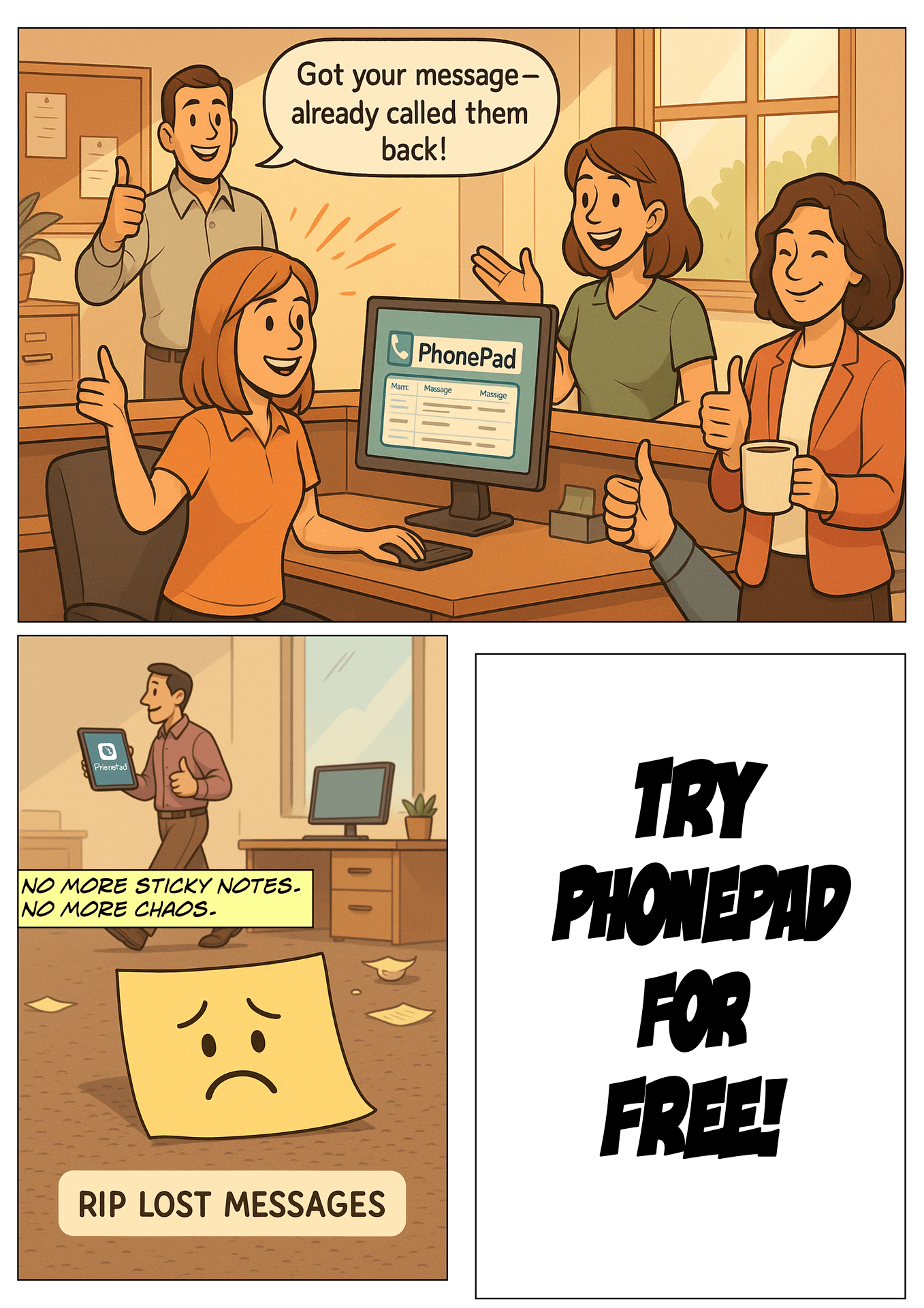
Manage your phone messages quickly and easily with PhonePad!
We thought we could get answers.
A small team of brave volunteers (armed only with clipboards and curiosity) crossed into the Restricted Zone earlier this week. Their mission: to find out what’s really going on behind those doors.
They haven’t been seen since.
There was a brief radio transmission—mostly static—followed by the words, “It’s… beautiful…” and then silence.
We’re not panicking.
Just… mildly alarmed.
In the meantime, we’ve intercepted some documents and captured a few blurry surveillance photos. We’re not saying this is definitely part of something huge and mysterious, but… actually, yes we are.
 What Happens Next?
That’s classified.
But rest assured—we’re still monitoring the situation.
And we’ve sent in another team. This time with flashlights. And snacks.
More updates soon. If you don’t hear from us, assume the worst. Or the best.
The PhonePad Care Plan would take effect on July 1, 2025
If you’re wondering what it means for you — this post is for you.
The Care Plan isn’t just a new name — it represents a clearer, more consistent way for us to provide support, updates, and peace of mind to our users.
Below, we’ll walk you through what’s changed, what’s included, and why we made this shift.
 What Is the Care Plan?
The PhonePad Care Plan replaces what we previously called the “Update Plan.” But it now includes more than just software updates.
Here’s what the Care Plan covers:
We understand that not everyone may need or want ongoing coverage — that’s okay too. But here’s how it works moving forward:
You can still send us questions, report bugs, or make suggestions even without a Care Plan — we’re always happy to hear from our users.
Over the years, we’ve offered updates and support in different ways — sometimes free, sometimes not, depending on the situation. This caused confusion about what’s included and what’s not.
The Care Plan simplifies all of that.
By moving to a clear, consistent annual plan, you’ll always know where you stand. And it helps us continue to improve PhonePad while delivering the level of support you deserve.
If you already have an active Update Plan, you will be automatically upgraded to the Care Plan — no need to do anything. You’ll now receive all the additional benefits at no extra cost.
If you want to:
We’re here to support your business long-term — and the Care Plan is our commitment to doing just that.
If you have any questions about the new plan or what it means for you, don’t hesitate to get in touch. We’re happy to help.
Something is happening.
We tried to sneak a peek, but a very serious gentleman in camo stopped us with a hand gesture so official we immediately forgot all our passwords and briefly questioned our citizenship.
 There are warning signs everywhere.
“Authorized Personnel Only.”
“Restricted Area.”
“Photography Prohibited.”
We swear we even saw one that said, “Don’t Even Think About It.”
Whatever’s behind those doors is big.
Like “cue the dramatic music and slow zoom” big.
Like “somebody call Tom Cruise” big.
Is it alien tech?
A revolutionary new idea?
A perfectly optimized software experience wrapped in mystery and smuggled into a secure facility under the cover of night?
We couldn’t possibly say.
(Seriously, we signed something.)
But here’s what we can tell you:
The countdown has begun.
Something special is coming.
And it’s going to be worth the wait.
So stay alert. Keep your eyes peeled.
And if you hear a soft mechanical hum and see a faint glow coming from behind a locked door… do NOT approach. Just nod knowingly and walk away. Cool people don’t ask questions.
All will be revealed.
Eventually.
Probably.
Maybe.
(If the guards let us.)
If your business relies on PhonePad for managing phone messages and internal communication, having access to timely support and software updates is essential. That’s why we’re excited to introduce the PhonePad Care Plan – a new subscription designed to give you everything you need to keep PhonePad running smoothly.
Starting July 1, the Care Plan will replace the old PhonePad Update Plan, offering more value, better support, and greater peace of mind for businesses of all sizes.
 What Is the PhonePad Care Plan?
As of July 1, the Update Plan will be retired and replaced by the new PhonePad Care Plan. While the Update Plan provided access to software updates, it lacked flexibility and didn’t cover the growing support needs of many users.
The Care Plan addresses this by bundling updates, support, and exclusive benefits into one simple package that’s easier to manage and delivers more value.
The PhonePad Care Plan is an annual subscription service that bundles together:
Whether you’re a solo user or part of a larger team, the Care Plan makes it easier than ever to maintain your PhonePad system and get help when you need it.
 Why Are We Replacing the Update Plan?
The old Update Plan provided access to updates, but it didn’t include support – which many users needed more frequently. As support requests increased, it became clear that a more complete solution was required.
The PhonePad Care Plan is the next step. It ensures that:
By combining updates and support, the Care Plan offers greater convenience and long-term value.
It also helps us continue to invest in the development and support infrastructure that keeps PhonePad running smoothly across thousands of businesses.
Pricing will stay the same as it is with the current Update Plan. For businesses that have an active Update Plan, you will automatically be transitioned across to the new PhonePad Care Plan.
The cost will be either 30% or 40% of the cost of your PhonePad license – it depends on when you last renewed your Update Plan.
If you choose not to subscribe to the Care Plan:
For businesses that rely on PhonePad daily, we strongly recommend the Care Plan as the most cost-effective and efficient way to maintain your system.
Not at all. You don’t need to be on a Care Plan to ask questions, make suggestions, request new features, or report bugs—we’re always happy to hear from you.
And if there’s ever a system-wide issue on our end (like one of our services is down), we’ll be on it straight away—no Care Plan required.
The Care Plan is there to give you peace of mind for ongoing support and updates, but we’ll never leave you in the dark if something goes wrong.
The PhonePad Care Plan officially launches on July 1, 2025. At that time, the existing Update Plan will be discontinued.
If you’re currently on the Update Plan (this includes businesses that purchased PhonePad in the last 11 months), you’ll be automatically transitioned to the Care Plan with no disruption to your service.
 Get Started Today
Ready to simplify your updates and support with one affordable plan?
If you have a current Update Plan, you don’t need to do anything.
If you Update Plan has expired, renewing today will ensure you have the new Care Plan from day one. Select Update Plan from the Help menu in PhonePad and click the Renew button.
The PhonePad Care Plan is more than a subscription—it’s your business’s safety net. Keep your communication software running reliably with the support and updates you deserve.
Please note: if you are a trial user this does not apply to you.
Setting up new software can be a bit like assembling flat-pack furniture—doable, but not always fun. Fortunately, we’ve created the PhonePad Installer — a simple, all-in-one tool that takes the stress out of installing PhonePad for your 60-day trial.
Whether you’re setting up on a single office PC or across multiple workstations, the new installer makes the entire process quick, smooth, and painless.
In the past, installing PhonePad involved a few separate downloads and manual steps. Now, with just one download, you’re good to go.
The PhonePad Installer takes care of everything:
In other words, no configuration screens, no port numbers, and no head-scratching. The installer handles it all quietly in the background, so you don’t have to worry about the technical stuff.
To get started, simply follow these steps:
Before you know it, you’ll be up and running.
So, if you’ve been putting off trying PhonePad because you thought setup would be a hassle, now is the perfect time to dive in. Thanks to the new PhonePad Installer, there’s nothing standing between you and better call management.
Download the PhonePad Installer now and start your 60-day trial the easy way—with zero setup stres
Do I need any technical skills to use the PhonePad Installer?
Not at all. The installer is designed for simplicity. There’s zero configuration required—just run it and follow the prompts.
Can I use the same installer for both the server and workstations?
Yes! The installer is smart enough to detect whether it needs to install the PhonePad Server or Workstation software, depending on where you run it.
What if I want to install MessageSender too?
No problem. The installer gives you the option to include MessageSender during the setup process.
How long does the installation take?
Just a few minutes in most cases. It depends on your system speed and network, but it’s designed to get you up and running quickly.
Do I need to enter any settings or network info?
Nope. That’s part of the magic. The PhonePad Installer handles all of the background configuration for you.
What if I need help during installation?
We’re here for you. Just reach out to our support team anytime if you have questions—we’re happy to help.
If you tried to visit our website or access our services in the past day and ran into trouble… you weren’t alone. And we’re really sorry about that.
Over the last 24 hours, our website and systems were unexpectedly taken offline due to a change made by our hosting provider. It caught us off guard — and let’s just say it led to a lot of panicked moments, troubleshooting marathons, and more coffee than we’d care to admit.
 We spent the day (and most of the night) working to get everything back online — and we’re happy to report that everything is now back to normal.
We know how disruptive downtime can be — and we sincerely apologize for any frustration or inconvenience this caused you and your team. Trust us, we felt it too.
While the root of the issue was out of our control, we’ve already taken steps to make sure we’re better prepared for any similar surprises in the future.
Thanks for your patience, your understanding, and for sticking with us. If you have any lingering issues or questions, please feel free to reach out to our support team at support@cybercom-software.com.
Here’s to smooth sailing ahead!

Good news! We’ve just made it easier than ever to get started with your 60-day PhonePad trial.
Introducing the PhonePad Trial Installer — okay, the name’s not flashy, but it gets the job done (and so does the software).
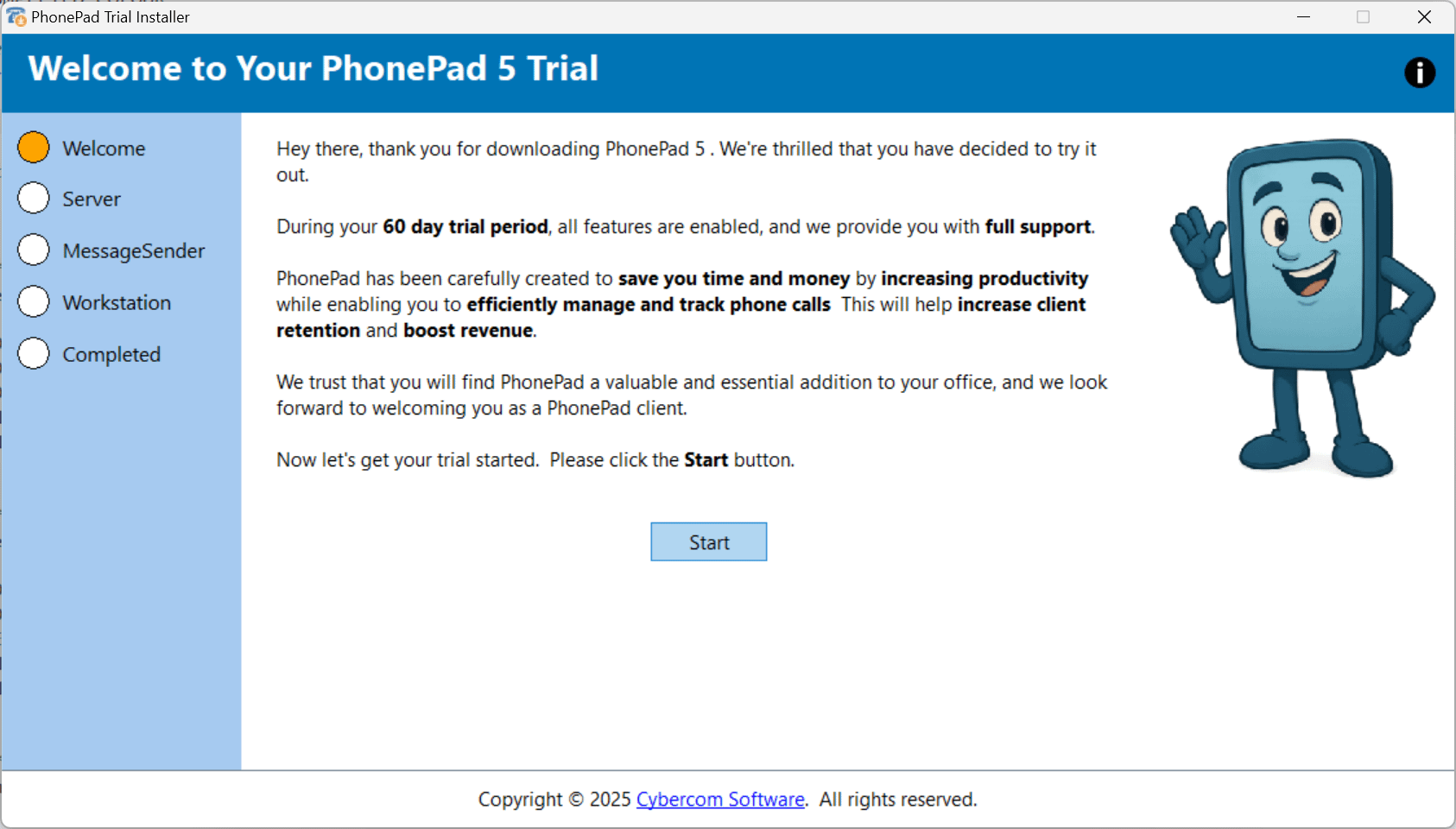 This handy all-in-one tool takes the hassle out of setting up your trial. It downloads and installs everything you need to get PhonePad up and running on your Server (or Host PC) and all your workstations. It even installs MessageSender for you if you want, so you don’t have to lift a finger more than necessary.
Here’s how simple it is:
That’s it. No complicated setup. No tech headaches. Just a few clicks, and you’re ready to start experiencing how PhonePad makes call management easy.
Go ahead—give it a try. You’ll be up and running in minutes
 We are excited to share that PhonePad, an efficient and user-friendly call tracking tool has been recognized with the 2025 “Best Value” badge for Call Tracking category by Capterra. PhonePad excels with its intuitive design and robust functionality, making it an ideal choice for businesses aiming to enhance their communication processes.
These recognitions and awards are based on independent reviews collected by Gartner Digital Markets, which highlights top-rated tools in different categories to help buyers identify the highest-rated software companies that users love and trust.
“We built PhonePad to help small and medium-sized businesses stay on top of their calls without the chaos—and this award confirms we’re doing just that. Being recognized by Capterra for ‘Best Value’ means the world to us, especially because it’s based on real user feedback. We’re proud to offer a reliable, affordable solution that teams can depend on every day.”
— Steve Gill, CEO & Founder, Cybercom Software
Here’s what some of our users have to say about their experience with us:
“Great program for your office, to have our client contact information and staff communication, all in one.”
by Mary [Capterra]
“We have been using PhonePad for our business, and it has proven to be an absolute game-changer in keeping us organized and on top of our incoming phone messages. The software’s user-friendly interface and intuitive design make it a standout choice for efficiently managing a high volume of messages.”
by Wendy [Capterra]
“We love PhonePad. It’s easy to use and easy to teach others to use. And your customer service is great!”
By Nancy [Capterra]
Want to share a review? Click here
With an overall rating of 4.6/5 and 10+ user reviews across Gartner Digital Markets platforms, PhonePad delivers powerful call tracking, message management, and internal communication tools—all without the complexity or high costs of other solutions.
Designed for small to medium-sized businesses, PhonePad offers:
Whether you’re managing a busy front desk, coordinating a small team, or handling remote operations, PhonePad makes communication simple, structured, and stress-free.
 Thank You!
 Thank you to our amazing customers for your support and trust—this recognition wouldn’t be possible without you. While awards like this mean a lot, what matters most to us is helping you work smarter every day. We’re committed to continually improving PhonePad so you can stay organized, responsive, and in control of your communications.
We’re a developer of practical business tools designed to simplify office communication and organization. For over two decades, we’ve been helping small to medium-sized businesses manage their phone messages, contacts, and appointments with ease and reliability. Our flagship product, PhonePad, is trusted by thousands of users worldwide for its user-friendly design, robust features, and secure, network-based approach to call tracking and message management.
To learn more, visit https://www.cybercom-software.com.
Gartner Digital Markets is the world’s largest platform for finding software and services. More than 100 million people visit Capterra, Software Advice, and GetApp.and UpCity across over 70 localized sites every year to read objective research and verified customer reviews that help them confidently choose the right software and services. Thousands of B2B companies work with Gartner Digital Markets to build their brand, capture buyer demand, and grow their business.
For more information, visit https://www.gartner.com/en/digital-markets
Disclaimer:
The Gartner Digital Markets badges from Capterra, GetApp, and Software Advice are trademarks and service marks of Gartner, Inc. and/or its affiliates are used herein with permission. All rights reserved. Gartner Digital Markets badges constitute the subjective opinions of individual end-user reviews, ratings, and data applied against a documented methodology; they neither represent the views of, nor constitute an endorsement by, Gartner, Inc. or its affiliates.
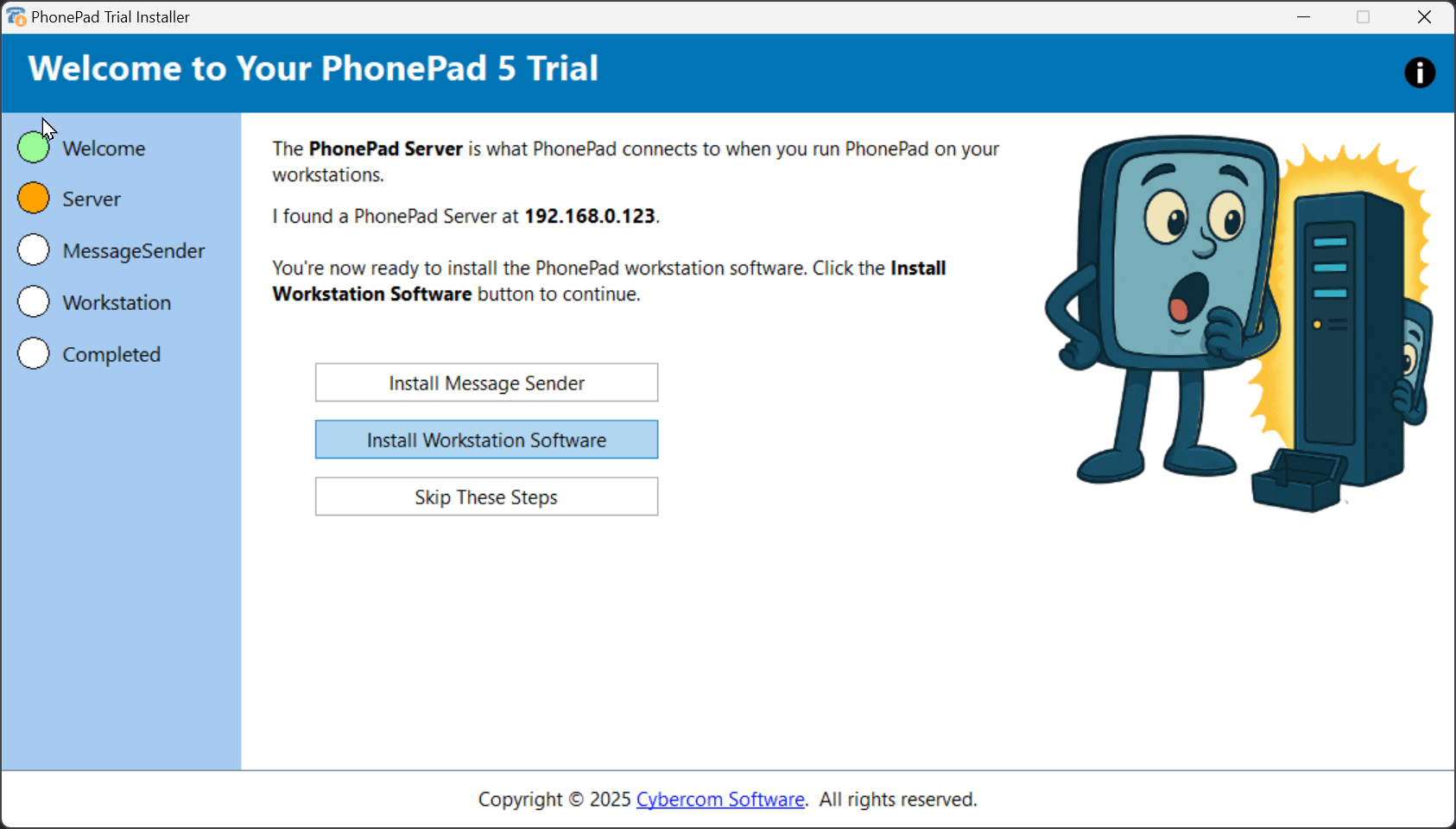
We’re busy working on the Desktop version of PhonePad Web that works on desktop computers and tablets (like iPad).
 Here’s a sneak peek.
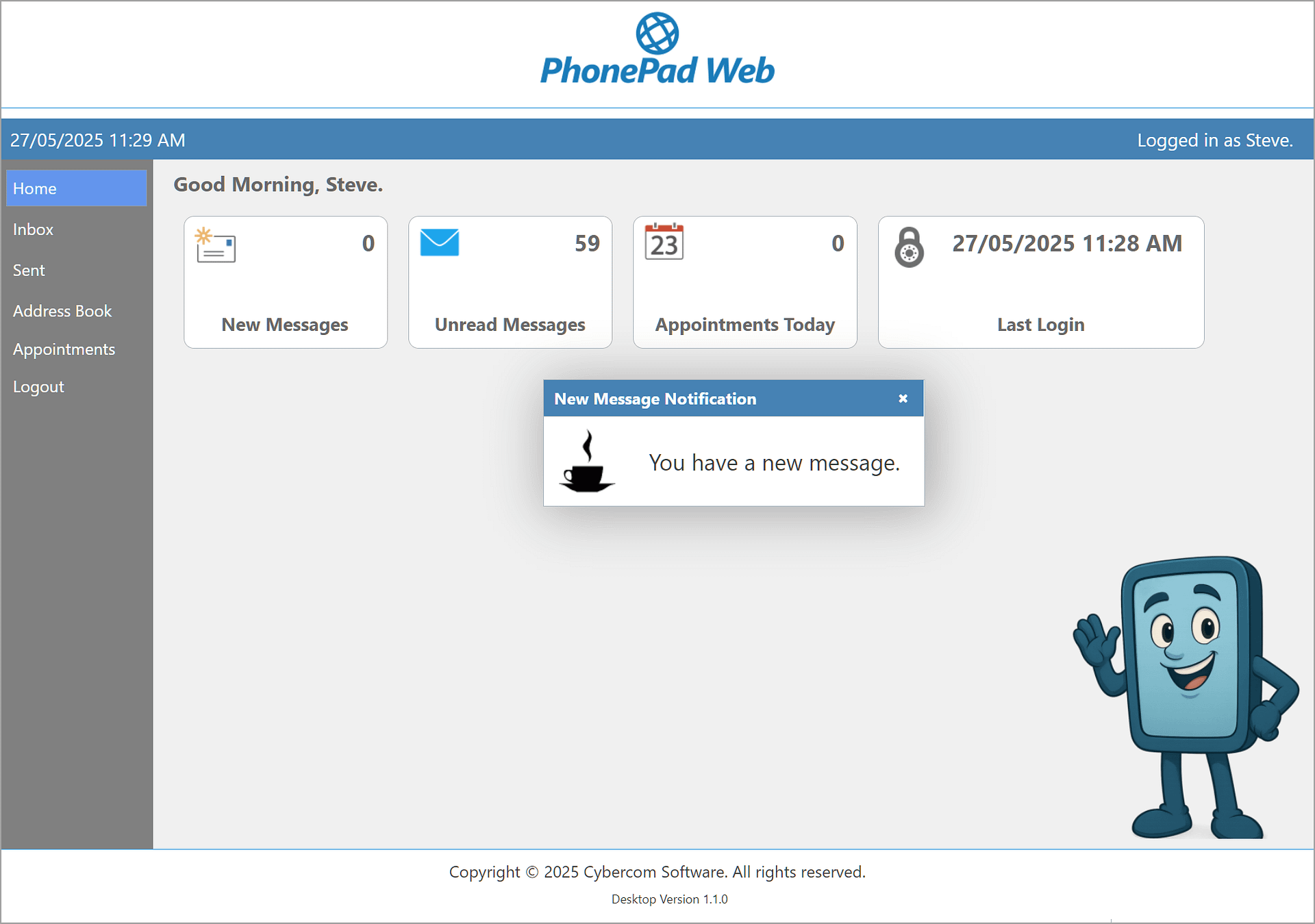 It’s still a work in progress, but we couldn’t resist sharing a glimpse. We think you’re going to love what’s coming.
The Desktop version is not a separate product to PhonePad Web. It will be included with the smartphone version. When it’s available, all you will need to do is update your PhonePad Web.
Stay tuned — we’ll keep you posted as we get closer to launch!