We are pleased to announce the immediate release of PhonePad Version 5.92.0.
This update introduces two major improvements designed to make PhonePad easier to adopt and faster to use every day.
Smart Suggestions for Phone Messages
PhonePad can now assist you while you type by automatically analyzing your message and filling in key fields for you.
As you enter a message, PhonePad can recognize the caller, determine the action required, detect urgency, and even suggest follow-up details such as “today” or “tomorrow”.
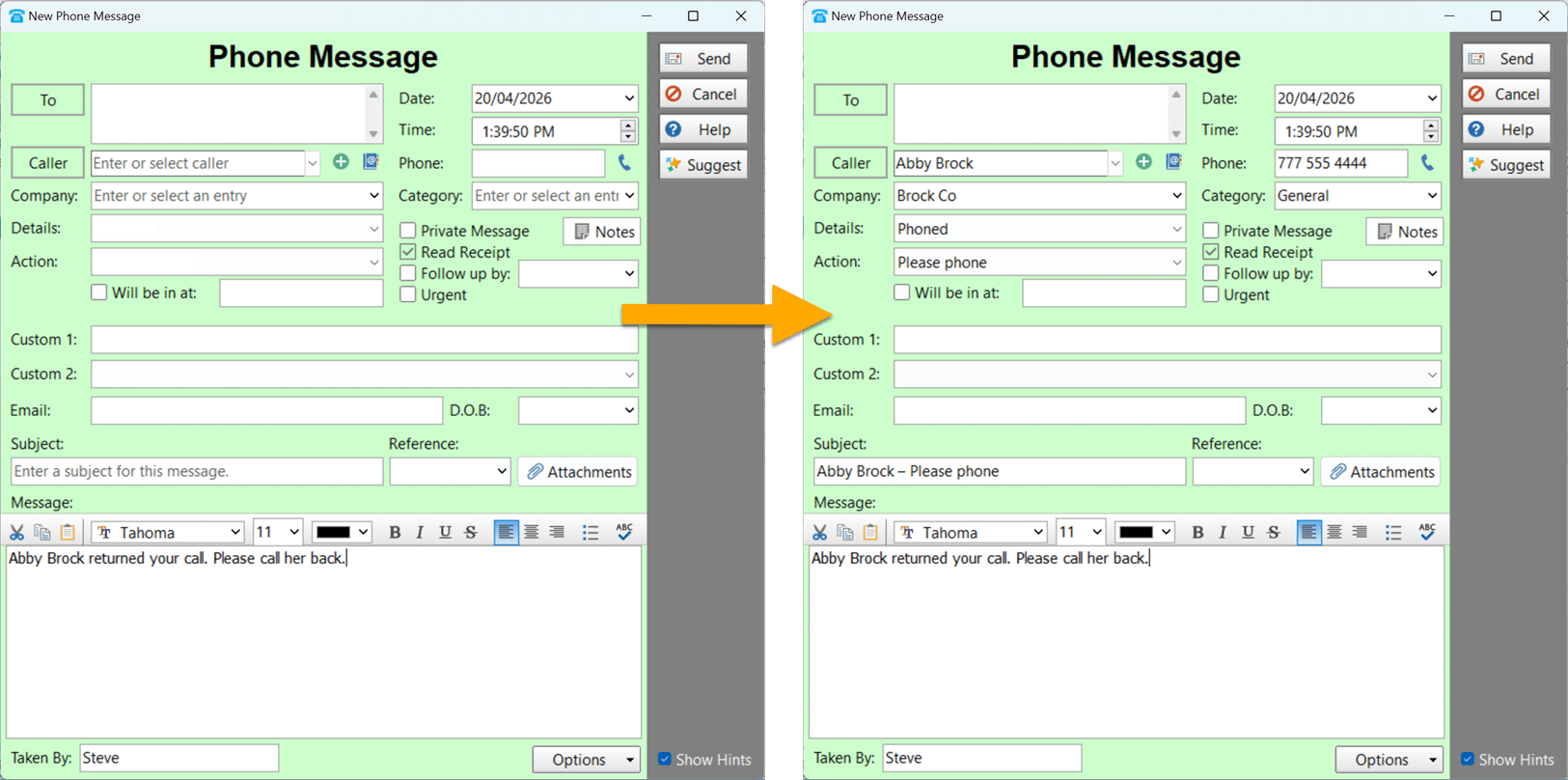 This reduces manual data entry and helps ensure messages are captured quickly and consistently, while still allowing you to edit anything at any time.
It’s like having a receptionist helping you fill out the form as you go.
For example:
- Typing “Please call Abby Brock urgently” can automatically set the caller, action, and urgency
- Typing “Call client tomorrow” can suggest a follow-up date
New Data Migration Tool
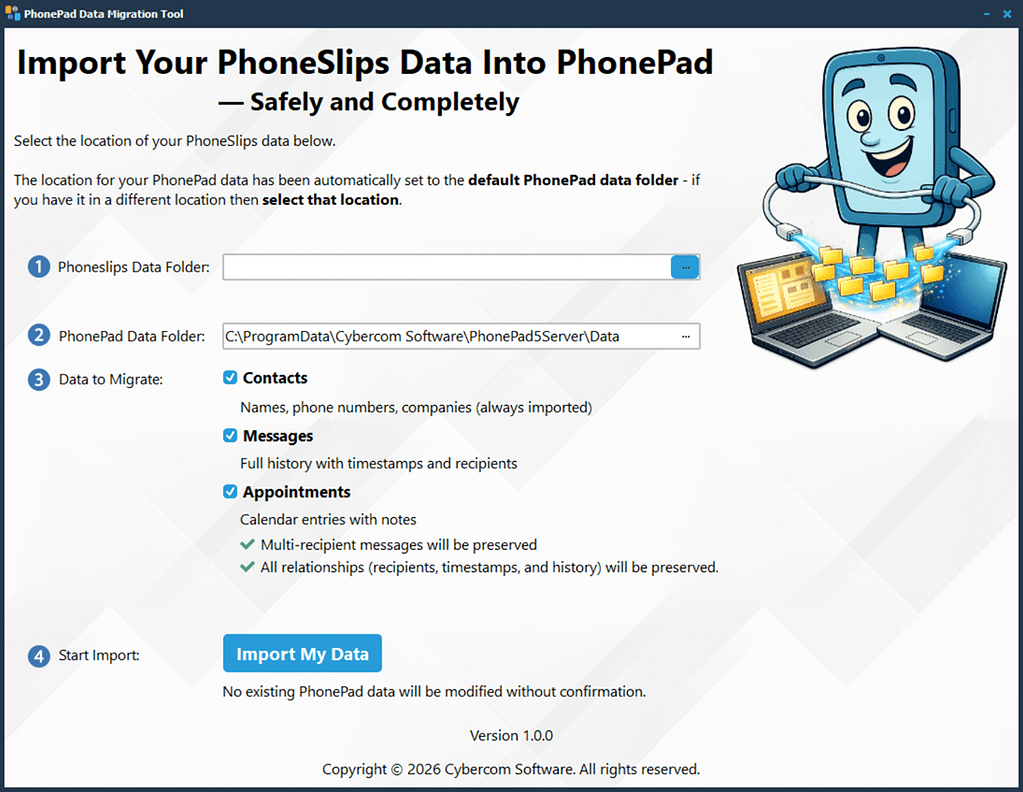
Switching to PhonePad is now easier than ever.
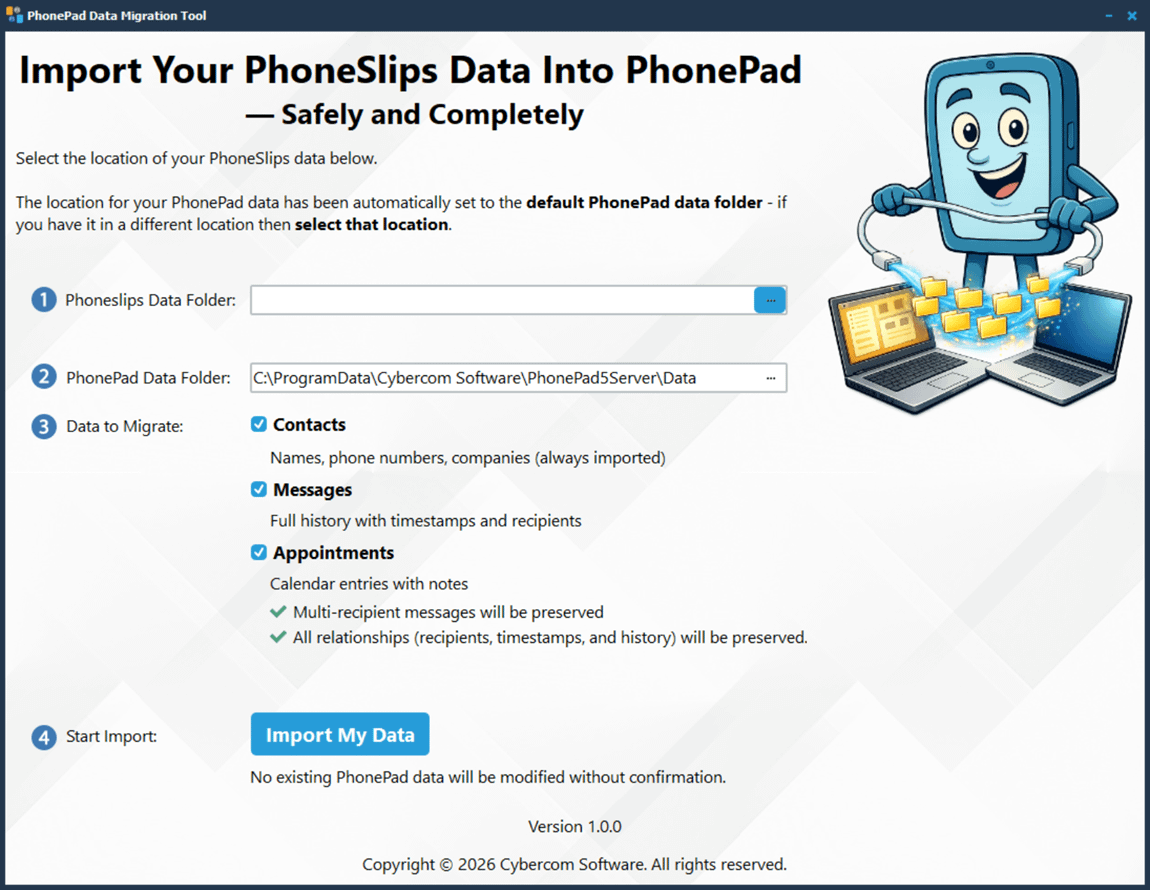
The migration tool also supports importing data from PhoneSlips, making it easy to move across to PhonePad without losing your existing data.
 Changes in This Release
- NEW: Smart Suggestions for Phone Messages
- NEW: Data migration tool for Phoneslips users.
- Minor fixes and improvements.
These improvements are part of our ongoing effort to make PhonePad faster, smarter, and easier to use.
We hope you enjoy the update.
Important Information About MessageSender
This release is only compatible with MessageSender Version 6.26.0 or later. If you don’t use MessageSender then you don’t need to worry about this.
Problems?
We’re human too. We haven’t been replaced by some algorithm – yet – but who knows what the future holds.
 And we’re definitely not perfect. Like most other humans, we can make mistakes. So chances are you may come across something that’s not quite working right. If you do find an error or a bug, please let us know and we’ll fix it as quickly as possible.
Installation Information
Please note: Server Updates must be installed on your Server or Host PC, not your workstation (unless your workstation is also the Host PC) – they cannot be installed directly on your workstations. Make sure all users are logged out of PhonePad as the PhonePad Server will be stopped during the update and then restarted once it has completed. Workstations will be automatically updated when PhonePad 5 Workstation is started on each workstation. Important: When downloading and installing an update from your My PhonePad account, make sure it’s actually the update and not the server setup program.
How Updates Work
Please read: You do not need to install every update between this one and the last update you installed. PhonePad uses a smart update system that compares your current PhonePad system with what’s in the update, works out what changes are required, and then makes those changes. So if you are a few versions behind don’t worry. You can skip all of the updates in between and go straight to this update.
Updates and Anti-Virus Software
Depending on the anti-virus software you use, when you install a Server Update your AV software may class the updated software as a different program due to the change in binary signature. If you experience speed or freezing issues after an update, you may need to reconfigure your AV software to stop real-time scanning of PhonePad. This may need to be done on the both your Server or Host PC, and your workstations.
 Digital Signatures

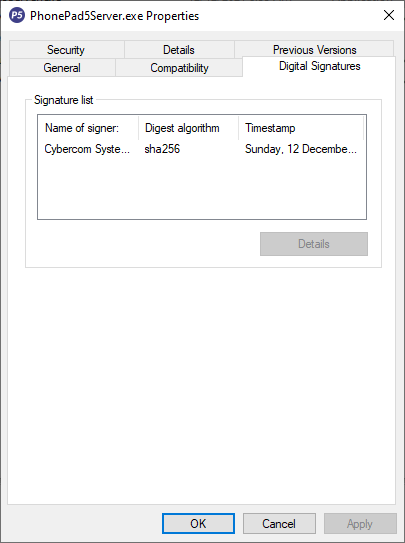
All PhonePad executables and DLLs are digitally signed for your protection.
 You can confirm that a file is safe by right-clicking on it and selecting Properties from the popup menu, and then selecting the Digital Signatures tab.
 Downloading the Update
You can download the update from your My PhonePad account.
If you are a current trial user you can download the update by logging in to My PhonePad Trial using the email address you used to start your trial.
Please contact Support if you have any problems or questions.
Installing Updates
If you’re unsure of how to install updates, please watch the video on this blog post.
If you are a licensed user you will need to have a current PhonePad Care Plan to install this update. If your Care Plan has expired, you will need to renew it before you can install this update. Trial users can install the update if they are still in their trial period.
Update Installation Service
If you would rather have the Server Update installed for you, you can arrange for us to remote connect and install it. The cost is $45 and you can schedule a date and time here: https://www.cybercom-software.com/remote-server-update-assistance.htm .