Manage your phone messages quickly and easily with PhonePad!

PhonePad Version 5.90.1 Has Been Released.

It’s the second week of the New Year and we’re excited to announce the release of PhonePad 5.90.1.

Guided User Interface Help

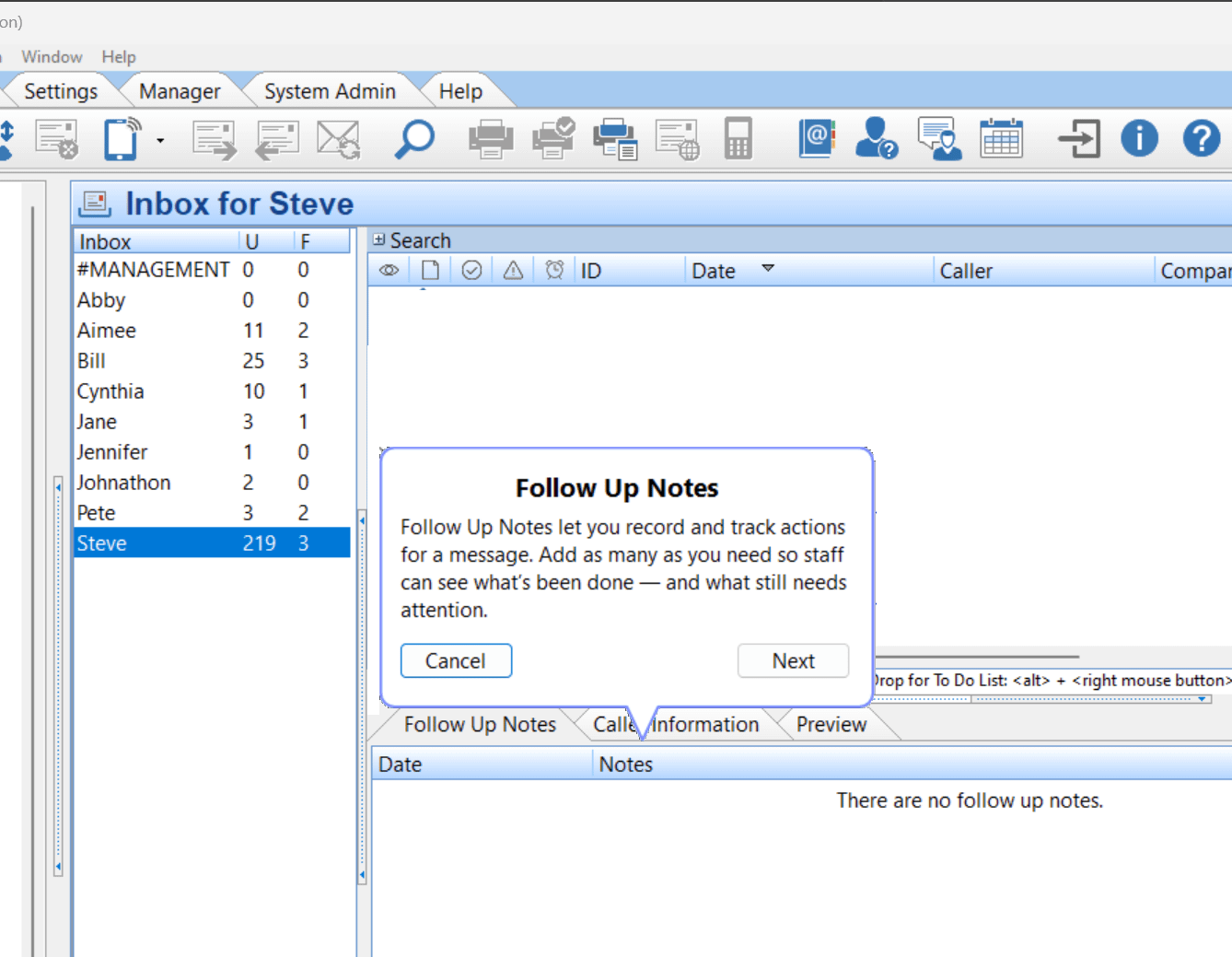
To help new users quickly get comfortable with PhonePad’s main screen, we’ve added Guided Help.

Screenshot of Guided Help feature.It should automatically display when a new user logs in.  You can also access it at any time by selecting Guided Help from the Help menu.

We will be adding more extensive Guided Help in the months to come.

To Do List Follow Up Tasks

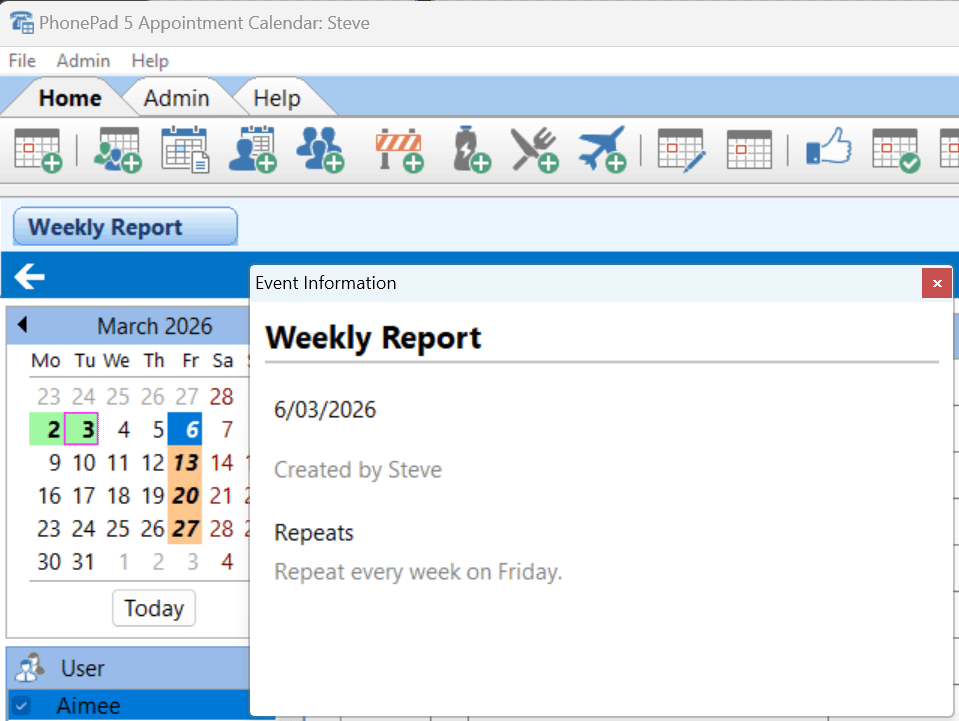
Now there is an easy way to do regular follow ups with clients, not just when they call.

Changes in This Release

  • NEW: Guided User Interface help helps new users to navigate the PhonePad main screen.
  • NEW: Added System Rule to allow editing of Cell/Mobile labels in Address Book contacts.
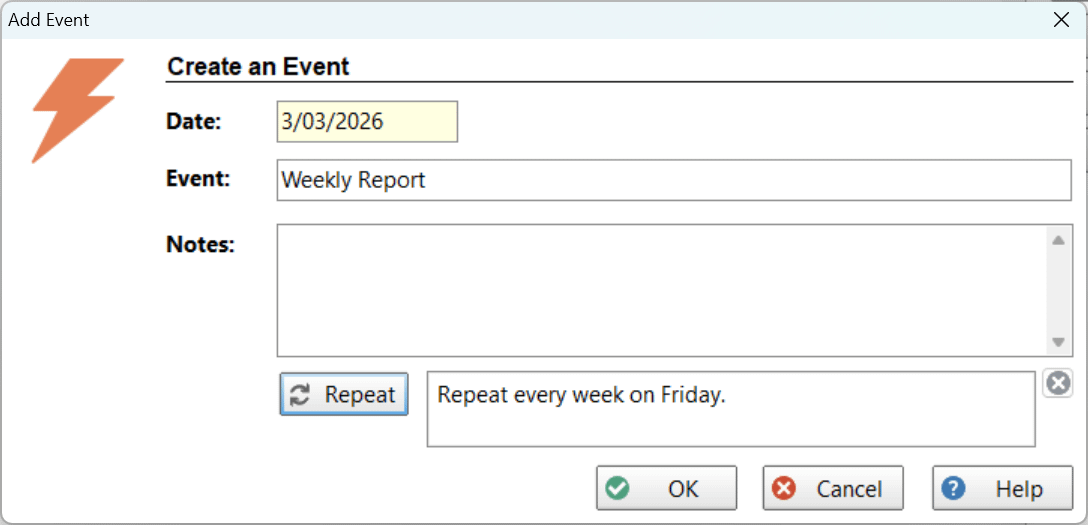
  • NEW: Create contact follow up tasks in the To Do List.
  • UPDATED: Database engine update to Version 2.40 Build 3.
  • IMPROVED: Database performance has been increased.
  • IMPROVED: Address Book can now be kept open as a floating window.
  • IMPROVED: Multiple Address Book contacts can be opened at the same time.
  • FIXED: Issue with creating and changing Groups.
  • FIXED: SendNumber utility wasn’t working.
  • FIXED: The Take Message button (and double-click) wasn’t populating call details in phone messages.
  • Minor fixes and improvements.

Important Information About MessageSender

This release is only compatible with MessageSender Version 6.26.0 or later.  If you don’t use MessageSender then you don’t need to worry about this.

Problems?

We’re human too.  We haven’t been replaced by some algorithm – yet. And we’re definitely not perfect.  Like most other humans, we can make mistakes.  So chances are you may come across something that’s not quite working right.  If you do find an error or a bug, please let us know and we’ll fix it as quickly as possible.

Installation Information

Please note: Server Updates must be installed on your Server or Host PC, not your workstation (unless your workstation is also the Host PC) – they cannot be installed directly on your workstations.  Make sure all users are logged out of PhonePad as the PhonePad Server will be stopped during the update and then restarted once it has completed.  Workstations will be automatically updated when PhonePad 5 Workstation is started on each workstation. Important: When downloading and installing an update from your My PhonePad account, make sure it’s actually the update and not the server setup program.

How Updates Work

Please read: You do not need to install every update between this one and the last update you installed.  PhonePad uses a smart update system that compares your current PhonePad system with what’s in the update, works out what changes are required, and then makes those changes.  So if you are a few versions behind don’t worry.  You can skip all of the updates in between and go straight to this update.

Updates and Anti-Virus Software

Depending on the anti-virus software you use, when you install a Server Update your AV software may class the updated software as a different program due to the change in binary signature.  If you experience speed or freezing issues after an update, you may need to reconfigure your AV software to stop real-time scanning of PhonePad.  This may need to be done on the both your Server or Host PC, and your workstations.

Digital Signatures

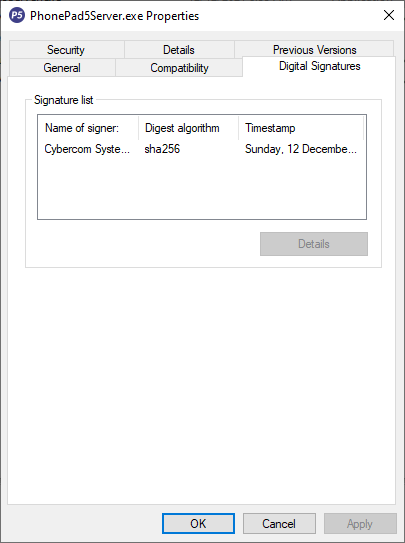
All PhonePad executables and DLLs are digitally signed for your protection.

You can confirm that a file is safe by right-clicking on it and selecting Properties from the popup menu, and then selecting the Digital Signatures tab.

Downloading the Update

You can download the update from your My PhonePad account.

If you are a current trial user you can download the update by logging in to My PhonePad Trial using the email address you used to start your trial.

Please contact Support if you have any problems or questions.

Installing Updates

If you’re unsure of how to install updates, please watch the video on this blog post.

You will need to have a current PhonePad Care Plan to install this update.  If your Care Plan has expired, you will need to renew it before you can install this update.

Update Installation Service

If you would rather have the Server Update installed for you, you can arrange for us to remote connect and install it.  The cost is $45 and you can schedule a date and time here: https://www.cybercom-software.com/remote-server-update-assistance.htm .

Happy New Year!

A brand new year is here, and Cybercom Software is already hard at work behind the scenes working on new versions of PhonePad .

While everyone else is making resolutions, we’ve been quietly building — dreaming up thoughtful improvements and new features designed to make your day smoother, faster, and far less “where did that message go?”

No spoilers just yet… but 2026 is shaping up to be an exciting year for PhonePad.

Everything we’re working on fits naturally into the way you already work — no clutter, no complexity, just smarter tools doing their job quietly and reliably.

Stay tuned. The best version of PhonePad yet is on the way.

Phone Dude welcoming in the New Year.

Christmas Support Hours (Yes, We’re Mostly Still Here).

Christmas is that magical time of year when inboxes slow down, offices get quieter, and someone inevitably eats one too many mince pies.

The good news? Our support doesn’t disappear just because there’s tinsel involved.

Here’s the simple version

We’ll be providing normal support right through the Christmas period, with just two small exceptions:

  • Christmas Day
  • Boxing Day

On those two days, our support team will be:

  • Spending time with family
  • Eating food that does not come in sensible portions
  • Politely ignoring email notifications

(They’ve earned it.)

Phone Dude untangling Christmas LightsWhat about the rest of the holidays?

Every other day? Business as usual.

That includes:

  • Before Christmas
  • Between Christmas and New Year
  • The strange “What day even is it?” zone after Boxing Day

If you need help, have a question, or something isn’t behaving the way it should, just reach out as normal and we’ll take care of it.

If you contact us on Christmas Day or Boxing Day…

No need to panic — your message won’t vanish into a festive black hole.

We’ll pick it up and respond as soon as support resumes.
(Probably with slightly less gravy on our keyboards.)

From all of us here, we’d like to wish you a safe, relaxed, and interruption-free Christmas — and thank you for being part of our community.

And remember: If something goes wrong with your software, at least it’s not the oven.

Why You Should Be Using PhonePad’s Caller ID Feature.

Caller ID Software That Helps Offices Never Miss a Call

Every business relies on phone calls — yet most offices still answer the phone with no context at all.

Who’s calling?
Have they called before?
Was this number missed yesterday?
Is this an important client or a first-time enquiry?

PhonePad’s Caller ID feature answers all of those questions before the call is even answered — and that’s why it’s one of the most valuable (and underused) features in PhonePad.

Business Woman on Phone What Is PhonePad’s Caller ID Feature?

PhonePad’s Caller ID is more than basic number display.

When an incoming call is received, PhonePad automatically:

  • Looks up the phone number in the PhonePad Address Book.
  • Displays the caller’s name and where they’re from.
  • Shows relevant stored information instantly.

This gives reception staff immediate context, helping them respond professionally and efficiently every time.

Instantly Identify Callers Before You Answer

Instead of answering calls blind, PhonePad displays caller details the moment the phone rings.

This allows staff to:

  • Greet callers by name.
  • Recognize repeat or VIP callers.
  • Handle calls more confidently and professionally.
  • Reduce awkward pauses and unnecessary questions.

Caller ID NotificationFor the caller, it feels personal and organized.

For your staff, it removes pressure and guesswork.

Capture Every Incoming Call — Even Missed Ones

Missed calls are one of the biggest sources of lost business.

PhonePad automatically records all incoming calls, including:

  • Calls received outside office hours.
  • Calls missed when the phone is unattended.
  • Calls that rang out during busy periods.

Users can view the complete call list and even:

  • Select a missed call and create a PhonePad message from it.
  • Follow up without relying on memory or paper notes.

Nothing gets forgotten. Nothing slips through the cracks.

View Complete Call History in One Place

PhonePad maintains a clear, searchable history of:

  • Incoming calls.
  • Outgoing calls.
  • Caller names and companies.
  • Phone numbers and timestamps.

This is invaluable for:

  • Checking whether someone called.
  • Confirming call activity.
  • Supporting staff accountability.
  • Reviewing communication history with clients.

It’s phone call tracking made practical — not complicated.

Images shows incoming and outgoing calls.Track Call Volume and Spot Patterns Over Time

PhonePad also tracks how many calls your office receives and presents it visually in a call history graph.

This helps you:

  • Identify peak call times.
  • Understand workload at reception.
  • Make better staffing and scheduling decisions.
  • Gain insight into office phone activity.

Most offices don’t realize how useful this information is — until they can finally see it.

Call HistoryWhy Caller ID Matters for Professional Offices

PhonePad’s Caller ID is especially valuable for:

  • Law firms.
  • Medical practices.
  • Accountants.
  • Small to medium businesses with reception staff.

It creates:

  • Consistency across shared phones.
  • Confidence for staff covering reception.
  • A better experience for callers.
  • A clear record of phone activity.

And it does all this automatically, in the background.

Office Workers SmilingThe Bottom Line

PhonePad’s Caller ID feature turns phone calls from interruptions into organized, trackable interactions.

It helps your office:

  • Sound professional on every call.
  • Never miss or forget a caller.
  • Reduce errors and confusion.
  • Gain visibility into call activity.

Once you’re used to having this information instantly available, answering calls without it feels like stepping back in time.

Device Compatibility & Caller ID Hardware

(A quick, honest note)

Some PhonePad Caller ID features rely on compatible Caller ID hardware devices, such as those available from CallerID.com.

These devices provide the incoming caller information that PhonePad uses to:

  • Identify callers.
  • Display caller details on screen.
  • Log incoming call activity automatically.

If compatible Caller ID hardware is already in place, PhonePad can take full advantage of the information it provides.

If not, suitable devices are readily available and easy to add to existing phone systems.

The result is a flexible setup:

  • PhonePad works with supported Caller ID devices.
  • You’re not locked into proprietary phone systems.
  • You can choose hardware that suits your office environment.

This ensures PhonePad integrates smoothly with real-world office phone setups — not just idealized ones.

If you have an existing phone system and are unsure about compatibility, let us know. We’re happy to review your setup and do our best to integrate PhonePad with it.

Ready to Stop Guessing Who’s Calling?

If you’re already using PhonePad, make sure Caller ID is fully enabled and your Address Book is up to date — you’ll see the benefits immediately.

If you’re not using PhonePad yet, this is just one of the many ways it helps offices manage calls properly.

Your phone rings every day.

You may as well know who’s on the other end.

Things Are Happening…..

Security guard not too sure about what's happening in the PhonePad Development LabBehind closed doors we are working on a couple of exciting new versions of PhonePad™.  There’s lots of activity, noise, and a good dose of chaos happening.

We can’t reveal exactly what’s in these releases but we think you are going to be surprised, and happy, when you see them, especially if you have a current PhonePad Care Plan.

‘Nuff said.  Details to follow.  Stay tuned.

10 Best Practices Real Offices Use to Stay Organized With PhonePad.

10 Best Practices Real Offices Use to Stay Organized With PhonePad

(And Avoid the “Who Lost That Message?!” Office Meltdown)

A woman showing 10 fingers.Running a busy office is a bit like juggling flaming chainsaws while someone keeps handing you more chainsaws.

Calls come in, messages need to be passed on, clients are waiting for call-backs, deadlines creep up, and let’s be honest — some days it feels like the whole thing is held together with sticky notes and hope.

That’s where PhonePad comes in.

But here’s the secret most high-performing offices know:

PhonePad isn’t just software — it’s a system. And the offices that follow the right habits get the biggest results.

After working with thousands of businesses, we’ve seen the patterns.
The most organized, efficient, low-stress offices all do the same things.

Here are the 10 best practices real teams use every day to stay on top of everything and keep their workloads under control.

1 – Log Every Call — Even the Small, “I’ll Remember It” Ones

A woman logging a phone call.
The #1 cause of office chaos?

The informal call.

“Oh yeah, I’ll just tell Sarah you rang.”

Nope.

That’s how messages vanish into the void.

Top offices log every call, big or small.

It takes seconds, and it prevents hours of detective work later.

PhonePad makes that easy — and your future self will thank you.

2 – Use Follow-Ups Like Your Life Depends on It

A computer with a list of tasks completed, and a woman holding a clipboard.The busiest offices don’t rely on memory.
They use follow-ups for everything:

  • Call-backs
  • Reminders
  • Client chases
  • Pending approvals
  • Outstanding tasks

One tiny habit = no more “Oops, I forgot to call them back.”

3 – Use Shared Inboxes Instead of Interrupting Each Other

A woman pointing to a list of Inboxes on a computer screen.
Reception out sick?

Someone on lunch?

Someone working from home?

No problem.

Access their PhonePad Inbox and keep moving.

This single feature eliminates half of the “Hey, do you know where that message is?” interruptions.

4 – Keep the Address Book Clean and Centralized

A woman looking at contacts in an Address Book on her computer.
Smart offices keep their Address Book tidy:

  • Merge duplicates
  • Update phone numbers
  • Add client notes
  • Attach documents
  • Keep everyone using the same records

This becomes your single source of truth, instead of each staff member storing contacts in their own private universe.

5 – Check Caller History Before Returning Calls

A man checking caller history on his computer.
High-performing teams never return calls blind.

They quickly scan Caller History first:

  • Who spoke to them last
  • What was discussed
  • What they’re expecting
  • Any follow-up notes

This makes your office look organized, professional, and “on the ball.”

6 – Use the To Do List for Shared Tasks

Man and Woman looking at a To Do List on a computer screen.
The built-in multi-user To Do List is a hidden gem.

Offices use it to coordinate:

  • Admin duties
  • Reception tasks
  • Daily routines
  • Private items
  • Shared responsibilities

It becomes the team’s “shared brain,” keeping everyone aligned.

7 – Keep PhonePad Open All Day

Woman working on her computerSounds obvious… but you’d be surprised.

The most efficient offices keep PhonePad running all day because:

  • Messages appear instantly
  • Follow-ups pop up on time
  • Notifications aren’t missed

Closing PhonePad is like turning off your phone — you miss everything.

8 – Use Categories and Priorities Consistently

Man and woman reviewing work on computer screen.
Teams who thrive with PhonePad use categories like:

  • Urgent
  • Billing
  • Sales
  • Support
  • Call-back

And the key is: everyone uses the same rules.

It keeps things neat, clear, and easy to filter.

9 – Review Completed Messages Weekly

Man and woman reviewing completed messages.
This one only takes 3–5 minutes.

Smart offices quickly review their completed messages to:

  • Spot missed follow-ups
  • Catch unresolved issues
  • Identify client patterns

It’s a tiny weekly ritual with a huge payoff.

10 – Use a Consistent, Friendly Message Style

Man and woman reviewing phone message style on computer display.
Different staff write messages differently…
…which means clients sometimes get messages like these:

  • “He rang.”
  • “Call back.”
  • “???”

Not helpful.

The top offices use a clear structure, for example:

“John Smith called at 10:42 AM regarding his upcoming appointment. Please call him back on 0412 345 678.”

Easy to read, easy to understand.

Bonus: Don’t Rely on Memory — Let PhonePad Do the Heavy Lifting

Woman explaining to man not to rely on memory.
Your team shouldn’t have to mentally track 30 half-finished tasks per day.
PhonePad is designed to:

  • Remember
  • Remind
  • Organize
  • Keep things moving
  • Reduce stress
  • Prevent lost messages

Use it fully, and it becomes the calm, reliable system your office needs.

Wrapping Up

The offices that follow these best practices aren’t just “using” PhonePad — they’re mastering it.

They have:

  • Fewer missed calls
  • Better communication
  • Happier clients
  • A calmer, more organized workplace
  • Staff who aren’t drowning in tasks

You don’t need to learn all of these at once.

Just start with one or two and build from there.

Before long, you’ll wonder how your office ever survived without PhonePad.


They Came for Peace… and Better Call Management.

Something Strange is Going On

Something is happening in this office building… late at night… when everyone’s gone home.

And it’s not the cleaning lady.

Security cameras flicker. Paper flutters. The glow of a computer screen pulses faintly in the dark.

A soft hum fills the air — mechanical, rhythmic, almost alive.

Outside, clouds part to reveal a silent shape hovering above.

A beam of light cuts through the night and locks onto a desk inside.

Pens rattle. Sticky notes take flight.

And then — with a surge of energy it vanishes.

The Visitors Have Good Taste

It seems even they grew tired of lost messages and missed calls.

Somewhere in the vast silence of space, an intelligence noticed Earth’s greatest flaw — our inability to stay organized.

The endless ringing interstellar communication devices. The half-written notes. The chaos that thrives when no one’s paying attention.

So they came looking for a solution.

And what they found was PhonePad — the one piece of technology that Little Alien Guy Looking to his rightbrings order to human communication.

Maybe they took it to study it.

Maybe to use it.

Or maybe they just needed to tidy up their own intergalactic switchboard.

Whatever the reason, one thing’s clear: they recognized what we often forget — we’re hopeless without order.

If you’ve ever arrived on Monday to find twenty voicemails, three misplaced Post-its, and one very annoyed client, you know the feeling.

Chaos doesn’t just waste time. It drains focus, energy, and sanity.

PhonePad fixes that — quietly, efficiently, beautifully.

Order in the Chaos

PhonePad brings calm to communication.

Every call is logged. Every message is shared. Every team member knows what’s going on.

It’s like mission control for your office — without the rocket fuel.

  • No more lost messages
  • No more “Who spoke to them last?”
  • No more mystery notes on the desk

It’s the simplest way to organize every call in one place.

No abductions required.

The Truth Is Out There — and It’s Organized

Forget boring demos and endless dashboards.

The real magic of PhonePad isn’t in the features — it’s in the silence that follows.

The phones stop ringing in panic. The team moves in sync. Clients are happy. The chaos fades.

Even an extraterrestrial, with all their advanced tech, recognized that clarity is the real power.

Experience the Calm Before the Beam

If you’re ready to bring peace to your office (and maybe impress a few extraterrestrials), start your free 30-day trial today.

No credit card.  No commitments.  No mysterious humming at 3 a.m.
Just simple, beautiful organization.

Try PhonePad Free.

And next time the lights flicker in your office…maybe it’s not the cleaning lady after all.

The New, Easy Way to Install Server Updates.

Meet the New Server Update Program for PhonePad

Let’s face it—keeping your software up to date isn’t exactly the most thrilling part of your day.

You’ve got better things to do than hunt for updates, juggle version numbers, and wonder if your server’s still running last year’s code.

That’s where the new Server Update program swoops in like a tech-savvy superhero.

New Server Update ProgramWith just a couple of clicks, it checks the version of PhonePad installed on your server and lets you know if a shiny new update is waiting for you.

If there is—boom!—you can download and install it right there and then.

No detective work, no manual downloads, no “Did I already install this one?” moments.

In short:

  • You check.
  • You update.
  • You get back to doing something more fun (like literally anything else).

You can download Server Update today.

It will also be included in the next update.


Why Every Office Needs an Octopus (And How PhonePad Is Yours).

PhonePad – Your Office Octopus

If you’ve ever wished you had eight arms to manage everything at once, you’re not alone.

Between answering calls, logging messages, chasing follow-ups, and reminding everyone of their tasks, running an office can sometimes feel like juggling eels — slippery and stressful.

That’s where PhonePad steps in.

Think of it as your very own office octopus — calm, clever, and effortlessly multitasking.

Eight Arms of Office Efficiency

While you’re handling clients or closing deals, PhonePad is quietly working in the background — doing what it does best: everything.

Here’s what each “arm” of your digital octopus takes care of:

  • Log Calls – Every call recorded and organized. No scribbled notes or “Who was that?” moments.
  • Handle Follow Ups – Never forget a call-back again. PhonePad remembers so you don’t have to.
  • Reminders – Gentle nudges to keep you and your team on track.
  • To Do List – Manage personal and shared tasks seamlessly.
  • Web Access – Your office just went mobile.
  • Route Messages – Ensure the right message reaches the right person, instantly.
  • Call History – Every conversation, at your fingertips.
  • Address Book – Your entire contact network, beautifully organized.

Of course, this is just a small example of what PhonePad does – our Octopus should probably have 20 legs.

Why It Works

The secret to an organized office isn’t just doing more — it’s delegating better.

PhonePad doesn’t replace your team. It amplifies them — by keeping communication smooth, tracking every detail, and handling the routine stuff automatically.

That means fewer dropped balls, fewer sticky notes, and far fewer “Did anyone call them back?” moments.

The Calm Beneath the Chaos

PhonePad is that rare kind of software that actually makes work feel easier — not busier.

It streamlines, automates, and simplifies.

You get to focus on what really matters — while your virtual octopus takes care of the rest.

So take a deep breath.

Let PhonePad’s eight digital arms handle the multitasking.
And enjoy watching your office run smoother than ever.

PhonePad – the Octopus of Office Efficiency.

Overwhelmed by Sticky Notes?

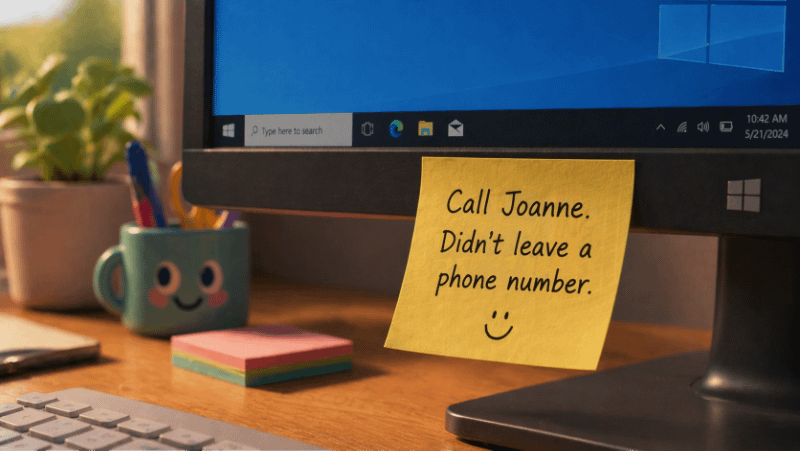
You know, you can go too far when you use sticky notes for logging phone calls.

It starts with one… then two… and before you know it, your monitor looks like it’s wearing a yellow fur coat.

Soon you’re drowning in notes — “Call John back”, “Reschedule with Sarah”, “Urgent Message!!” — and none of them actually make it to your to-do list.

Next thing you know, you’re missing calls, losing customers, and discovering that sticky notes don’t make good long-term data storage systems (who knew?).

Could This Happen to You…..

The Sticky Truth

Sticky notes were designed for quick reminders, not as a customer management tool.

They don’t remind you automatically.

They don’t share updates with your team.

And they definitely don’t back themselves up when a gust of wind hits your desk or the cleaner gets enthusiastic with the duster.

It’s funny… until it’s not.

That one lost message could be the difference between a happy customer and a bad review.

There’s a Better Way

Protect the environment and your sanity by replacing your sticky notes with a professional phone call logging, tracking, and management system — PhonePad.

  • Log every call instantly
  • Share messages across your team
  • Track follow-ups automatically
  • Never lose a call again

You’ll wonder how you ever survived without it. (And your desk will finally be visible again.)

Phone Dog Tearing Up Sticky NotesStop the sticky note madness.

Switch to PhonePad — and give your desk (and your brain) the clean break they deserve.

Try PhonePad Free for 30 Days